reyemsaibot

SAP BI Blog about SAP BW/4HANA, Analysis for Office and SAP HANA - by Tobias Meyer

Schlagwort: api

  • Get all table sizes and records in SAP Datasphere

    If you come from the good old SAP Business Warehouse, you will remember the DB02 transaction. This transaction could show you all the tables in your system and how big they were. I showed an
    example on LinkedIn last year

    DB02 (Screenshot by sapbasisinfo.com)
    DB02 (Screenshot by sapbasisinfo.com)

    In SAP Datasphere, you have something similar in the Space Management Monitor. It lists all tables and persistent views with their size and number of records.
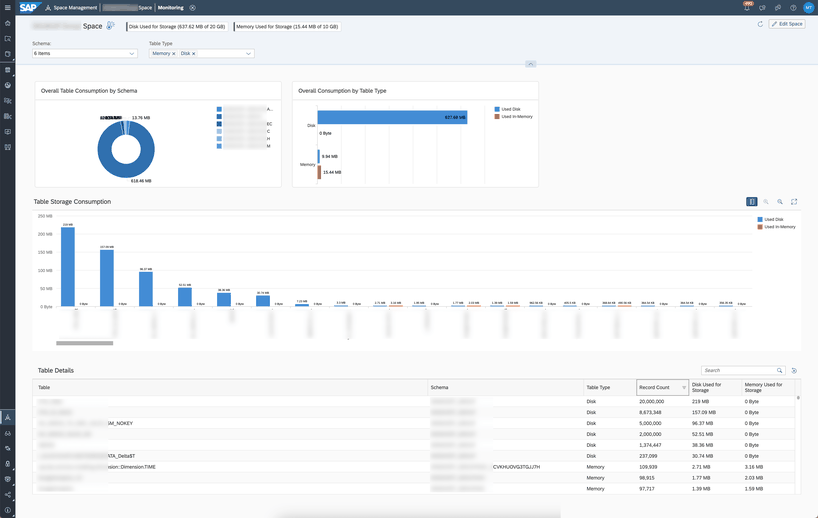
    Datasphere: Space Monitor
    Datasphere: Space Monitor

    This is nice, but not ideal, because it is limited to the space you have chosen. I have written a little Python program that shows you all the tables and persistent views in one overview. At the
    moment I always use Excel for the output, but you can modify this line and write it in the terminal or any other application.


    The full source code is available on my GitHub
    repository. But I will explain how it works here. As you know, authentication is moved to a separate class, so I don’t need it in all my programs again.

    Start with the main function.

    if __name__ == "__main__":
        parser = argparse.ArgumentParser(description="Get an overview of all tables over all spaces")
        parser.add_argument("-f", "--file", required=True, help="Path of parameter file")
        args = parser.parse_args()
    
        with open(args.file, 'r') as f:
            config = json.load(f)
    
        secrets_file = config["SETTINGS"]["secrets_file"]
        token_file = config["SETTINGS"]["token_file"]
        dsp_host = config["DATASPHERE"]["dsp_host"]
    
        # Now roll the dice and go to work
        print("Started...")
        get_database_tables()
        print("Ended")
    

    The tool has only one parameter which I use to read a JSON file for all the necessary information like, secret, token, URL and so on. The whole logic is based on my function
    get_database_tables.

    Get Database Tables

    Here you have the OAuth first, and then I read the URL for all the spaces. The URL is https://xyz.eu10.hcs.cloud.sap/dwaas-core/api/v1/spaces

    def get_database_tables():
        header = utils.initializeGetOAuthSession(token_file, secrets_file)
        database_tables = []
    
        url = utils.get_url(dsp_host, 'list_of_spaces')
        response = requests.get(url,headers=header)
        space_list = response.json()
    

    So now I have a list of all the spaces in my tenant and I go through each space with
    this URL https://xyz.eu10.hcs.cloud.sap/dwaas-core/resources/spaces?tables=true&spaceids={spaceID}


    There I have to change the SpaceID with each space, then loop through all the tables of my space and calculate all the key figures like used disk, used memory and records.

        for spaceID in space_list:
            url = utils.get_url(dsp_host, 'space_tables').format(**{"spaceID": spaceID})
            response = requests.get(url, headers=header)
            space_json = response.json()
            try:
                for table in space_json[spaceID]['tables']:
                    tableName = table['tableName']
                    usedDisk = round((table['usedDisk'] / 1000 / 1000),2) # MB
                    usedMemory = round(table['usedMemory'] / 1000 / 1000,2)
                    records = table['recordCount']
                    database_tables.append((spaceID, tableName, usedDisk, usedMemory, records))
            except KeyError:
                continue
    

    Then I publish it in my Excel file.


        df = pd.DataFrame(database_tables, columns=['Space', 'Table Name', 'Used Disk', 'Used Memory', 'Records'])
        df.to_excel(excel_file, sheet_name='Sheet1', index=False)
    

    This is the result: 
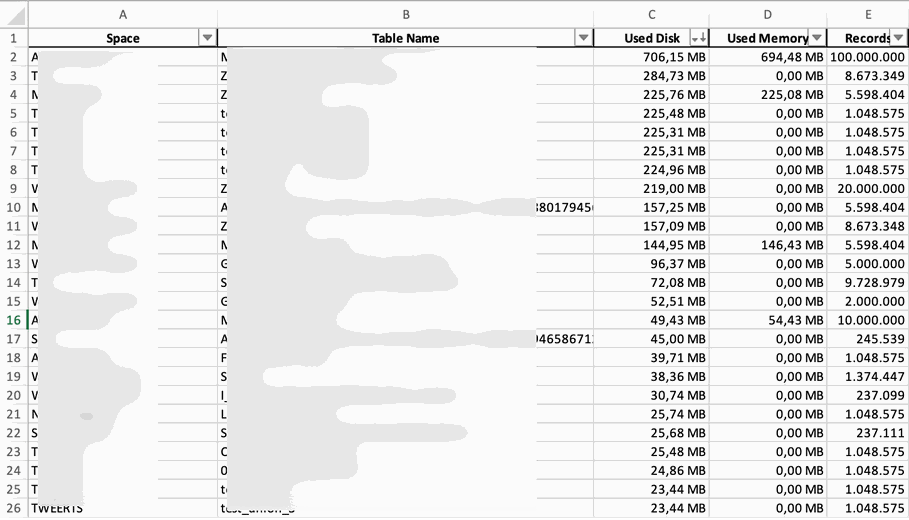
    Overview of all tables
    Overview of all tables

    Conclusion

    So now I have all the tables in one place and can see if something is wrong across the tenant. I hope you like this, and if you have any questions, use the comments below. 

    author.


    Hi,

    I am Tobias, I write this blog since 2014, you can find me on LinkedIn and
    YouTube. I work as a Data &
    Analytics Consultant. If you want, you can leave me a PayPal coffee donation.
    You can also contact me directly if you want.


  • Get all exposed views from SAP Datasphere

    Now that we know how to authenticate to the SAP Datasphere API. We can now look at my example that I posted on LinkedIn last year. The goal is to get all the views that are exposed for
    consumption. If you set this flag, you can consume this view with a 3rd party tool such as PowerBi. 


    So if a view is flagged as exposed for consumption, this could be a data leakage issue if there is no Data Access Control (DAC) in place. So I also want to see if a view is exposed
    and if so, if it has a Data Access Control assigned to it. This allows me to identify incorrectly exposed views and see if anyone has access to data without DACs.


    All code examples are available on my GitHub repository


    Every tool has the authentication part, so I moved it to a separate class. If you want to know how to build it, read the last blog post.

    1. Start the program

    So let’s start with the explanation of the program. As I will be using it from the terminal, I want to parametrize it and not have any fixed values inside. To do this, I use the
    ArgumentParser for the config file and the space name I want to check. I read the parameter for all the necessary information like the host, the password and so on from it.

    if __name__ == "__main__":
    
        parser = argparse.ArgumentParser(description="Get all exposed views of a space")
    
        parser.add_argument("-f", "--file", required=True, help="Path of parameter file")
        parser.add_argument("-s", "--space", required=True, help="Space")
    
        args = parser.parse_args()
    
        with open(args.file, 'r') as f:
            config = json.load(f)
    
        dsp_host = config["DATASPHERE"]["dsp_host"]
        dsp_space = args.space
        hdb_address = config["HDB"]["hdb_address"]
        hdb_port = config["HDB"]["hdb_port"]
        hdb_user = config["HDB"]["hdb_user"]
        hdb_password = config["HDB"]["hdb_password"]
    
        # Now roll the dice and go to work
        print("Started...")
        get_exposed_views()
        print("Ended")
    

    I always use this logic, so I don’t have to declare all the information in each tool.  The JSON file I read has the following structure:


    {
      "DATASPHERE": {
        "dsp_host": "https://xyz.eu10.hcs.cloud.sap"
      },
      "HDB": {
        "hdb_address": "xyz.hana.prod-eu10.hanacloud.ondemand.com",
        "hdb_port": 443,
        "hdb_user": "user",
        "hdb_password": "password"
      },
      "SETTINGS": {
        "secrets_file": "secret.json",
        "token_file": "token.json",
        "deploy_wait_time_in_seconds": 0,
        "export_folder_path": "",   
        "view_name_prefix": "1GV",
        "start_technical_name": 7
      }
    }
    

    Get all csn files

    The main function is the get_exposed_views function. There is the logon to the HANA Cloud Database to get the CSN annotations of all objects.


    def get_csn_files():
        # Connect to HDB
        conn = dbapi.connect(
            address=hdb_address,
            port=int(hdb_port),
            user=hdb_user,
            password=hdb_password
        )
        cursor = conn.cursor()
    
        # select statement to fetch csn's. Selection on highest ARTIFACT_VERSION for each object.
        st = f'''
            SELECT A.ARTIFACT_NAME, A.CSN, A.ARTIFACT_VERSION
            FROM "{dsp_space}$TEC"."$$DEPLOY_ARTIFACTS$$" A
            INNER JOIN (
              SELECT ARTIFACT_NAME, MAX(ARTIFACT_VERSION) AS MAX_ARTIFACT_VERSION
              FROM "{dsp_space}$TEC"."$$DEPLOY_ARTIFACTS$$"
              WHERE SCHEMA_NAME = '{dsp_space}' AND ARTIFACT_NAME NOT LIKE '%$%' AND PLUGIN_NAME in ('tableFunction', 'InAModel')
              GROUP BY ARTIFACT_NAME
    
            ) B
            ON A.ARTIFACT_NAME = B.ARTIFACT_NAME
            AND A.ARTIFACT_VERSION = B.MAX_ARTIFACT_VERSION;
        '''
        cursor.execute(st)
        rows = cursor.fetchall()
        conn.close()
        total_rows = len(rows)
        print('Total rows: ' + str(total_rows))
        return rows
    

    As you can see, we are selecting the csn column from the $TEC schema of the previously provided space. And return the rows to the get_exposed_views function.

    Get exposed views

    Once we have all the objects, we can loop through the CSN definitions of the objects. In the CSN annotation, there is a key called „consumption.external“. So we can read this parameter and see if
    a view is exposed or not.


    def get_exposed_views():
        exposedViews = []
        dac_objects = []
        dac_items = []
    
        # Get objects which are exposed
        csn_files = get_csn_files()
    
        for csn in csn_files:
            csn = csn[1]
            csn_loaded = json.loads(csn)
            dac_objects.clear()
            dac_items.clear()
    
            objectName = list(csn_loaded['definitions'].keys())[0]
            label = csn_loaded['definitions'][objectName]['@EndUserText.label']
            try:
                exposed = csn_loaded['definitions'][objectName]['@DataWarehouse.consumption.external']
            except KeyError:
                exposed = False
    

    The next check is to see if the object has a Data Access Control (DAC) assigned to it. For this we have the key „dataAccessControl.usage“ which shows the information. 


            try:
                for dac in csn_loaded['definitions'][objectName]['@DataWarehouse.dataAccessControl.usage']:
    
                    if len(dac['on']) == 3: # one column mapping
                        dac_items.append(dac['on'][0]['ref'][0])
    
                    if len(dac['on']) == 7: # two column mapping
                        dac_items.append(dac['on'][0]['ref'][0])
                        dac_items.append(dac['on'][4]['ref'][0])
    
                    dac_objects.append(dac["target"])
    
            except KeyError:
                dac_items.clear()
                dac_objects.clear()
    

    At the end I create a list which I publish via a Pandas data frame to Excel and format this Excel in the right way.


            exposedViews.append((dsp_space, objectName, label, exposed, ', '.join(f'{item}' for item in dac_items), ', '.join(f'{object}' for object in dac_objects)))
    
        df = pd.DataFrame(exposedViews, columns=['Space', 'Object', 'Description', 'Exposed', 'DAC Item', 'DAC Object'])
        df.to_excel(excel_file, sheet_name='Sheet1', index=False)
    
        # Format Excel
        utils.format_excel(excel_file)
    

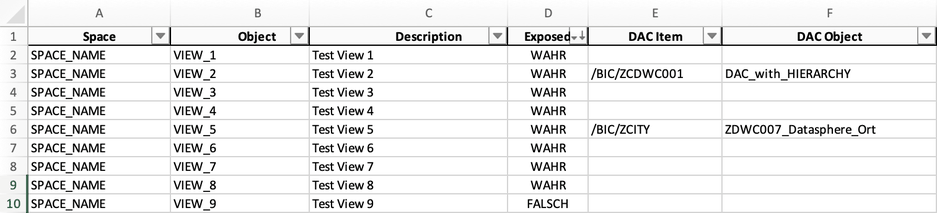
    Output

    Output of all exposed views in Excel
    Output of all exposed views in Excel

    Conclusion

    This is the magic to get all the views that are exposed and have a data access control assigned or not. This is the first of many ideas I would like to share with you using the Datasphere
    API and HANA Cloud Database. 


    Thanks again to Andreas Dietz for the initial idea. Please share your thoughts in the comments.

    author.


    Hi,

    I am Tobias, I write this blog since 2014, you can find me on LinkedIn and
    YouTube. I work as a Data &
    Analytics Consultant. If you want, you can leave me a PayPal coffee donation.
    You can also contact me directly if you want.