It has been a while since I wrote the last blog post. But there happened a lot in the last two months. We had our Deep Dives about Self Service with SAP Data Analytics Cloud Architecture and I
had also some weeks of vacation. Now I am back from my vacation, and now I want to share some ideas I had in the last months.
This post is about Microsoft PowerPoint and how I use it to create a master PowerPoint file for different purposes. The idea was to have one place for all my SAP Data Warehouse Cloud slides and
use them in different customer scenarios.
Therefore, I search a little what I can do. If you have Microsoft Office 365, PowerPoint has the option of Custom Slide Shows under the tab Slide Show.

This is nice, but not very handy. Because you have to add and sort all slides manually and also when a new slide is added you have to move it in the right position. Another problem is that when
you have page numbers on your slide, in all presentations the slides have the page number, which is the slide number in your main presentation.
For example, you use in a custom show slide the slide 1, 4 and 6 your page numbers in the show will not be 1,2 and 3 instead it will be 1, 4 and 6. This does not look right when you present it to
a customer. So I wrote a little VBA macro to adjust the page numbers based on the custom slide show I choose.
This is the code:
Sub OnSlideShowPageChange(ByVal SSW As SlideShowWindow)

Dim slideshow As String

    If SSW.View.CurrentShowPosition = SSW.Presentation.SlideShowSettings.StartingSlide Then

        slideshow = ActivePresentation.SlideShowSettings.SlideShowName
        Call delete_page_numbers(slideshow)
        Call create_page_numbers(slideshow)
    End If
End Sub
The code is triggered by a simple user form and delete first all page numbers (because some slides are used in different custom slide shows) and then create new page numbers for all pages of the
custom slide show.
The deletion code is this :
Sub delete_page_numbers(slideshow As String)

Dim idOfSlide As Variant
Dim currentSlide As Slide

For Each idOfSlide In ActivePresentation.SlideShowSettings.NamedSlideShows(slideshow).SlideIDs
If idOfSlide <> 0 Then
    Set currentSlide = ActivePresentation.Slides.FindBySlideID(idOfSlide)
    On Error Resume Next
    Set tb = getTextBox("pageNumber", currentSlide.SlideIndex)
    tb.delete
End If
Next
End Sub
And the creation code is this:
Sub create_page_numbers(slideshow As String)

Dim number_of_slides As Integer

Dim idOfSlide As Variant
Dim currentSlide As Slide
Dim page_number As Integer

page_number = 1

For Each idOfSlide In ActivePresentation.SlideShowSettings.NamedSlideShows(slideshow).SlideIDs

If idOfSlide <> 0 Then

Set currentSlide = ActivePresentation.Slides.FindBySlideID(idOfSlide)
    ' Master Slides without page number

    If currentSlide.CustomLayout.Name = "Einfache Seite" Or _
       currentSlide.CustomLayout.Name = "Agenda" Or _
       currentSlide.CustomLayout.Name = "Neuer Abschnitt" Or _
       currentSlide.CustomLayout.Name = "Deckblatt" Then
        page_number = page_number + 1
    Else

        With currentSlide
        ' Create a text box and add a page number in it.
            Dim PgNumShape As Shape
            Set PgNumShape = .Shapes.AddTextbox(msoTextOrientationHorizontal, 0, 254.5, 38, 28.75)

            ' Apply the formatting used for the slide number placeholder
            ' to the text box you just created.
            PgNumShape.Apply

            With PgNumShape
                '.Fill.Visible = msoTrue
                .Fill.ForeColor.RGB = RGB(255, 255, 255)

                'Font
                With .TextFrame.TextRange.Font
                    .Name = "Segoe UI (Body)"
                    .Size = "12"
                    .Color = RGB(197, 197, 197)

                End With

                ' Textbox Properties
                With .TextFrame
                    .MarginBottom = 3.6
                    .MarginTop = 3.6
                    .MarginRight = 7.2
                    .MarginLeft = 7.2
                    .AutoSize = ppAutoSizeNone
                    .VerticalAnchor = msoAnchorMiddle
                    .TextRange.Paragraphs.ParagraphFormat.Alignment = ppAlignRight

                End With

                .Name = "pageNumber"

            End With

            ' Add the page number text to the text box.
            PgNumShape.TextFrame.TextRange = page_number
            page_number = page_number + 1

        End With

    End If

End If

Next

End Sub
As you see I only set page numbers on specific types of slides (not on the agenda, overview and so on) with a specific color and size.
This is really cool and adds the missing function to my Custom Slide Show, which is not provided by Microsoft PowerPoint.
I know this is not a specific SAP topic, but I think this could be interesting for other users which have to present sometimes. If you have any ideas what I can improve, please share it in the
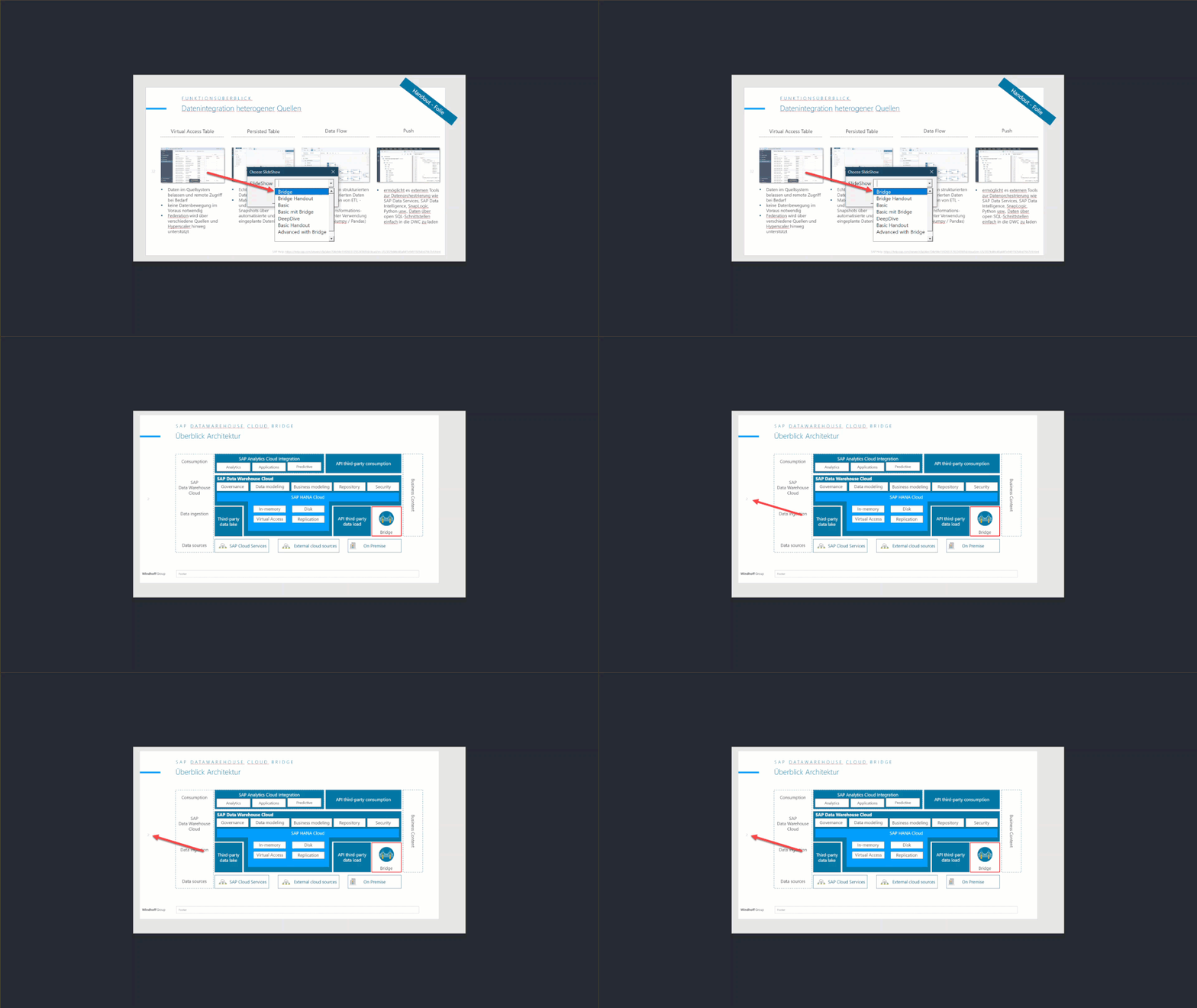
comments. Here is a short gif how it works:
Conclusion
I worked a lot in the last few months with PowerPoint and created a lot of presentation material. I wanted to make my presentation life easier, and so I created one master PowerPoint file and
this one can have different slide shows based on the topic. So every change is only made in one file and all presentations which are referring to the slide have the same information on it.
author.