reyemsaibot

SAP BI Blog about SAP BW/4HANA, Analysis for Office and SAP HANA - by Tobias Meyer

Schlagwort: sql

  • Consume hierachies with text nodes in SAP Datasphere

    It was quite a bit silent here. That’s a fact. I had a lot on my plate since I have a new job and also before the promotion. But now I have a super cool topic on my mind I want to share with you.


    Hierarchies are a common topic in companies. They offer the business users‘ flexibility to navigate in the frontend reports. In this example, I flatten the hierarchy structure to consume a
    hierarchy with text nodes and infoobjects. The Product Group hierarchy looks like the following screenshot. 

    SAP BW hierarchy
    SAP BW hierarchy

    The hierarchy has one top node for all entries and then different groups with some nodes. (I only have this screenshot with German descriptions because the data model has here German words used).


    The following screenshot shows the hierarchy displayed in SE16 with all levels and relations.

    SE16 Preview
    SE16 Preview

    I have this idea from this blog post on blogs.sap.com, and I now use this
    technique to get my hierarchy into SAP Datasphere. I use here a SQLScript View to build all necessary information in one view. You can also choose a different approach.

    First View

    This code on the hierarchy table restrict the data to get the top level, so we only have the root in the result.

    top_level = select "NODEID",
                       "NODENAME" as "LEVEL1",
                       "TLEVEL",
                       "PARENTID",
                       "IOBJNM"
                  from "HZCDWC001"
                 where "OBJVERS" = 'A'
                 and   "NODEID" = '00000006';
    

    Second View

    This code defines on the same hierarchy table all levels, excluding the top level.

    top_level = select "NODEID",
                       "NODENAME" as "LEVEL1",
                       "TLEVEL",
                       "PARENTID",
                       "IOBJNM"
                  from "HZCDWC001"
                 where "OBJVERS" = 'A'
                 and   "NODEID" = '00000006';
        
    child_level = select "NODEID",
                         "NODENAME" as "LEVEL1",
                         "TLEVEL",
                         "PARENTID",
                         "IOBJNM"
                    from "HZCDWC001"
                   where "OBJVERS" = 'A'
                   and   "NODEID" <> '00000006';


    Third View

    To achieve the outcome (a flat hierarchy) I join now the first internal table with the second using nested joins between NODEID and PARENTID to get the parent child relationship.

    It is only flattened up to level 3, because the hierarchy does not have more levels, but can be extended even further if needed.

    top_level = select "NODEID",
                       "NODENAME" as "LEVEL1",
                       "TLEVEL",
                       "PARENTID",
                       "IOBJNM"
                  from "HZCDWC001"
                 where "OBJVERS" = 'A'
                 and   "NODEID" = '00000006';
        
    child_level = select "NODEID",
                         "NODENAME" as "LEVEL1",
                         "TLEVEL",
                         "PARENTID",
                         "IOBJNM"
                    from "HZCDWC001"
                   where "OBJVERS" = 'A'
                   and   "NODEID" <> '00000006';
                  
    all_levels = select L1."LEVEL1",
                        L2."LEVEL1" as "LEVEL2",
                        L3."LEVEL1" as "LEVEL3"
                   from :top_level as "L1"
                   left outer join :child_level as "L2"
                   on L1."NODEID" = L2."PARENTID"
                   left outer join :child_level as "L3"
                   on L2."NODEID" = L3."PARENTID";
            
    return select "LEVEL1",
                  "LEVEL2",
                  "LEVEL3"
             from :all_levels;
    

    The data preview displays the flatten structure of the hierarchy

    Preview SAP Datasphere
    Preview SAP Datasphere

    Now I can create a dimension with a level hierarchy and consume it in my transactional data. Therefor I change the semantic usages to Dimension

    Create dimension in SAP Datasphere
    Create dimension in SAP Datasphere

    After that is done, I create a hierarchy.
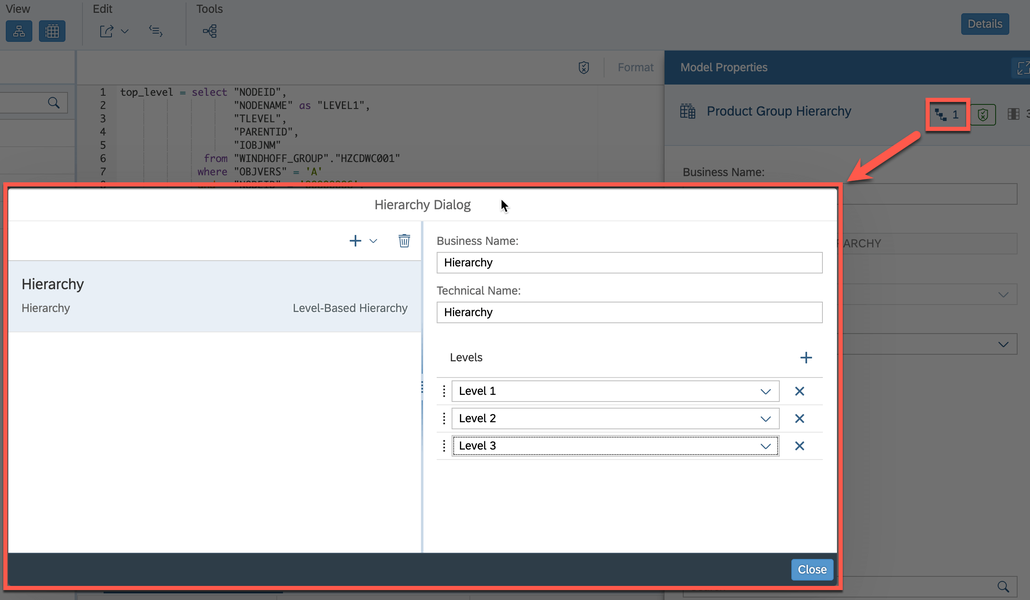
    Create a hierarchy in SAP Datasphere
    Create a hierarchy in SAP Datasphere

    Now we can deploy the dimension and use it in the transactional view. Add the association.
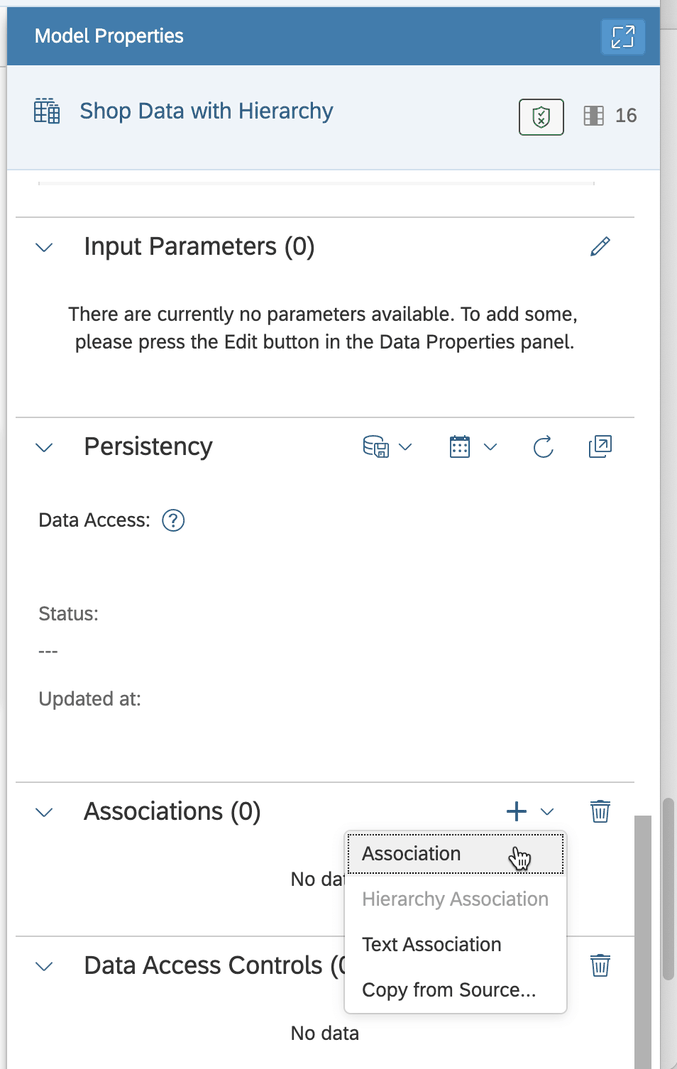
    Create an association to the dimension in SAP Datasphere
    Create an association to the dimension in SAP Datasphere

    Create the mapping between the fact data and the hierarchy dimension.
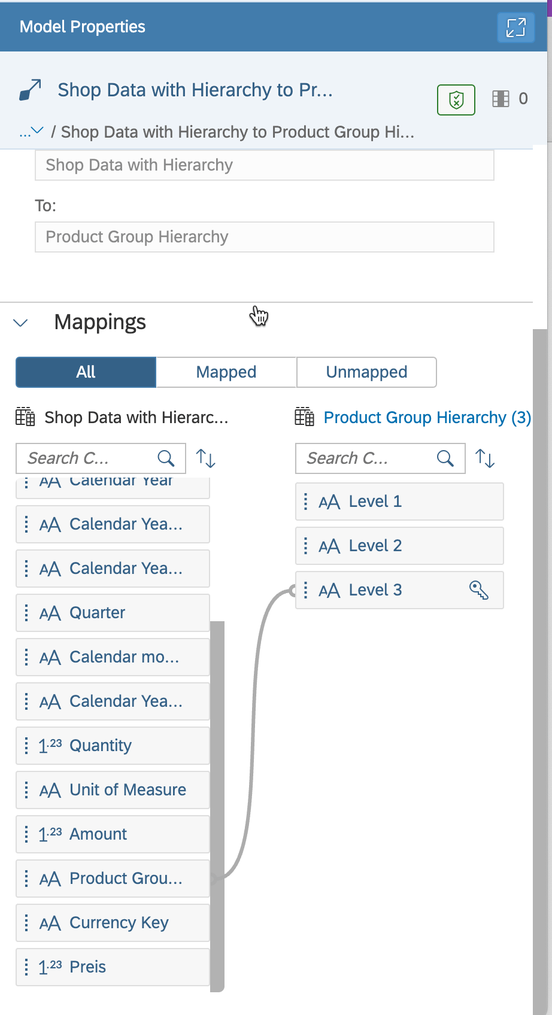
    Create the mapping between the fact and dimension table
    Create the mapping between the fact and dimension table

    The last step is to use the fact model in an Analytic Model and analyze the data.
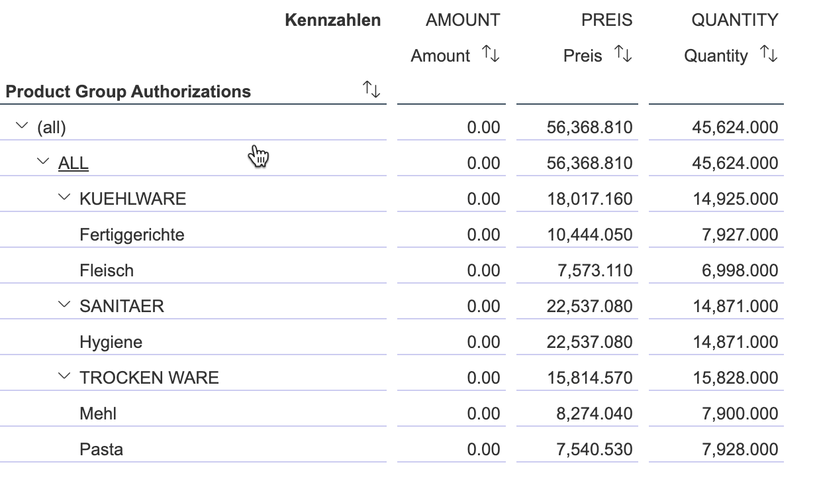
    Data Preview of the Analytic Model in SAP Datasphere
    Data Preview of the Analytic Model in SAP Datasphere

    Conclusion

    At the moment (end of May 2023) the hierarchies with text nodes are not supported yet from SAP Datasphere. So I think it is one way to go. If you have another way, please let me know in the
    comments or through LinkedIn. Next post will be how to use this concept and authorizations in SAP Datasphere.

    author.


    Hi,

    I am Tobias, I write this blog since 2014, you can find me on LinkedIn and
    YouTube. I work as a Data &
    Analytics Consultant. If you want, you can leave me a PayPal coffee donation.
    You can also contact me directly if you want.


  • MTD/WTD/QTD/YTD calculation in SAP Datasphere

    Update 01/2025

    Name change from SAP Data Warehouse Cloud to SAP Datasphere. Some links may break

    There are different ideas and logics to determine year-to-date. Besides my post, which is also available on
    blogs.sap.com there is another post to determine a week-to-date (WTD) and year-to-date (YTD). I think
    that idea is also a good starting point, and I looked into it.

    Instead of a control table which I have to fill manually, I created a new SQL view based on the standard SAP timetables in Datasphere. First create a new SQL view in the Data Builder of
    Datasphere (DSP).

    SQL View in Datasphere
    SQL View in Datasphere

    After you have  a new SQL view, we now look into the SAP timetable for the day with the simple select statement:


    SELECT * FROM "SAP.TIME.VIEW_DIMENSION_DAY"


    Now we can open the data preview and see which fields are in the dimension view available and there we see a field with the name „DATE_SQL“ which we can use to create the logic. So let’s select
    only this field with the following statement:


    SELECT "DATE_SQL" FROM "SAP.TIME.VIEW_DIMENSION_DAY"


    DSP: Data preview date
    DSP: Data preview date

    So this is our start. For a week-to-date (WTD), month-to-date (MTD) and year-to-date (YTD) logic we need now further statement. So let’s start with the YTD logic because every year starts on
    01/01.


    SELECT "DATE_SQL",
    TO_DATE(YEAR("DATE_SQL")||'0101', 'YYYYMMDD') as YTD_START
           FROM "SAP.TIME.VIEW_DIMENSION_DAY"


    Let me explain the logic. First, we extract the year from the „DATE_SQL“ field to get the corresponding year of the data row. After that, we add here the string ‚0101‘ to build an SAP internal
    format of the date. For example 20220101 After we have that, we have to convert the SAP internal date format to a normal date format with the SQL statement TO_DATE.  Now, the data preview
    looks like this:

    DSP: Data preview YTD
    DSP: Data preview YTD

    Besides the year-to-date (YTD) value, the month-to-date (MTD) is also similar because every month starts at the first. This is the statement:


    SELECT "DATE_SQL",
    to_date(year("DATE_SQL")||right('0'||month("DATE_SQL"),2)||'01', 'YYYYMMDD') as MTD_START,
    TO_DATE(YEAR("DATE_SQL")||'0101', 'YYYYMMDD') as YTD_START
           FROM "SAP.TIME.VIEW_DIMENSION_DAY"


    The start is similar to the YTD logic. We get the month of the corresponding date and add a zero to the month. Now we take the two right digits of this result. In case of 010 for October we take
    the 10 and in case of 04 for April we take the 04. After that, we add 01 to it and have for example the string ‚0401‘. The next step is to get the year of the current date and concatenate it with
    the previous string to the SAP internal date format. For example 20220401. The last step is the conversion to a normal date with the TO_DATE statement. In the data preview, we have now this:

    DSP: Data preview MTD
    DSP: Data preview MTD

    The most complex part of the blog post I mentioned earlier was the week-to-date (WTD) calculation. Because every week starts not on the first of a month, and so I looked into other SQL logics not
    SAP specific what I can do. And this is how it looks like:


    SELECT "DATE_SQL",
    to_date(add_days("DATE_SQL", -(Weekday("DATE_SQL")))) AS WTD_START,
    to_date(year("DATE_SQL")||right('0'||month("DATE_SQL"),2)||'01', 'YYYYMMDD') as MTD_START,
    TO_DATE(YEAR("DATE_SQL")||'1231', 'YYYYMMDD') as YTD_END
           FROM "SAP.TIME.VIEW_DIMENSION_DAY"


    So let me explain it. We get the weekday of the date, for example for 15.02.2022 you get as result 1. Now, after we have the result of the weekday function, we make it negative with a minus.
    After that I use the ADD_DAYS function and add to the date in case of the 15.02.2022 a -1 and get the 14.02.2022 which was the week start. This is how it looks like in the data preview:

    DSP: Data preview WTD
    DSP: Data preview WTD

    Now we have the same table as mentioned in the SAP blog post. But I now wanted also the quarter start date, so I added the following logic:


    SELECT "DATE_SQL",
    to_date(add_days("DATE_SQL", -(Weekday("DATE_SQL")))) AS WTD_START,
    to_date(year("DATE_SQL")||right('0'||month("DATE_SQL"),2)||'01', 'YYYYMMDD') as MTD_START,
    TO_DATE(YEAR("DATE_SQL")||'1231', 'YYYYMMDD') as YTD_END,
    CASE right(quarter("DATE_SQL"),2)
        WHEN 'Q1' THEN to_date(year("DATE_SQL")||'0101', 'YYYYMMDD')
        WHEN 'Q2' THEN to_date(year("DATE_SQL")||'0401', 'YYYYMMDD')
        WHEN 'Q3' THEN to_date(year("DATE_SQL")||'0701', 'YYYYMMDD')
        WHEN 'Q4' THEN to_date(year("DATE_SQL")||'1001', 'YYYYMMDD')
    END as QTD_START
           FROM "SAP.TIME.VIEW_DIMENSION_DAY"


    So the case statement decides in case of the quarter which logic it has to use and adds for example ‚0401‘ for Q2. Here is how the data preview looks like:

    DSP: Data preview QTD
    DSP: Data preview QTD

    Now we can use the same logic mentioned in the blog post above to get the right values. Here is the SQL code as an example copied from the other post and expanded for the QTD logic.


    select "COSTCENTER",
           "BOOKINGDATE",
           "MATERIAL",
           "QUANTITY"   
     from "CSV_DATA"
     
     where "BOOKINGDATE" >= ( 
        SELECT CASE
                WHEN :DT_RANGE = 'MTD' THEN "MTD_START"
                WHEN :DT_RANGE = 'WTD' THEN "WTD_START"
                WHEN :DT_RANGE = 'QTD' THEN "QTD_START" 
                WHEN :DT_RANGE = 'YTD' THEN "YTD_START"
               END
        from "Date_Calculation"
        where "DATE_SQL" = TO_DATE(:IP_DATE)
        )
        AND "BOOKINGDATE" <= TO_DATE(:IP_DATE)


    I defined the DT_RANGE as input parameter with type string and length 3. The IP_DATE is an input parameter with the type date. Here is the example how it could look like when I analyze the
    quarter-to-date data for the date 05.05.2020.

    DSP: Data Preview Output
    DSP: Data Preview Output

    Conclusion

    I think this is another good example of what you can do in SAP Datasphere. I thank Sukanya Krishnan for the original idea, but with my solution I don’t have to upload a new file with new
    MTD/WTD/YTD values and this means less maintenance. If you have similar ideas, please share it in the comments.

    author.


    Hi,

    I am Tobias, I write this blog since 2014, you can find me on Twitter,
    LinkedInFacebook and YouTube. I work as a Senior Business Warehouse Consultant. In 2016, I wrote the first edition of . If you want, you can leave me a PayPal coffee donation. You can also contact me directly if you want.