Since Analysis for Office 2.0 the administrative settings are moved from the registry to the file system. These settings are now maintained in a XML file. As in my article “Analysis for Office 2.2 SP2”
mentioned the Ao_app.config is repeatedly expanded and sometimes there are new commands available.
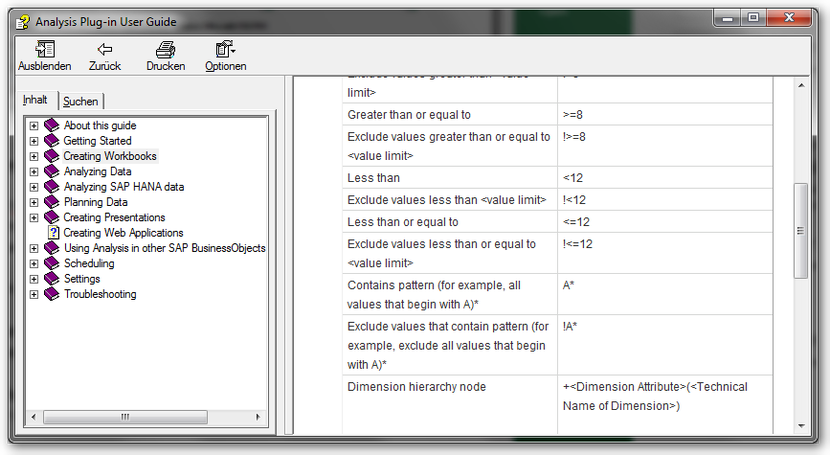
In this context the admin guide is always very useful. On this Topic there is also a SAP Note 1920589. To use “Contains Pattern” as it is described in the
Analysis for Office Help under “Syntax for Entering Values”, it must be activated in the Ao_user_roaming.config file.
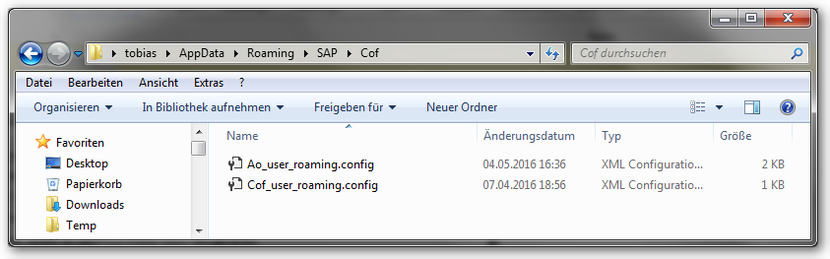
The file is located in the user folder AppDataRoamingSAPCof (%AppData%SAPCof).
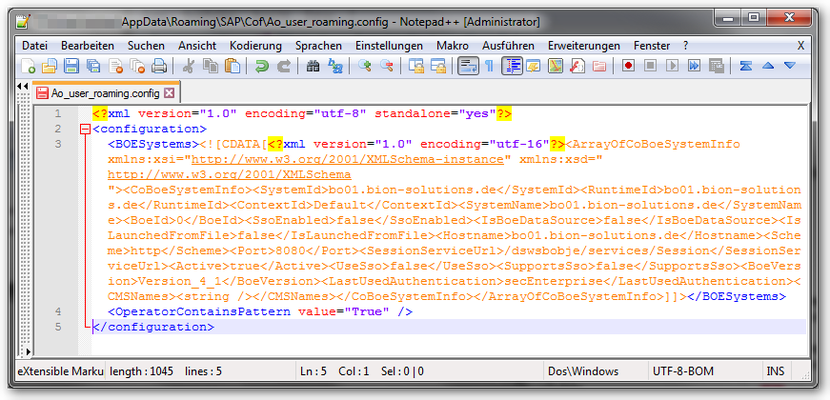
In this file you have to add the parameter <OperatorContainsPattern value=“True“ />.
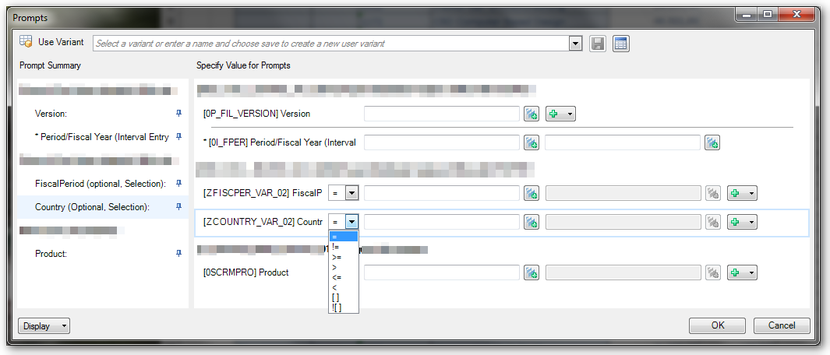
If you now use a variable, which supports pattern, your variables prompt should look like this.
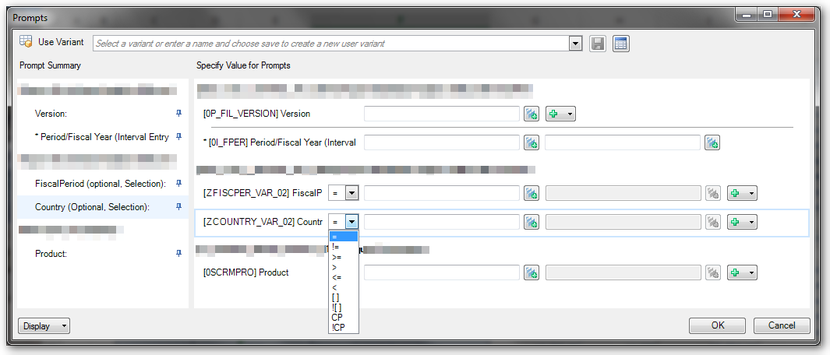
Note: Until Analysis for Office 2.3 ContainsPattern only works if your variable is in Characteristic Restrictions. If your variable is in Default Values, you don’t see the ContainsPattern
option.
The problem is described in the SCN.
These posts might also be intersting:
author.
I am Tobias, I write this blog since 2014, you can find me on twitter and youtube. If you want you can leave me a paypal coffee donation. You can also contact me directly if you want.

Schreibe einen Kommentar