A feature of Bex Analyzer was the upload of selections, so you haven’t to type the selections all the time. This feature wasn’t available for
Analysis for Office until version 2.2 SP3. So I looked deeper in this function and want to share my knowledge.
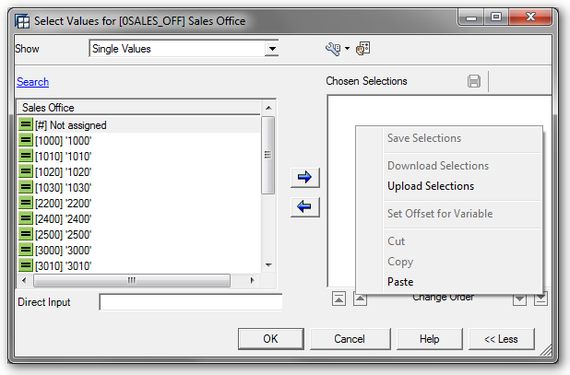
Since I think Analysis for Office 2.1 it is also possible to filter your data by paste your selection from
a clipboard. In the settings of Analysis for Office you can define the number of members which are displayed in the filter dialog. If a dimension has more members than you defined in the user
settings, a filter dialog for mass data is opened. In this particular dialog you only see the selected members, but you can add members by using the input help.
Hint: You can also define the number of members by using the admin parameter FetchMemberLimit and you can also disabled the mass data dialog by using the
parameter EnableMassDataSelector.
In the prompt dialog you have to select the „Add Lines Using Filter By Member“-Button.

Note: You only see this button, if your variable is either a selection option variable or allows several single values.
After you click on this button, a new dialog will popup, where you can filter by members of this dimension. If the number of members are more than the defined number in the user settings, you see
the filter dialog for mass data.
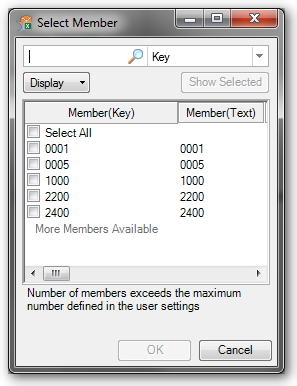
You are now able to paste your selection to the filter dialog by using the Paste from Clipboard icon at the left bottom of the filter dialog.
Note: The Members have to be displayed as key in the list.
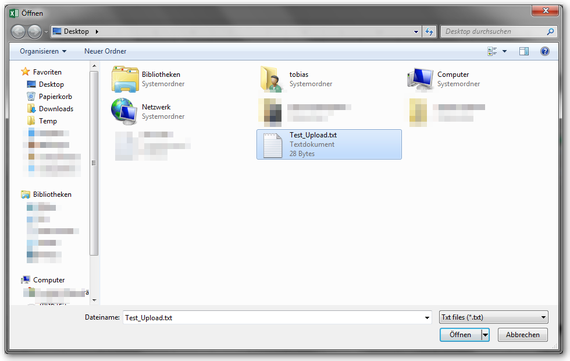
If you want to insert a lot of members that you want to use for filtering, you can use Paste from File. The Paste from File icon is next to the Paste from Clipboard icon if you use an Analysis for Office version which is higher than 2.2 SP3.
If you click on the button a windows open dialog appears and you can select the file which you want to upload.
After you click „OK“ the members are added to the filter.
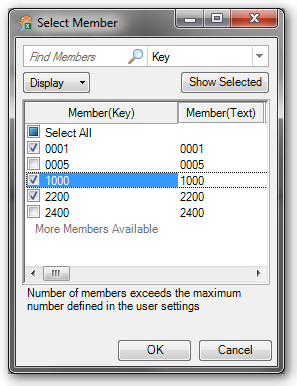
By click OK, the filter is applied.
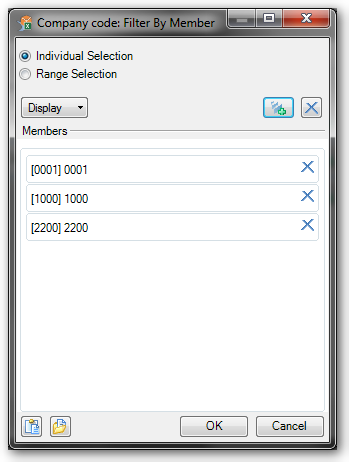
By click OK, the filter is applied to the prompt dialog.
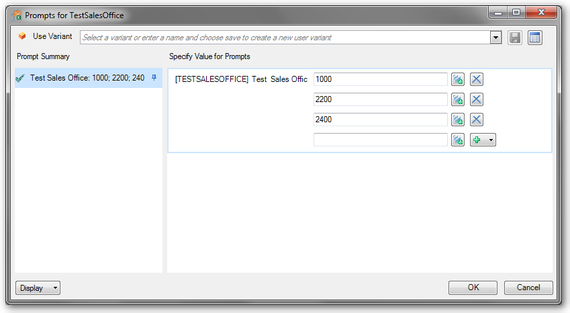
Now you can run your query and wait until you see your result. Another possibility is to filter your data by VBA code.
These posts might also be interesting:
author.
I am Tobias, I write this blog since 2014, you can find me on twitter and youtube. If you want you can leave me a paypal coffee donation. You can also contact me directly if you want.


Schreibe einen Kommentar