reyemsaibot

SAP BI Blog about SAP BW/4HANA, Analysis for Office and SAP HANA - by Tobias Meyer

Schlagwort: BEx

  • SAP BW Modeling Tools in Eclipse

    This week the new open SAP course BW/4HANA in a Nutshell started. It is a free course.
    One big thing is that BW/4HANA no longer supports the good old BEx Suite. You now have to use the BW Modeling Tools based on Eclipse. In this and further posts I will go deeper into the BW Modeling Tools and what is possible and what is not possible at the
    moment.


    If you have any questions feel free to ask or correct me 😉 So let’s get started.

    First we need Eclipse, which we can download here. But be aware when you download the Mars version,
    you need the Mars version of the BW Modeling Tools. And if you download the Neon version, you need the Neon version of the BW Modeling Tools.
    After you installed Eclipse you can download the BW Modeling Tools directly in Eclipse.


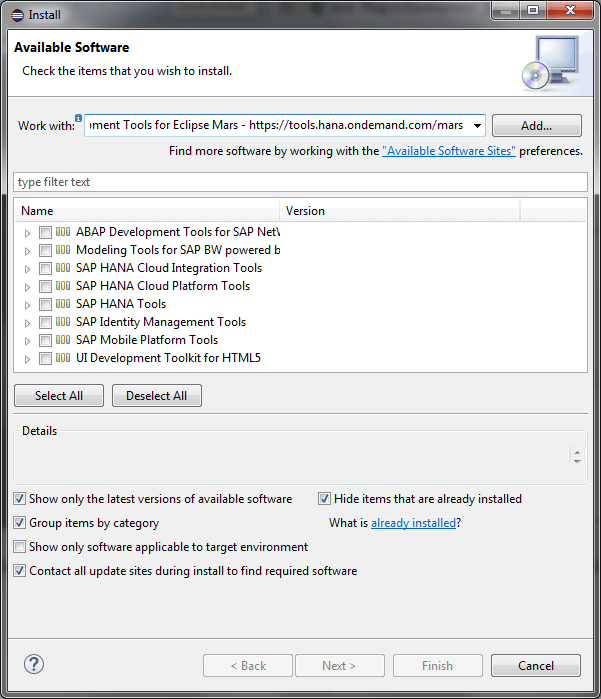
    In Eclipse, choose in the menu bar Help >> Install new software and enter for Neon version (https://tools.hana.ondemand.com/neon) and for
    Mars (https://tools.hana.ondemand.com/mars). Press Enter to display the available features.
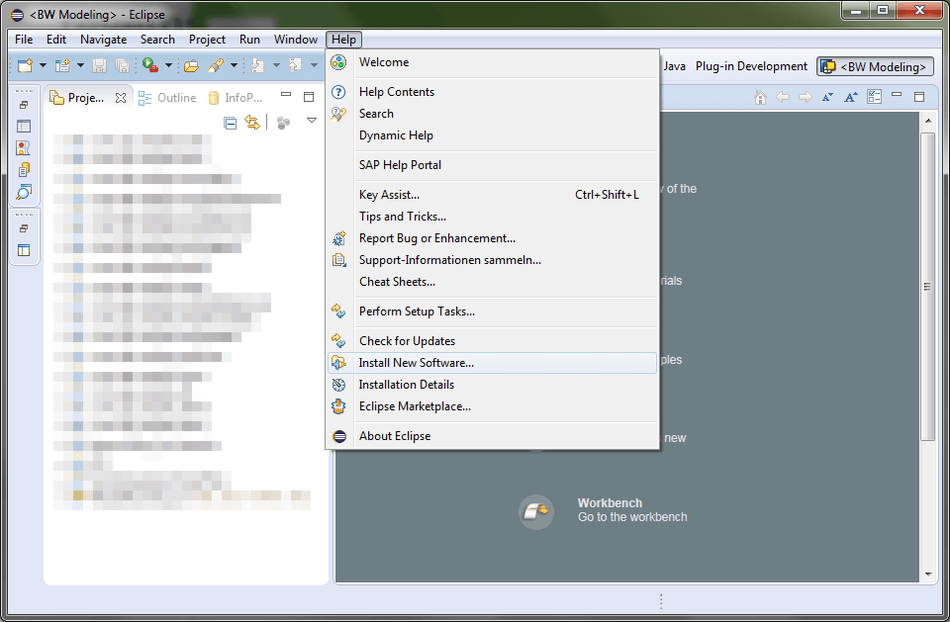
    Eclipse Install new software
    Eclipse Install new software
    Eclipse Select BW Modeling Tools
    Eclipse Select BW Modeling Tools

    Select the Modeling Tools for SAP BW powered by SAP HANA and choose Next. On the next page you get an overview of features to be installed. Choose
    Next. Confirm the license agreements and choose Finish to start the installation.

    After the installation is done, you need to set up da new BW project to access the
    BW-Repository. More about the Modeling Tools will be covered in future articles. So stay tuned.

    author.


    I am Tobias, I write this blog since 2014, you can find me on twitter and youtube. If you want you can leave me a paypal coffee donation. You can also contact me directly if you want.
  • Analysis Office Filter Data by Member

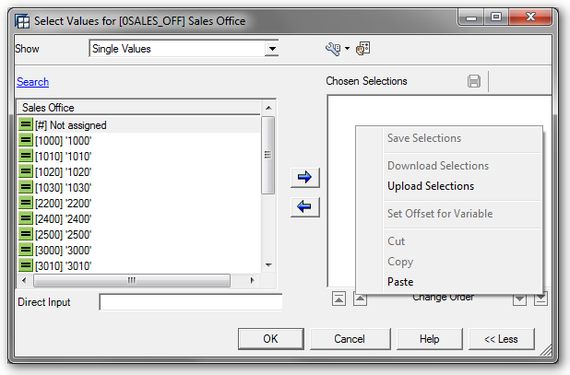
    A feature of Bex Analyzer was the upload of selections, so you haven’t to type the selections all the time. This feature wasn’t available for
    Analysis for Office until version 2.2 SP3. So I looked deeper in this function and want to share my knowledge.

    BEx Analyzer Upload Selection
    BEx Analyzer Upload Selection

    Since I think Analysis for Office 2.1 it is also possible to filter your data by paste your selection from
    a clipboard. In the settings of Analysis for Office you can define the number of members which are displayed in the filter dialog. If a dimension has more members than you defined in the user
    settings, a filter dialog for mass data is opened. In this particular dialog you only see the selected members, but you can add members by using the input help.


    Hint: You can also define the number of members by using the admin parameter FetchMemberLimit and you can also disabled the mass data dialog by using the
    parameter EnableMassDataSelector.


    In the prompt dialog you have to select the „Add Lines Using Filter By Member“-Button.

    Analysis for Office Prompt Filter by Member
    Analysis for Office Prompt Filter by Member

    Note: You only see this button, if your variable is either a selection option variable or allows several single values.


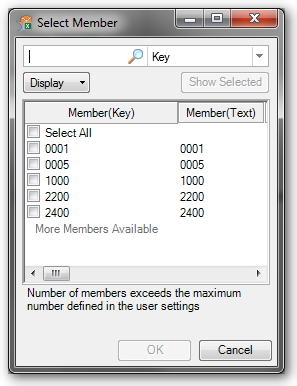
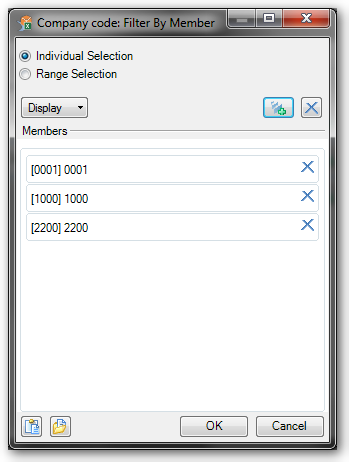
    After you click on this button, a new dialog will popup, where you can filter by members of this dimension. If the number of members are more than the defined number in the user settings, you see
    the filter dialog for mass data.

    Analysis for Office Select Member
    Analysis for Office Select Member

    You are now able to paste your selection to the filter dialog by using the Paste from Clipboard icon at the left bottom of the filter dialog.


    Note: The Members have to be displayed as key in the list.


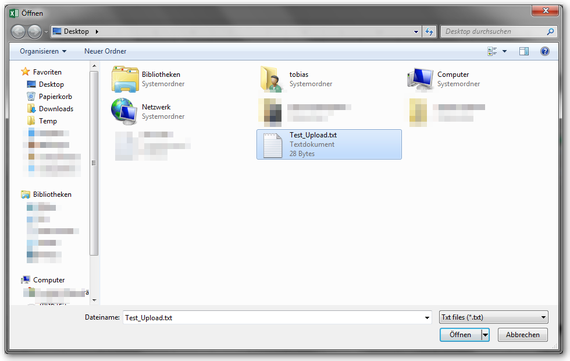
    If you want to insert a lot of members that you want to use for filtering, you can use Paste from File. The Paste from File icon is next to the Paste from Clipboard icon if you use an Analysis for Office version which is higher than 2.2 SP3.


    If you click on the button a windows open dialog appears and you can select the file which you want to upload.

    Analysis for Office Select Textfile for Upload
    Analysis for Office Select Textfile for Upload

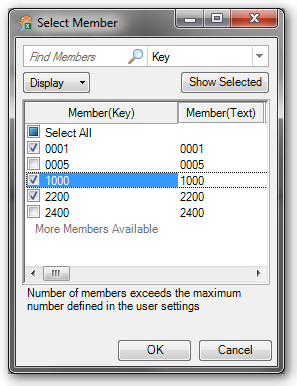
    After you click „OK“ the members are added to the filter.

    Analysis for Office Uploaded Members by Textfile
    Analysis for Office Uploaded Members by Textfile

    By click OK, the filter is applied.

    Analysis for Office Selected Filter Values
    Analysis for Office Selected Filter Values

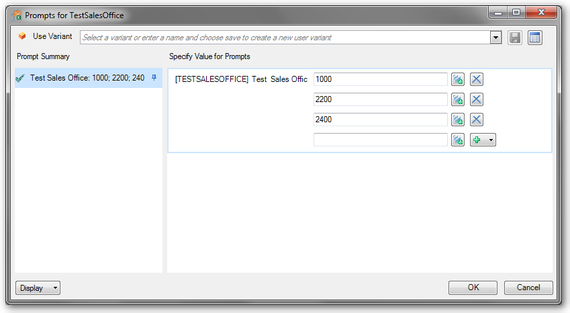
    By click OK, the filter is applied to the prompt dialog.

    Analysis for Office Prompt with Values
    Analysis for Office Prompt with Values

    Now you can run your query and wait until you see your result. Another possibility is to filter your data by VBA code.

    author.


    I am Tobias, I write this blog since 2014, you can find me on twitter and youtube. If you want you can leave me a paypal coffee donation. You can also contact me directly if you want.
  • BEx Query Designer: No Authorization for Query

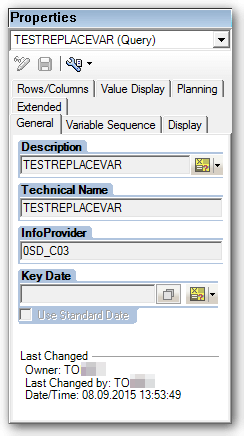
    The other day I had a very strange phenomenon. I was at a client, where I had created several queries a month ago. The query information shows me as owner of these queries. In the meantime the
    Department has made some small changes, so that I was no longer the last user who changed the query.

    BEx Query Properties Last Changed
    BEx Query Properties Last Changed

    Now I should expand one query and I got the following error message.

    BEx Query Designer: No Authorization for Query
    BEx Query Designer: No Authorization for Query

    Mind you, I was still the owner of this query. The error message to assess my user has to have no more rights to change this query. This could be one reason because I was longer than one month
    not in the company and my user were also set to inactive. So I let the colleague, who was the last editor of this query, logged on my computer with his credentials and he got the same message. On
    his computer he could open the query and edit it, without the error message. So it must be a problem with my computer.


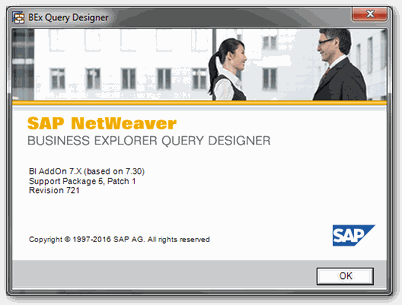
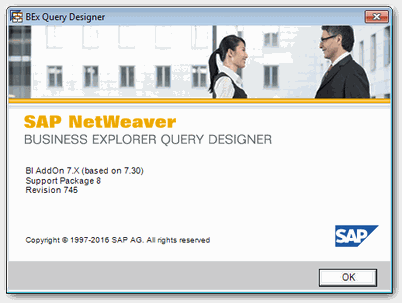
    After some discussion we figured out, that the computer, on which I had worked before, was replaced by a new one. This computer was shipped with a different version of the BEx Suite. This version was lower than the version on my first computer, where I created the query and also lower than the version of the colleague who
    had changed the query at last.

    BEx Query Designer Support Package 5
    BEx Query Designer Support Package 5
    BEx Query Designer Support Package 8
    BEx Query Designer Support Package 8


    So the error message has nothing, absolutely nothing to do with authorization. But it can be traced back to different versions of the BEx Query Designer. It turned out, that also other colleague
    in this department were unable to edit this query, because they had different versions of the BEx Query Designer. Should this error message pop up once when you edit a query, check your version
    of the BEx Query Designer and the version of the colleague who has edited the query at last.

    author.


    I am Tobias, I write this blog since 2014, you can find me on twitter and youtube. If you want you can leave me a paypal coffee donation. You can also contact me directly if you want.
  • BEx Query Average vs. Excel Average

    When I was recently creating a new query at a customer, I have found a strange phenomenon. The query should show the average ticket number of a department. First you see the explanation and then
    I provide the solution of the problem.


    The query should show the individual, cumulative and average monthly values, as you can see in the screenshot.

    BEx Analyzer Average false values
    BEx Analyzer Average false values

    As you can see, there are no values for the months of May, June, August, November and December, so the cumulative values remain the same as the previous month.

    Unfortunately the calculation of the average has a problem, when a column has no value (for example May). In comparison the average value with the Excel formula AVERAGE.

    BEx Analyzer Average vs. Excel Average
    BEx Analyzer Average vs. Excel Average

    As you can see in the screenshot above, the key figures differ between the Excel formula and the result from the BEx Analyzer. According to the Excel formula the month of May has an average of
    43, according to the BEx Analyzer it has an average of 16. This is a large deviation. As you can see this error runs through all months after one column has no value.


    The interesting thing about the query is, if you have a department that has values from January to December, the average of the Bex Analyzer
    works without problems.

    BEx Analyzer Year Average vs. Excel Average
    BEx Analyzer Year Average vs. Excel Average

    The line Avg. no. tickets is identical to the line Excel formula AVG. That means the query definition is correct and working. But if there are months where no values have been
    posted, the average calculation of the BEx Analyzer failed.


    The following settings have been made to the key figures:


    No of tickets cumulated: the key figure is only cumulative, otherwise no further calculations.

    Selection Cumulated
    Selection Cumulated

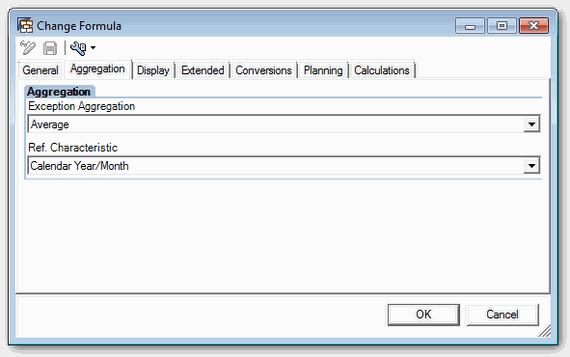
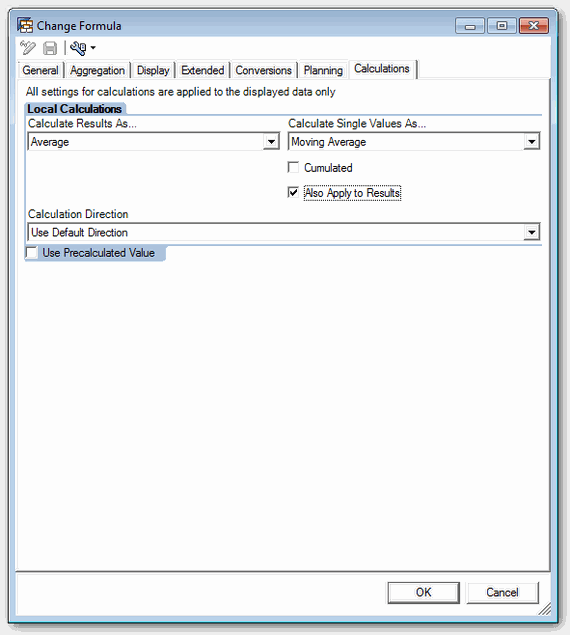
    Avg. no tickets: Aggregation on average with reference characteristic to Calendar Year/Month (0CALMONTH) and calculating the individual values and results as average or moving average.

    BEx Query Formula Aggregation
    BEx Query Formula Aggregation
    Bex Query Designer Formula Calculations
    Bex Query Designer Formula Calculations

    The question arises to me now is, why it works correctly when the entire year have posted values, but not when there are months without value. The cumulative value is also correctly calculated
    and doesn’t show an error. Only the average value is incorrect. Unfortunately, that was a problem for my client, since the report was intended of the controlling department and this department,
    you surely know, love Excel 😉


    So why the BEx Analyzer does interprets a blank line at cumulative values as 0, but failed if you want to calculate an average.


    So that the controlling department get the same result in the Bex Analyzer like with the Excel formula, we needed a solution. After a little research I found this SCN article, which says insert a new formula and add to this formula a 0. So nothing
    complicated, just a simple solution.

    BEx Analyzer Formula + 0
    BEx Analyzer Formula + 0

    As you can see on the screenshot below, the row Avg no of tickets + 0 has now another value than the row avg no of tickets. The cumulative value is identical.

    BEx Analyzer Average fixed with 0
    BEx Analyzer Average fixed with 0

    Now the comparison with the Excel formula AVERAGE:

    BEx Analyzer AVG + 0 and Excel AVG
    BEx Analyzer AVG + 0 and Excel AVG

    And as you can see now, the row avg. no of tickets + 0 and the row Excel formula AVG are identical. So I only have to hide the unnecessary rows and the query can be used. I hope
    this may help someone when you walk into the same issue. 😉

    author.


    I am Tobias, I write this blog since 2014, you can find me on twitter and youtube. If you want you can leave me a paypal coffee donation. You can also contact me directly if you want.
  • Analysis Office Data Analysis Advanced Calculations

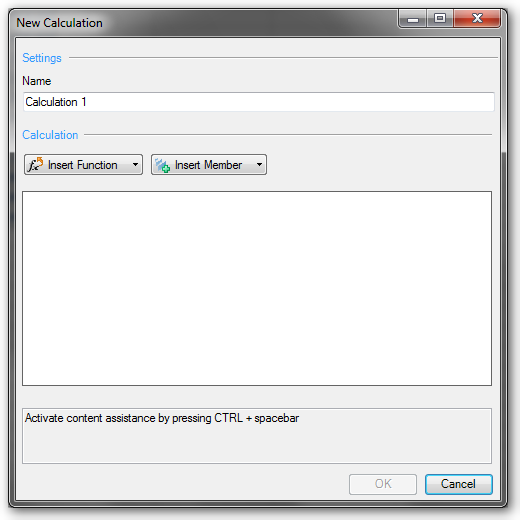
    Since Analysis Office 2.1 you have a formula editor. You can find this function in the group Data Analysis >>
    Calculations >> Add Advanced Calculation.

    Analysis Office Add new advanced calculation
    Analysis Office Add new advanced calculation

    With this function you can create complex calculations, as you could make earlier in a BEx Query. You can find mathematical functions, data
    functions, percentage functions and Boolean operators.


    Besides addition and subtraction, you can find functions like logarithm to the base of 10 or decimal part of operand.


    In the data functions you will find something like „value without dimension“ or „NOERR(X): Equals 0 for undefined calculations; otherwise x“ or „NDIV0(x): Equals 0 When Divided by 0; otherwise x.
    The Boolean operators are found such functions as „AND“ or „EXCLUSIVE OR“


    I think the new calculations are great, I haven’t longer to overfill the single query with dozens of calculations and I only need to build the calculations in the Workbook where I needed them.
    But this is the greatest disadvantage too. When I need some calculations often, I have to create them each time.


    Nevertheless, I am a friend of simple queries, because they are most immediately understandable.

    author.


    Hi,

    I am Tobias, I write this blog since 2014, you can find me on twitterfacebook and youtube. I work as a Senior Business
    Warehouse Consultant. In 2016 I wrote the first edition of . If you want you can leave me a paypal coffee
    donation. You can also contact me directly if you want.


  • Factors affecting the performance of the BEx Analyzer

    In SAP Support Portal you find the Note 1101143. The Note
    provides an overview of the factors which affecting the performance of BEx Analyzer.

    author.


    I am Tobias, I write this blog since 2014, you can find me on twitter and youtube. If you want you can leave me a paypal coffee donation. You can also contact me directly if you want.
  • Unlock Business Warehouse database lock

    When the BEx Query Designer crashes while you are creating or modify a query, the user lock this query in the database. You can remove the lock
    with the Transaction sm12 and erase the entry.

    1. Open TA sm12
    2. Click list
    3. Select the required entry
    4. Click delete
    SAP Business Warehouse data base locks
    SAP Business Warehouse data base locks

    author.


    I am Tobias, I write this blog since 2014, you can find me on twitter and youtube. If you want you can leave me a paypal coffee donation. You can also contact me directly if you want.