reyemsaibot

SAP BI Blog about SAP BW/4HANA, Analysis for Office and SAP HANA - by Tobias Meyer

Analysis Office 2.4 Customize User Interface

A new feature of Analysis for Office 2.4 is that you have a function called Customize User Interface. On the
first view it looks similar to the Excel customize ribbon function. But it has more flexiblity to switch between different interfaces. First you have to open the Customize User
Interface
dialog via File >> Analysis. The following dialog appears.
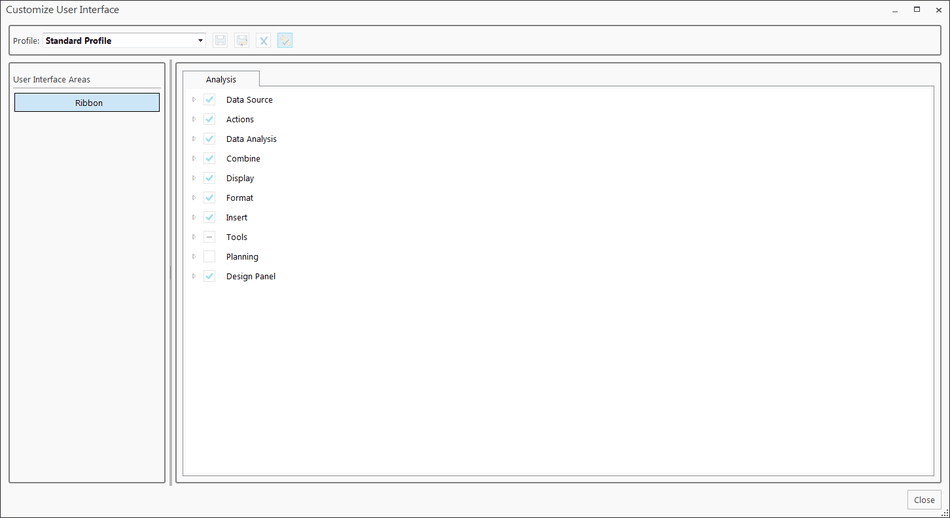
SAP Analysis for Office Customize User Interface

To define a new profile you have to click into the drop down box and enter a name, e.g. reyemsaibot. After you entered your profile name, the save button is active.
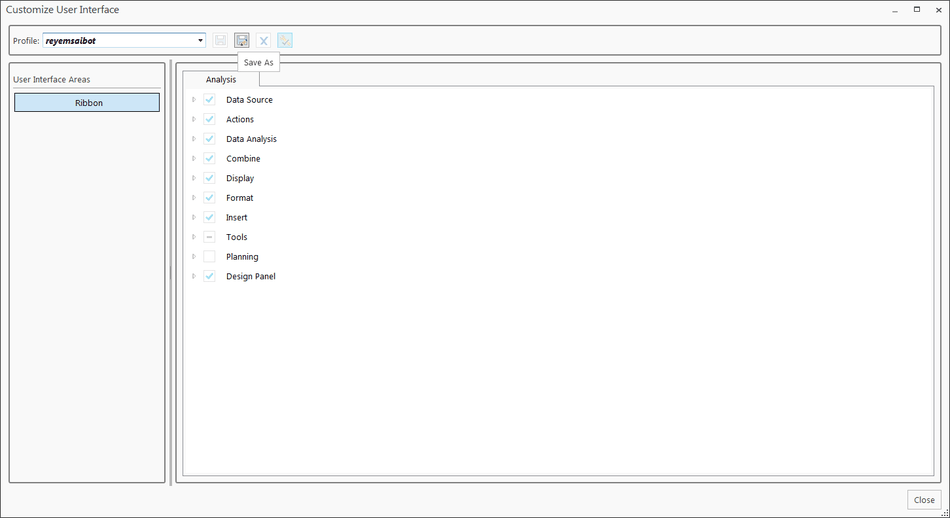
SAP Analysis for Office Customize User Interface save profile

After you saved your profile, you can delete it or set it as standard profile.
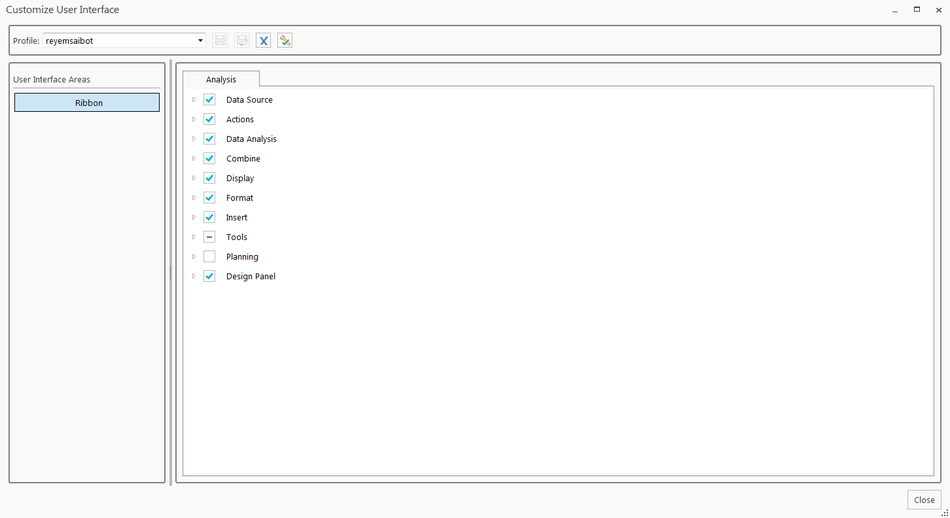
SAP Analysis for Office Customize User Interface saved

Now you can modify the ribbon interface by select or unselect the groups and elements. If you want to add a own function, make right click and add a New Group.
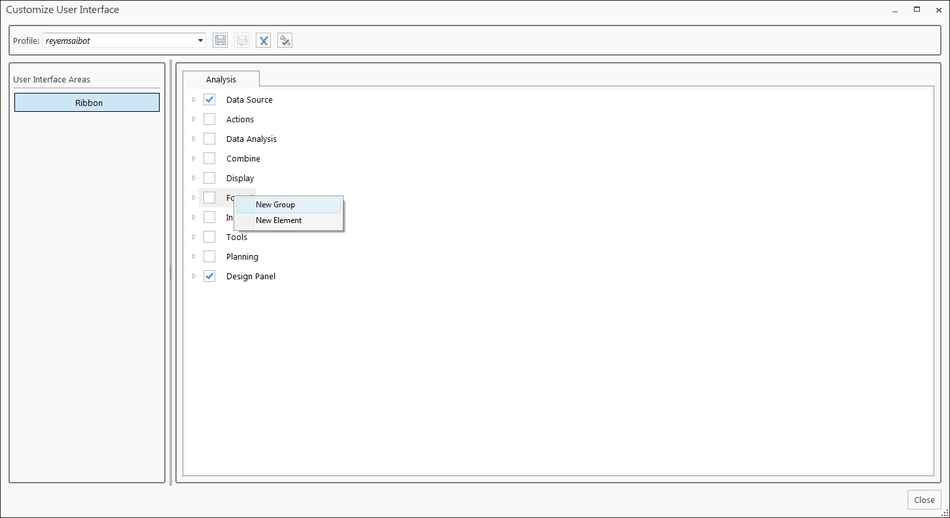
SAP Analysis for Office Customize User Interface add new group

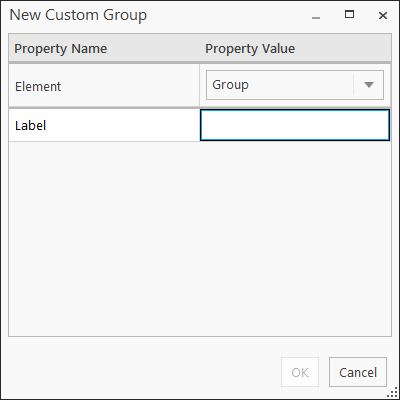
You can now define the group.

SAP Analysis for Office Customize User Interface define group

After you add the group, you are able to add your own elements to this group. Make a right click and select New Element. You can choose between Button,
Separator, Split Button and Toggle Button as element. For all elements except for Separator you have to define a
Label, Macro, Size and an Image.
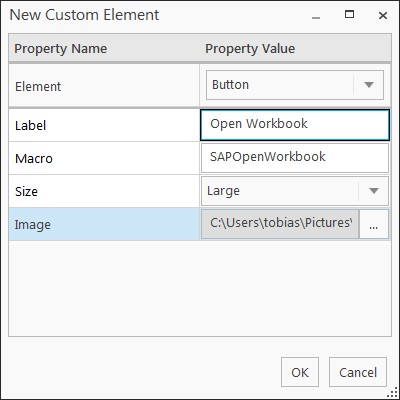
SAP Analysis for Office Customize User Interface add new element
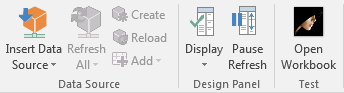
SAP Analysis for Office Customize User Interface Ribbon

For example I add a Button Open Workbook and choose my macro SAPOpenWorkbook. You can choose your macro either in this workbook or in an external source like a
Excel add-in. So you are able to design different interface for different people or use cases. The interfaces are stored under
C:Users<User>AppDataRoamingSAPCofUser Interface. There you find a xml and an image folder, in which are the selected images are saved.

Appdata User Interfaces

If you want to distribute them in your company, take these files (xml and the image folder) and move them to C:ProgramDataSAPCofUser Interface. Now it is a company user
interface and can’t be deleted by the user.
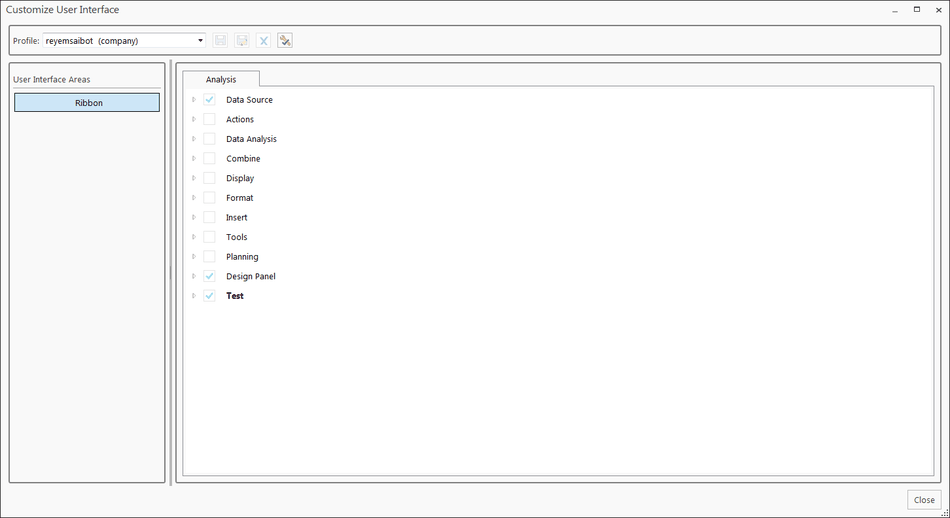
SAP Analysis for Office Customize User Interface Company Interface

If there is any question feel free to write a comment. I think it is a cool feature if you want to restrict the view of the ribbon and distribute it in your company. If it will be used a lot,
will we see in the future. So stay tuned for other Analysis for Office 2.4 content.

author.


I am Tobias, I write this blog since 2014, you can find me on twitter and youtube. If you want you can leave me a paypal coffee donation. You can also contact me directly if you want.

Kommentare

14 Kommentare zu „Analysis Office 2.4 Customize User Interface“

  1. Avatar von Mark
    Mark

    Thanks for this How-to, this function is a great addition to Analysis Office. In our current project we needed to use the MS Custom UI Editor, to create our own ribbon with specific buttons. Is it possible to save the profile within the workbook? For our planning scenarios, we need different interfaces with different buttons and functions, so we don’t want to use a standard profile for all our applications. Thanks!

  2. Avatar von Tobias
    Tobias

    Hi, thanks for your feedback. It is not possible to save the profile in the workbook, because it is saved in the Cof_user_roaming.config file but you could build a macro or something similar which switch the interface. Maybe there will be more information when SAP releases the admin and user guide. Best regards, Tobias

  3. Avatar von Alexandru
    Alexandru

    Great article, thanks for sharing it with us all! I was thinking if there is any possibility to create a new button that will get an URL address – link to a support website. This might be a super information for our users. Unfortunately I cannot find any information on SAP or any other source. Do you have any idea if this can be done and how? Best Regards, Alex

  4. Avatar von Tobias
    Tobias

    Hi Alex, what do you mean with support website? Do you mean a link to your company intranet or something similar? Tobias

  5. Avatar von Alexandru
    Alexandru

    Hi Tobias, Yes, a link to a company website where the user will find some documentation. Regards, Alex

  6. Avatar von Tobias
    Tobias

    Hi Alex, this is very easy. Here an example code Sub OpenWebsite() Set wshshell = CreateObject(„WScript.Shell“) wshshell.Run „https://www.reyemsaibot.com“ End Sub Tobias

  7. Avatar von Faisal
    Faisal

    Hi Tobias, Your overview has been very helpful, thank you! I just had a question, as I would like to distribute the interface files to our users, the file path you give doesn’t seem to exist for our installs (C:ProgramDataSAPCofUser Interface), rather the „User Interface“ folder doesn’t appear. Creating the folder doesn’t read from their either. I was wondering if you would know anything about it? We’re using the 32 bit version, also installed the first service pack, but i don’t remember seeing in the release notes that they had removed this, so I was just curious about your take on it. Thanks again for the post, and thanks for reading Faisal

  8. Avatar von Tobias
    Tobias

    Hi, if the path is not correct, you can set it with the file system setting AppBuilderCompanyProfileDirectory or AppBuilderUserProfileDirectory (depends if you use the company profile or not). If you still have questions feel free to ask. Tobias

  9. Avatar von Karan Sehjpal
    Karan Sehjpal

    HI Tobias I want to do the same functionality. I am not aware of VB and macro. Could you please help me with the steps invovled in this. Regards Karan

  10. Avatar von Tobias
    Tobias

    Hi Karan, of course I can help you. Can you send me a message postbox [at] reyemsaibot.com? This should be easier than the comment function of this post. Tobias

  11. Avatar von Christian
    Christian

    Hey Tobias, I tried to trigger my macro by typing the name of it into the macro field, but nothing happens. A similar error has been described here: https://answers.sap.com/questions/467601/attaching-vba-macro-to-open-workbook-in-customize.html Is it a bug or do I have to type in a special name/function? Iam using a „Button“ and a custom macro. (Tested on 2.6 SP3 and 2.7 P01) Thx for your help

  12. Avatar von Christian
    Christian

    I found the solution, so please ignore my last comment.

  13. Avatar von Tobias
    Tobias

    Hi Christian, thanks for your comment. Can you share your solution?

  14. Avatar von Leo Giss
    Leo Giss

    you need to add „(control as IRibbonControl)“ behind your macro name. Example: Sub OpenWorkbookViaAPI(control as IRibbonControl) Dim lresult As Long lresult = Application.Run(„SAPOpenWorkbook“, „DEMO_5“, „DS_1“, „ZCOUNTRY_VAR_02“, „AT“, „0I_FPER“, „001.2011 – 004.2011“) End Sub Go to SAP Help Analysis-Plugin User-Guide chapter „How do you customize a tab in the Ribbon?“

Schreibe einen Kommentar

Deine E-Mail-Adresse wird nicht veröffentlicht. Erforderliche Felder sind mit * markiert