In Analysis for Office 2.4 SAP improved the Table Design Editor. You can now create and edit formulas. In an
earlier post, I described how to work with Excel formulas in a crosstab. You can add a new column with the table design functionality.
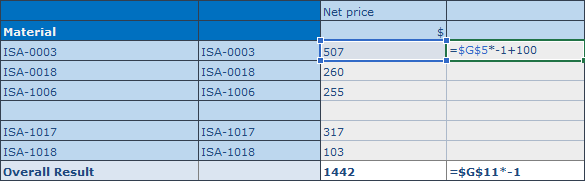
As you can see in the screenshot above, I wrote a simple formula in the new column. If you have now installed Analysis for Office
2.4, you can see in the design rules tab of the design Panel the rule type formulas. If you select this rule type, you can see how many formulas are in your crosstab and you can
edit them directly from here.
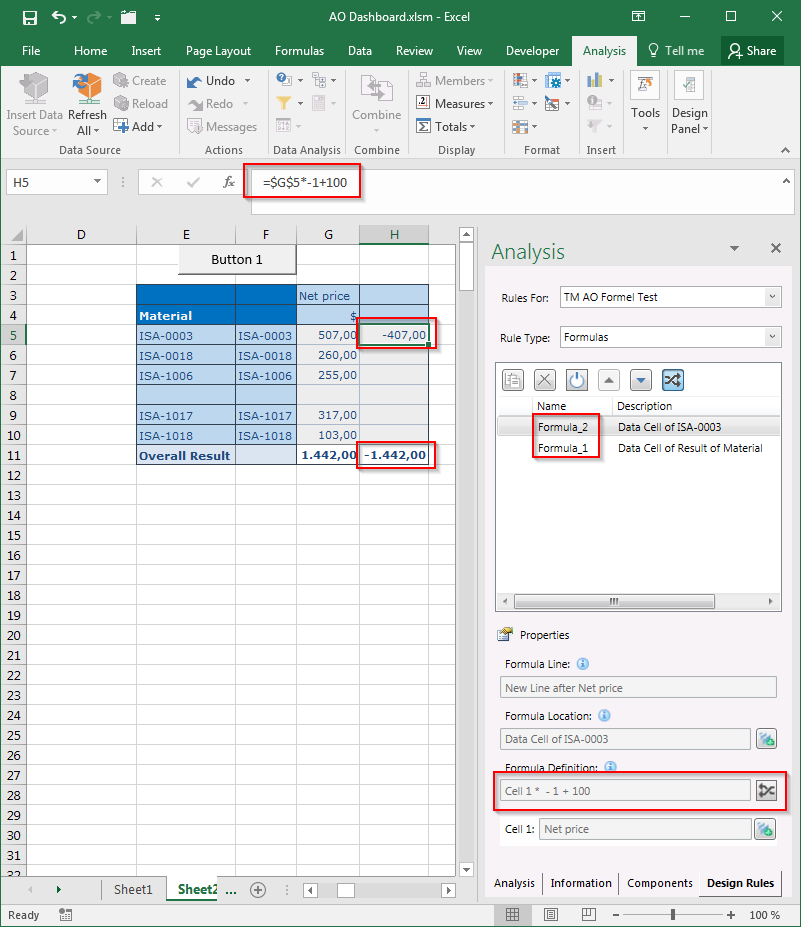
When you select a formula, the formula Definition is directly displayed in the properties area. You also see the Location and the corresponding cell. The button with the two arrows allows you to
show or hide your formulas in the crosstab. It is the same function like the Excel function Show Formulas. It seems like a nice feature, but I don’t know if you really need it,
because you can do the same in the Excel formula bar. Or does anybody need this feature?
These posts might also be interesting:
author.
I am Tobias, I write this blog since 2014, you can find me on twitter and youtube. If you want you can leave me a paypal coffee donation. You can also contact me directly if you want.
Schreibe einen Kommentar