reyemsaibot

SAP BI Blog about SAP BW/4HANA, Analysis for Office and SAP HANA - by Tobias Meyer

Autor: reyemsaibot

  • Analysis Office 2.7 – Data Source for Defining Formulas Part 2

    I received an email from Jean-Pierre, who tried the new function Data Source for Defining
    Formulas
    of Analysis Office 2.7 – but it didn’t work as he mentioned in his email. The option Select Data Soure for Defining Formulas was gray out for BEx Queries.  It worked
    when he insert the Multiprovider or the Composite Provider. So I was very confused and tried to find a solution.

    The Problem only exists when he insert a Bex Query and he received the error message:

    „The selected data source cannot be used formula-optimized. The data source is inserted without crosstab to be used for analysis (ID-113017)

    So I checked my test query on our system and it worked. It was very confusing.


    I tried another query in our system and now I received the same error. 🤔 Now I thought, ok my query is just a dummy query where I test things, so maybe I switched a switch while I have done
    something else and this may the solution. So I looked into the two queries and compared them. I didn’t found a single deviation. The only thing I noticed was, my query was on a Composite Provider with an ADSO and the other query on an old InfoCube.

    Based on this solution Jean-Pierre look a little deeper into the function Use formula-optimized and found it only works on

    • BEx Query based on ADSO
    • Advanced DSO
    • MultiProvider
    • Composite Provider

    So here we are, it doesn’t work on Queries based on Composite Providers? Let me think. In my case it do so maybe the conclusions from Jean-Pierre are wrong?

    Then I got an update from him. The User Guide of Analysis Office 2.7 SP2 says:

    „As data source, you can use InfoCube and Queries. The queries must have a key figure strcture and they can contain restrictions, restricted key figures and calculated key figures.

    The queries must not have two key figure structes, any conditions, exceptions or formulas. The report RSO_RES_QD_FMLMODE (via transaction SE38) can be used to check queries for these
    criteria.“

    His tests failed, because his queries had formulas and my test query does not. If you create a new query, the parameter FormulaMode will be set to X automaticly for old query you have to
    use the program RSO_RES_QD_FMLMODE to set it. Now it works if you don’t have any conditions, exceptions or formulas in it.


    So the summary is no new functions from SAP aren’t intuitive and we have to read the manual.
    😉


    Thanks to Jean-Pierre for testing and the solution.

    author.


    I am Tobias, I write this blog since 2014, you can find me on twitter and youtube. If you want you can leave me a paypal coffee donation. You can also contact me directly if you want.
  • What’s new in Analysis Office 2.7 SP2

    It is a little late for Analysis Office 2.7 SP2 but SAP just delivered Patch 1 so I can write a short
    note about it. Finaly SAP give you the option to Create a Web Application in Lumira Designer. But if you installed SAP Design Studio an SAP Lumira Designer, it
    always opens Design Studio. Analysis Office doesn’t care if you first install Lumira or Design Studio. Design Studio always wins. At the moment there is no setting like the
    DefaultBWQueryDesigner for the old BEx Query Designer or the new Eclipse Query Designer.


    Patch 1 also fixes some little bugs.

    •  Analysis for Office: Instead of the document description the document name is displayed as title in Excel for documents form the BW platform (s-note 2640073)
    • Converting BEx workbook with BExGetCellData formulas shows error message (s-note 2709536)
    • Search in Filter Dialog takes long for compound dimension (s-note 2695275)
    • Selector Search Performance – Limitation of fetched members from backend (s-note 2711919)

    I think it is nothing spectacular but it is maintenance.

    author.


    I am Tobias, I write this blog since 2014, you can find me on twitter and youtube. If you want you can leave me a paypal coffee donation. You can also contact me directly if you want.

  • Analysis Office 2.7 SP2 is available

    It’s been a while since the last blog post and I am also late for the news that Analysis Office 2.7 SP2 is available. As Patrick told me on 05.10.2018 Analysis Office 2.7 SP2 is GA. But I was on vaction so I didn’t find the time to write
    about it. So here we are:


    This is fixed in Service Pack 2

    • ‚Value cannot be null.‘ exception in Formula Optimized mode (s-note 2695717)
    • AO 2.7 Reference to another Sheet causes an Error in AO (s-note 2694323)
    • Analysis Office: SSO not working for Olap connections defined in BIP (s-note 2679569)
    • Analysis Office: no connections defined on the BIP are displayed in AO (s-note 2684736)
    • Data cell comments from BI Platform have wrong encoding (s-note 2691438)
    • Error when recalculating new plan values in SAC context (s-note 2696322)
    • Filter Components for non filtered dimensions are removed during scheduling (s-note 2687795)
    • Filter Dialog – Incorrect Selection behavior for SAC Dimensions (s-note 2690868)
    • Filter by Measure defaults to date filter values on non-date measures (s-note 2685511)
    • Installation on a machine without PowerPoint (s-note 2682628)
    • Long text of BW backend messages is not shown in error dialog (s-note 2685807)
    • Missing warning message when opening a workbook with BW comments in an older AO version (s-note 2692393)
    • Parallel HANA connections (s-note 2690486)
    • Precalculation – Exception while saving Workbook (s-note
      2693145
      )
    • SAC/AO/error message when sharing versions (s-note 2688438)
    • Search in Filter Dialog takes long for compound dimension (s-note 2695275)
    • Tabular View lost after converting BEx Workbook (s-note
      2686581
      )

    When I have more time, I will look deeper into Analysis Office 2.7 SP2 and write a short overview.

    author.


    I am Tobias, I write this blog since 2014, you can find me on twitter and youtube. If you want you can leave me a paypal coffee donation. You can also contact me directly if you want.
  • Analysis Office 2.7 SP1 is available

    Since last week Analysis Office 2.7 SP1 is available. Here is a short overview what SAP fixed in this verison.


    • Advanced calculation initially not visible (s-note
      2663436
      )
    • Analysis Office: No connections displayed after login to BIP server (s-note 2667319)
    • Analysis Office: RFC sessions not closed after workbook is closed (s-note 2669330)
    • Analysis Office: data sources contained in workbooks which are deleted on BW server are still visible (s-note 2664623)
    • Error at undo operation of show / hide totals (s-note
      2662791
      )
    • Exception occuring when pasting members with a trailng “ (s-note 2667373)
    • Exception when trying to save a workbook with BW comments (s-note 2673237)
    • F4 Key Support to open Value Help for Formula SAPSelectMember and Insheet Filter Items (s-note 2660900)
    • Formula-optimized workbook – SAPGetData formula doesn’t work with referenced SAPSelectMember formula (s-note 2658258)
    • Grouped Crosstabs: Exception while opening a VBA Workbook (s-note 2670564)
    • OLAP Connection information gets lost in workbook when saving (s-note 2658848)
    • Value Help – Datepickers initial selection differs (s-note 2659885)
    • Wrong values in formula-optimized mode because of unassigned member (s-note 2660581)

    The User and Admin Guide is still on Analysis Office 2.7 and I hope it will be released the next days.

    author.


    I am Tobias, I write this blog since 2014, you can find me on twitter and youtube. If you want you can leave me a paypal coffee donation. You can also contact me directly if you want.
  • Analysis Office Launching Workbooks from BIP with variables

    Since Analysis Office 2.6 you are able to launch workbooks from BIP with variables. The biggest problem is to have a BI Platform 4.2 SP5 and time to test this feature. In case of writing an
    updated version of Analysis Office – The Comprehensive Guide, I now have a BI Platform which fulfilled the conditions. According to SAP slides, the command looks like this:

    &var[<data source alias>]<variable>=<value>

    So I saved a workbook to my BI Platform and looked how it works. Here is my example where I pass the value of 0CALMONTH.

    iDocID=AebeSHZuOw5OicAkEHH47Ws&var[DS_1]CALMONTH=01.2017

    With this the workbook is launched with the variable value January 2017. Another example with a range of 0CALMONTH.

    iDocID=AebeSHZuOw5OicAkEHH47Ws&var[DS_1]CALMONTH=01.2017 – 03.2017

    With this the workbook is launched with the range of January 2017 to March 2017. And here another example with two variables.

    iDocID=AebeSHZuOw5OicAkEHH47Ws&var[DS_1]CALMONTH=01.2017 – 03.2017&var[DS_1]ZCOMN=8553780486

    With this the data source is restricted from January 2017 to March 2017 and the commission number 8553780486. It is a cool feature but you definitely Single-Sign-On
    because without SSO it doesn’t make fun.

    author.


    I am Tobias, I write this blog since 2014, you can find me on twitter and youtube. If you want you can leave me a paypal coffee donation. You can also contact me directly if you want.
  • SAP BW Reset request/task status

    In my current project we have a go live. So I needed a function to reset the transport status of some transports. So if you release your transport falsely the transport is locked by release and
    can no longer be removed from the transport status. Maybe you also want to delete the entire transport request. This option is also denied as soon as the tasks have been released. The standard
    procedures are very laborious and not only cost a lot of time, but also have a certain risk potential. SAP offers a report which solves your problem. The report is RDDIT076.
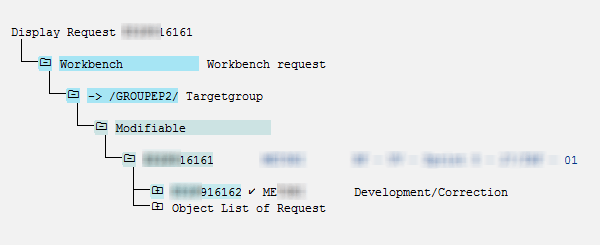
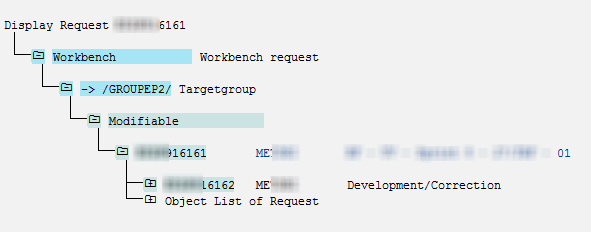
    As you see in the next picture, the transport is released.

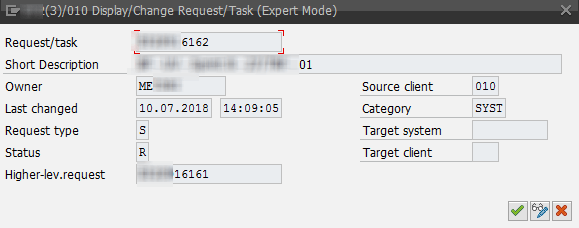
    Transport already released
    Transport already released

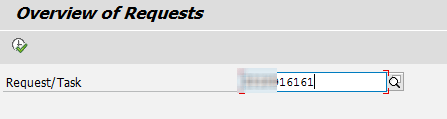
    First start the transaction SE38 and execute the report RDDIT076. You now see the selection screen where you choose the corresponding transport request.

    Report RDDIT076
    Report RDDIT076

    After you click execute you see an overview of the requests. Now you have to select the entry you want to change and see the details of it.

    RDDIT076 Overview
    RDDIT076 Overview

    Use the pen to switch into the edit mode and change for example the status to undo the release. Confirm and save the changes. 

    Change request/task
    Change request/task

    As you can see in this figure the transport request has been reset and it is back in development status.

    Transport is modified again
    Transport is modified again

    Blame on me, I found an old post which just described the steps. Look here.

    author.


    I am Tobias, I write this blog since 2014, you can find me on twitter and youtube. If you want you can leave me a paypal coffee donation. You can also contact me directly if you want.
  • Analysis Office Data Source for Defining Formulas

    A new function in Analysis Office 2.7 is „Select Data Source for Defining Formulas“. But what does this mean? First
    the prerequisites:

    So I just logged into my BW 7.50 test system and what I have to see, we only have a BW 7.5 SP11. So I have applied the notes and each note need further notes to implemented. I just want to test
    something and now I have to implement more than 30 notes.


    After this was done I could start finally to test this function. Alexander
    Peter
    showed in the latest DSAG webcast an example so I had a slight idea what to do.

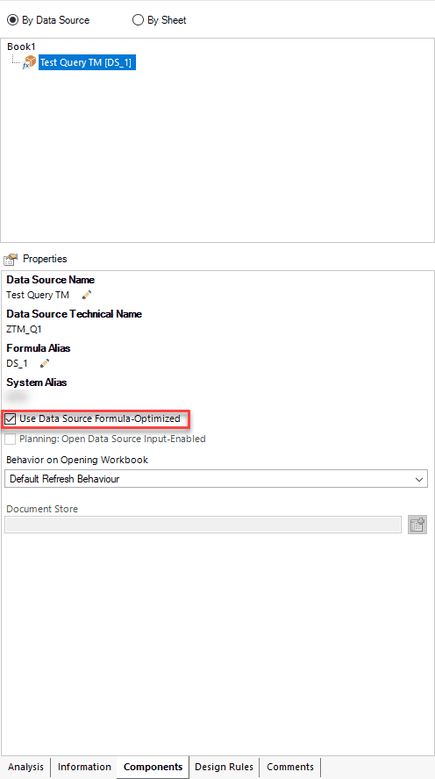
    First I logged to my BW 7.5 and selected my query. You have to make sure that the option Use Data Source Formula-Optimized is active. If not, you cannot use it. If
    it is not active you can in return create a Crosstab which you cannot do if it is formula optimized.

    Analysis Office Components tab - Use Data Source Formula-Optimized
    Analysis Office Components tab – Use Data Source Formula-Optimized

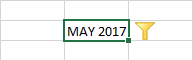
    So now just create an example. First I create a simple SAPSelectMember to use it for the next steps.


    =SAPSelectMember(„DS_1″;“0CALMONTH{pres=INTERNAL_KEY}=201705″;“0CALMONTH“;“Text“)


    This is how it looks like:

    Formula SAPSelectMember
    Formula SAPSelectMember

    Now I build a little compley formula to get my data.


    =SAPGetData(„DS_1“;F3;“0CALMONTH=“&SAPGetMember(„DS_1″;“0CALMONTH=“&I3;“KEY“))


    This is how it looks like:

    Formula SAPGetData
    Formula SAPGetData

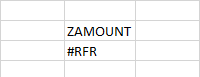
    As you might wonder, you see now #RFR. This mean you need to refresh your data source and now you see the result.

    Formula SAPGetData with value
    Formula SAPGetData with value

    After you change the Filter Component you always see the #RFR. This could be better, I hope SAP will make improvements here. Now you can use this „new“ function to build beautiful dashboards.


    But what is now the thing, why I should use the new function? You sure now the SAPGetData formula from earlier versions. But the SAPGetData formula in older versions need a query view  that contains
    all cells which you want to query. That means you have to drill down hierarchies and add dimensions if you want to query these characteristic combinations.


    This can mean, that you have to quest 100.000 cells to represent two values. In the new handling since the actual version it is the other way around. This mean you write the combination you need
    and Analysis Office generates the best possible queries.


    Thanks to Alexander Peter for clearing this up.

    author.


    I am Tobias, I write this blog since 2014, you can find me on twitter and youtube. If you want you can leave me a paypal coffee donation. You can also contact me directly if you want.
  • SAP HANA Calculation View to build virtual keyfigure

    In my project I have now the opportunity to build SAP HANA Calculation Views. We use Calculation Views to combine two different Advanced DataStore Objects. First you have to set the parameter
    External HANA View in the setting of your ADSO. When you activate this setting a SAP HANA Table is created which you can use in a Calculation View.

    Create External SAP HANA View for an ADSO
    Create External SAP HANA View for an ADSO

    The following functions are available for a SAP HANA Calculation View:

    • Join
    • Union
    • Projections
    • Aggregation
    • Rank

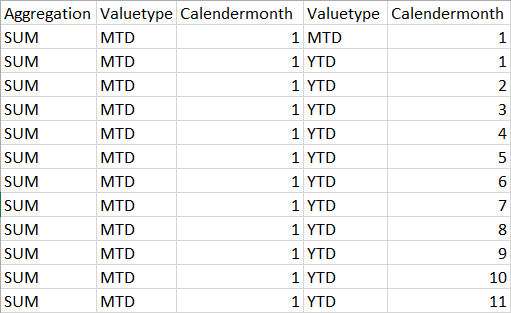
    In our project we build a view which creates a Month-to-Date (MTD), Quarter-to-Date (QTD) and Year-to-date (YTD) view. For this we have a control ADSO which has the following structure.

    Structure of control ADSO
    Structure of control ADSO

    The control ADSO has also an External SAP HANA View. After the preparation is done and the control data is loaded into the BW, we go back to Eclipse and open the perspective SAP HANA
    Administration Console
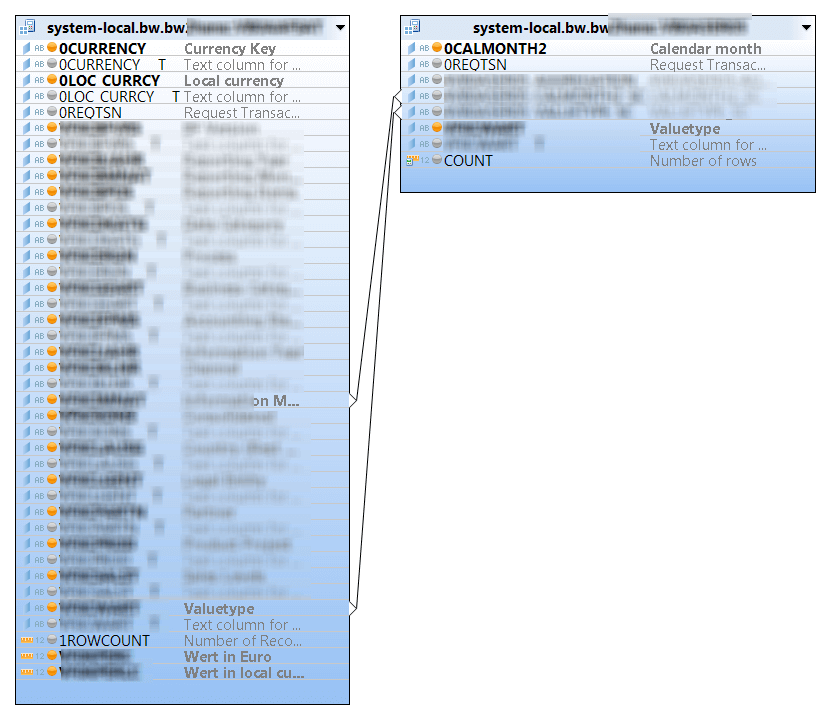
    . First we add an Inner-JOIN to connect our first ADSO with the control ADSO.

    Inner Join with two HANA Tables
    Inner Join with two HANA Tables

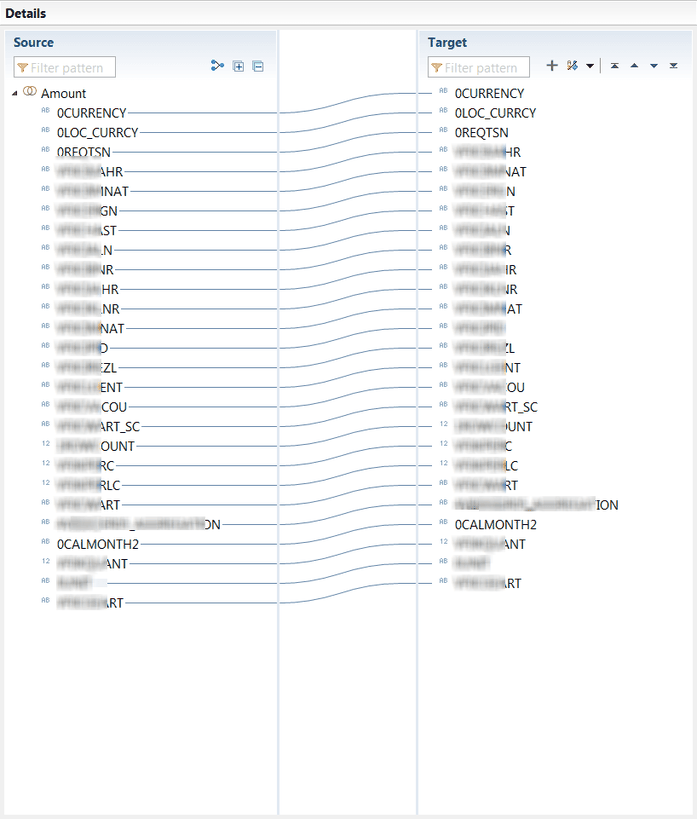
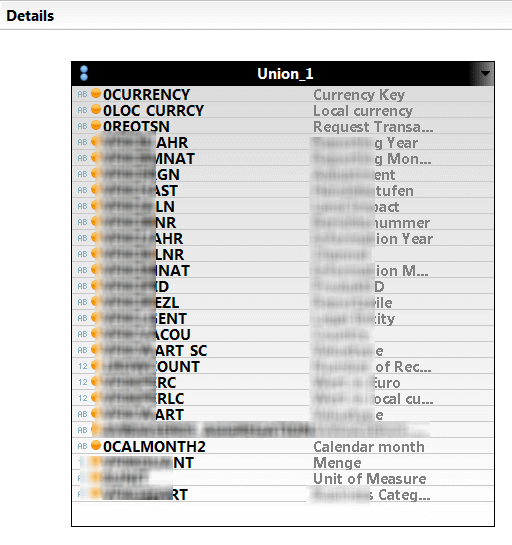
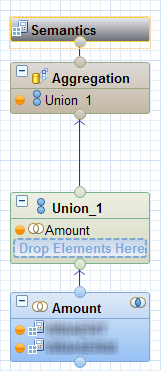
    Now we have created the connection between the two ADSOs. After the JOIN, we created an UNION to have the freedom to add more JOINs in the future. We match now all
    fields from the source to the target.

    HANA View Union Mapping
    HANA View Union Mapping

    After we matched all fields, we now can select them in the AGGREGATION layer.

    HANA View Aggregation Layer
    HANA View Aggregation Layer

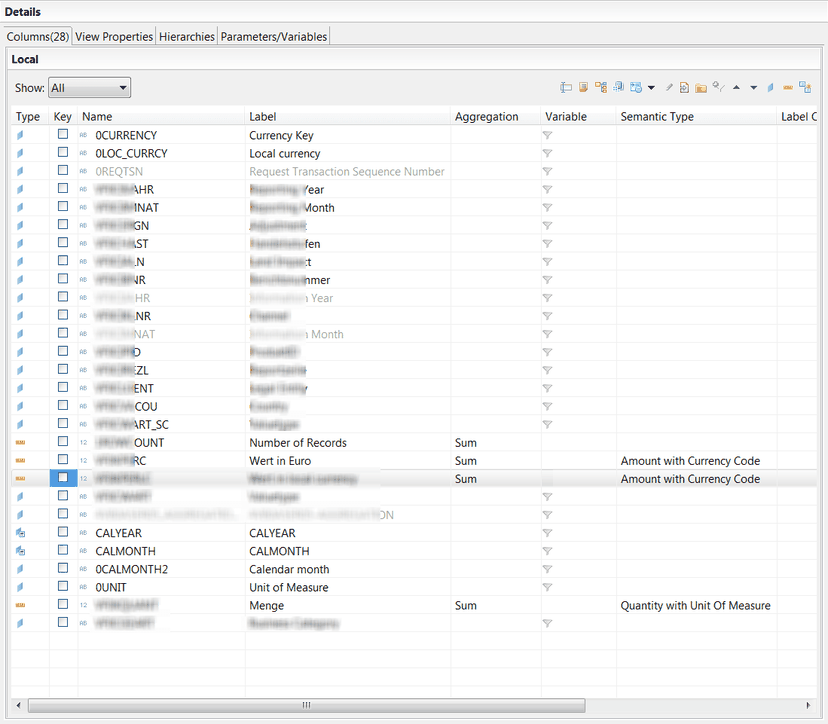
    Now we assign the key figure fields the right Semantic Type.

    HANA View Semantics View
    HANA View Semantics View

    After we activate the Calculation View, we can now see the data in the preview.

    HANA View Data preview
    HANA View Data preview

    But keep in mind, we only have Month-to-Date values in our BW. The Year-to-Date and Quarter-to-Date values are just virtual. I hope this can help someone to build something really cool. Here is
    the overview of my HANA View.

    HANA View
    HANA View

    author.


    I am Tobias, I write this blog since 2014, you can find me on twitter and youtube. If you want you can leave me a paypal coffee donation. You can also contact me directly if you want.

  • What’s new in Analysis Office 2.7

    Today Analysis Office 2.7 was released. Thanks to Zisi1990, who pointed me seconds after it was
    released that it is available. You can download it with a S-User. Here is a short overview what’s new in Analysis Office 2.7:

    • You now have to two ribbon tabs. One for the analysis and one for design
    • There is a new formula called SAPSelectMember. The formula returns a member of a dimension, this might be interressting for VBA.
    • You can now save comments to BW/4HANA. The history of these comments is available in the new tab Comments in the design panel and you can now select the preffered platform for your comments.
      Either BW/4HANA or BI platform.
    • There are also two new file system parameter:
      • PreferredDocumentStorage
      • EnablePreferredDocumentStorage
    • You now can use Planning Data with SAP Analytics Could models.

    author.


    I am Tobias, I write this blog since 2014, you can find me on twitter and youtube. If you want you can leave me a paypal coffee donation. You can also contact me directly if you want.

  • What’s new in Analysis Office 2.6 SP3

    After a short vacation over Pentecost I have now time to write „What’s new in Analysis Office 2.6 SP3“. A short overview yo find in this post. The user guide shows some new things:

    • The formula SAPSetFilterComponent has two new parameters: MEMBERSELECTOR
    • You can now copy Table Design from one Crosstab to another. This is really cool.
    • Table Design formulas can now be restricted


    The admin guide has 20 new pages to the Analysis Office 2.6 guide. The settings chapter is new organized and in my
    opinion a little bit better organized than before. Also new is the topic how to use the BI Platform with hyperlinks and variables like the old BI Portal. This is described in section 5.9.4 in the
    admin guide.

    author.


    I am Tobias, I write this blog since 2014, you can find me on twitter and youtube. If you want you can leave me a paypal coffee donation. You can also contact me directly if you want.