Since last Friday the latest version of SAP Analysis for Office is now available. You can download it in the SAP Launchpad. As the last version we have some bugs which are now hopefully fixed:
All crosstabs are removed from workbook (s-note 2990456)
Date picker control using wrong calendar or chosen date is incorrect (s-note 2981896)
Exception when saving a workbook with a chart sheet (s-note 2981234)
Search result does not show translated texts (s-note 2977530)
The online help of SAP Analysis for Office is not updated yet. A lot of s-notes for a Service Pack 6. I had some issues when I refresh my data source with the last version, I hope this will be
fixed now. Do you have any problems with Analysis Office?
I am Tobias, I write this blog since 2014, you can find me on twitter, facebook and youtube. I work as a Senior Business
Warehouse Consultant. In 2016, I wrote the first edition of . If you want you can leave me a paypal coffee donation.
You can also contact me directly if you want.
At the end of last month I ask on Twitter why I should create a join between an Advanced DataStoreObject and an InfoObject to read the attributes from
this InfoObject when I even can activate the attributes on the output tab of the Composite Provider in SAP BW/4HANA. The answers on Twitter was not satisfactory, and I ask a colleague if he
knew a reason. So I build a Composite Provider with a join between an InfoObject and an ADSO in our BW/4HANA system.
SAP BW/4HANA 2.0 Composite Provider Join
Now I have the same picture as in my post on Twitter. The screenshot there is from the book BW4/HANA – An Introduction. So maybe when this book came out in 2017 it was a good idea to build a
Composite Provider like this. So let’s give it a try. First we need some data for our ADSO, so I used my Sales Data DSO which I already have. Then we have to create for this test an attribute. I
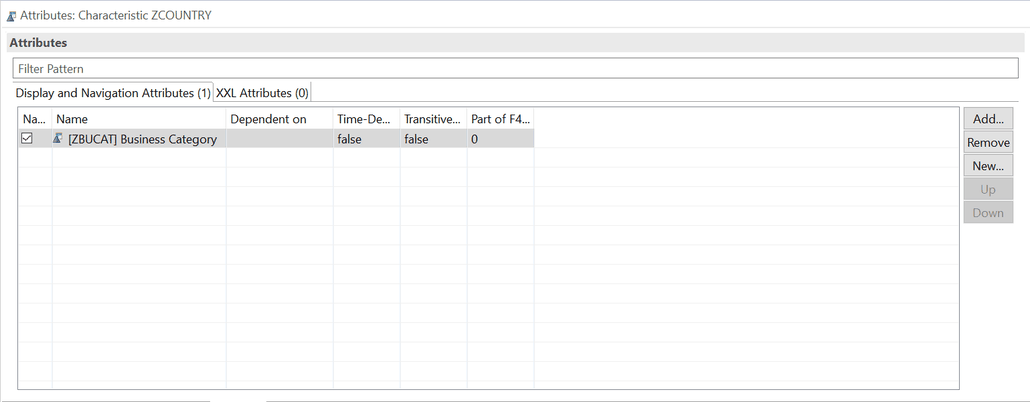
decided to add the Business Category to my Country InfoObject.
SAP BW/4HANA 2.0 InfoObject with Navigation Attribute
Now I thought I don’t win anything when I join the InfoObject Country with my ADSO Sales Data and add the Business Category from the InfoObject to my Composite Provider. So there must be a way to
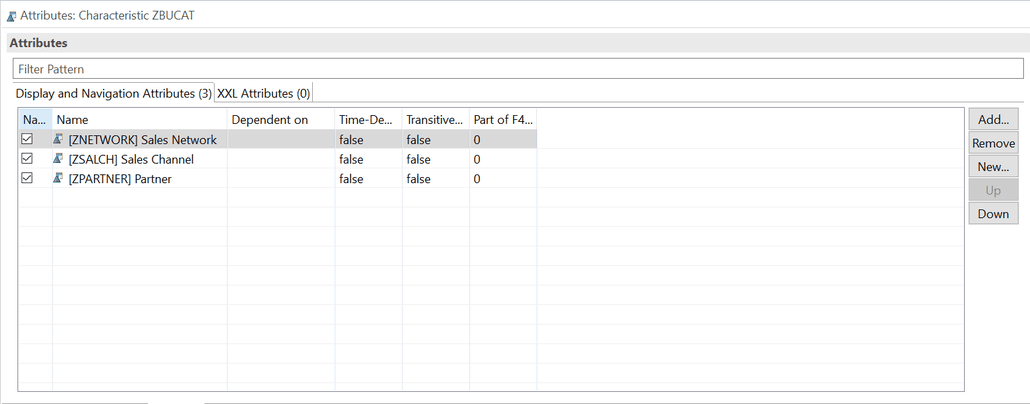
use this scenario. So I added to my InfoObject Business Category the InfoObject Partner.
SAP BW/4HANA 2.0 InfoObject with Navigation Attribute
Now we are facing some cool idea. Can I report on my Partner and get the Sales Data for it? Even when the Partner is not in the ADSO or has a relationship to an object which is directly in the
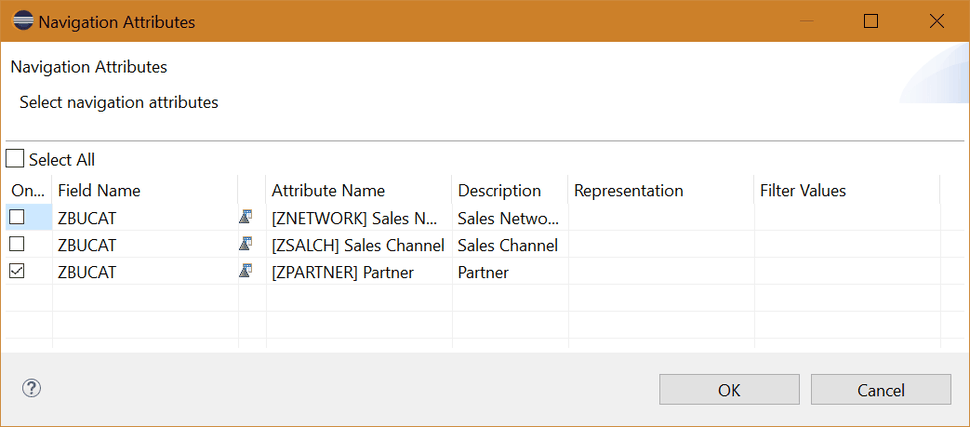
Advanced DataStoreObject? So we can now activate on the output tab of the Composite Provider the navigation attribute of my Business Category.
SAP BW/4HANA 2.0 Activate Navigation Attribute on Composite Provider
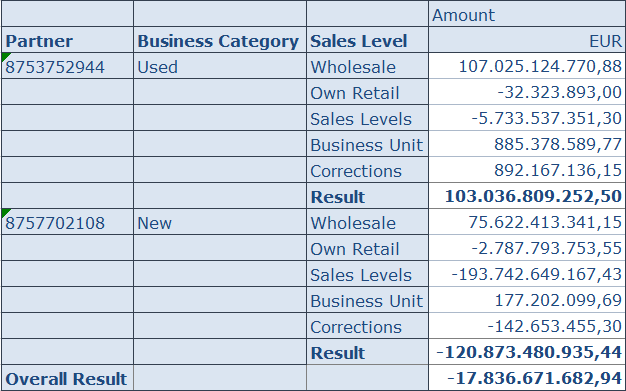
So let’s look into SAP Analysis for Office and analyze the data with the Partner.
SAP Analysis for Office report
And voilà it works perfectly. Now I can analyze my data with a dimension which has nothing to do with my data model.
Conclusion
So I think this could be a nice way to combine data with InfoObjects which have nothing to do with the data model. So It could be for example to report the sales rep responsible profit
center with some financial data which as only the customer in the data model. So you have a link between the customer and as navigation attribute the sales rep. And each sales rep has a profit
center. What do you think about this idea?
author.
Hi,
I am Tobias, I write this blog since 2014, you can find me on twitter, facebook and youtube. I work as a Senior Business
Warehouse Consultant. In 2016, I wrote the first edition of . If you want you can leave me a paypal coffee donation.
You can also contact me directly if you want.
You want to know SAP Analysis for Office in a perfect detail? You want to know how to build an Excel Dashboard with your Query in Analysis for Office? You want to know how functions in SAP Analysis for Office works?
Then you have to take a look into Analysis for Office – The Comprehensive Guide. Either as a video course or as an e-book.
Since a couple of days the latest version of Analysis for Office 2.8 is available. Michael was a little faster and notice it on Twitter
before me. So let’s look into it. SAP fixes a bunch of bugs with this service pack. Here is an overview:
AO 4 SAC: „Group Members“ functionality not available when using BW Live Data Connections (s-note 2962476)
AO: BEx Workbook Conversion – An exception occurs when trying to save a converted BEx workbook which contains formulas (s-note 2965890)
Action has been cancelled due to invalid input values (s-note 2958731)
Analysis for office responds slow in AO 2.8 (s-note 2966651)
I am Tobias, I write this blog since 2014, you can find me on twitter, facebook and youtube. I work as a Senior Business
Warehouse Consultant. In 2016, I wrote the first edition of . If you want you can leave me a paypal coffee donation.
You can also contact me directly if you want.
Open ODS are a long time available in SAP NetWeaver BW. You can access directly database tables, database views or BW/4HANA DataSources (for direct access). In this blog post I want to look into
the fast and agile modeling with Open ODS Views. So we start with a flat file we for example received from our customer to build a new data flow for reporting. The file has the following
structure:
Country
Product
Business Category
Controlling Area
Profit Center
Month
Year
Amount
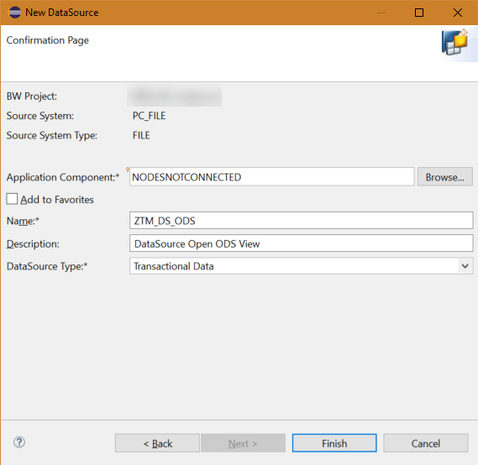
I created a test file with 10.000.000 entries to get some data we can play with. Now we create based on this file a data source to import the data.
Create Data Source
Now after we created our data source, we have to switch on the option „Direct Access“ in the extraction tab.
Activate Direct Access
Now we have to read the file and determine the fields we need. After that we can go to model our Open ODS View and Composite Provider to report the data very fast.
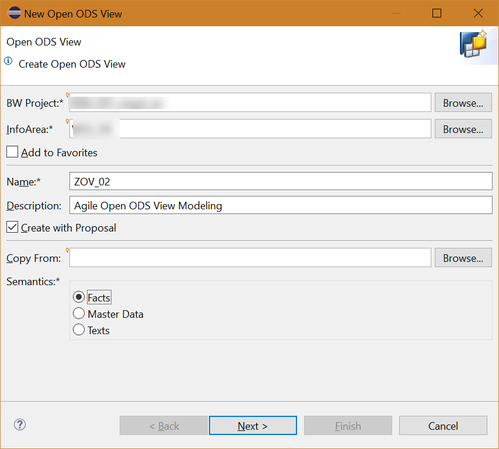
Create Open ODS View
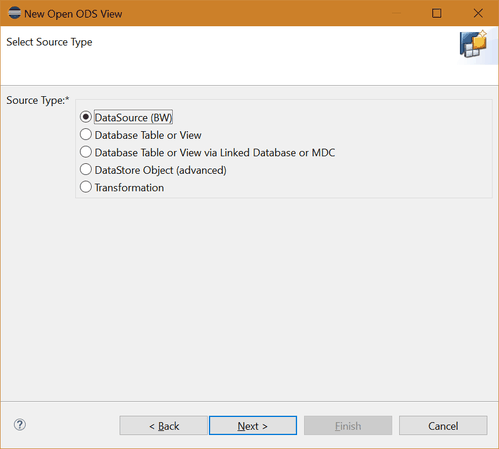
Open ODS View Source Type: DataSource
So after we created now our Open ODS View based on our data source, we can build a CompositeProvider on top to make it available on reporting.
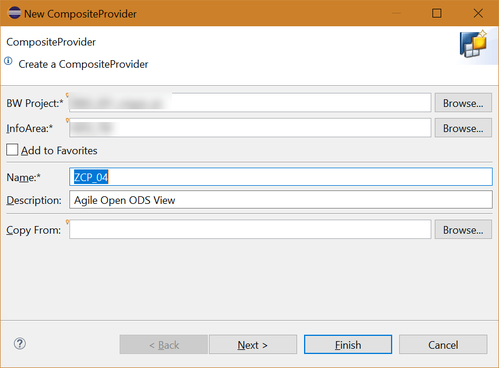
Create CompositeProvider
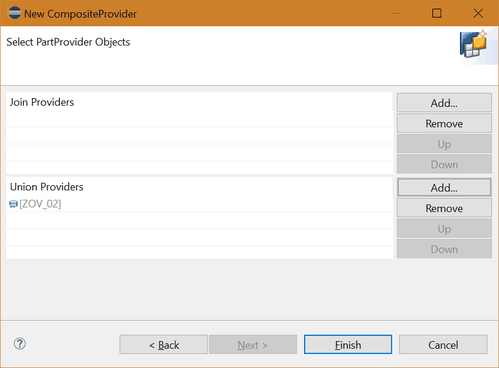
Add Open ODS View to CompositeProvider
So now we have our CompositeProvider to report on it. This steps only took a short time to model a simple data flow and provider some data to the business department.
Adhoc view of the data
So now after the business looked into the data and agreed to persist the data in the Business Warehouse, we can now create directly out of the Open ODS View an DSO with a simple transformation.
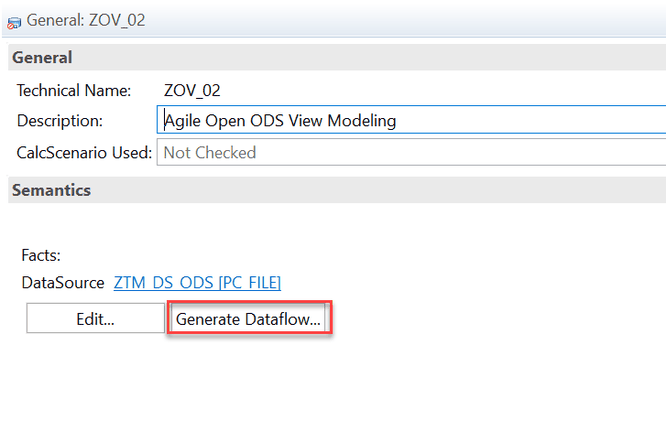
Generate Data Flow
By clicking on Generate Dataflow, a persistent data flow can be created.
Generate ADSO
ADSO General Tab
ADSO Detail Tab
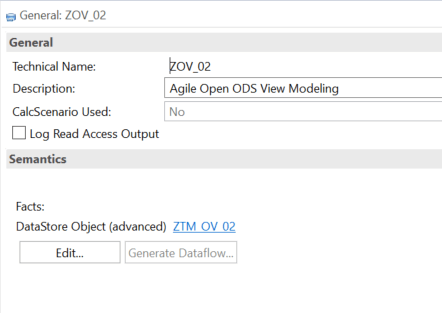
Now the basic ADSO is created and can store our data. The Open ODS View also switched to the ADSO as source.
Open ODS View with ADSO as source
Now we can remove the Open ODS View and include the ADSO into the CompositeProvider. This basic introduction shows you how easy it is to provide a data model to the business users.
Conclusion
I think that it is now easy possible to provide a table or CSV file to the data owner and show how to use it. If the adoption of the developer was right it is easy to implement a persistent data
model with more logic. I think this agile concept is very nice, and I will look into it deeper under the point of view to implement more logic into the Open ODS View. I hope you like this example
and share some of your experience in the comments.
author.
Hi,
I am Tobias, I write this blog since 2014, you can find me on twitter, facebook and youtube. I work as a Senior Business
Warehouse Consultant. In 2016, I wrote the first edition of . If you want you can leave me a paypal coffee donation.
You can also contact me directly if you want.
I lately looked deeper into the modeling of Composite Provider in BW/4HANA 2.0 and found some difference between a BW/4HANA 1.0, BWonHANA 7.50 and the latest version BW/4HANA 2.0. So let’s
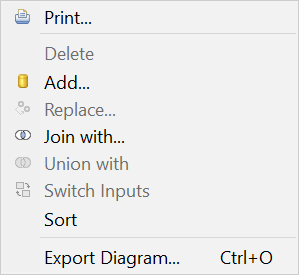
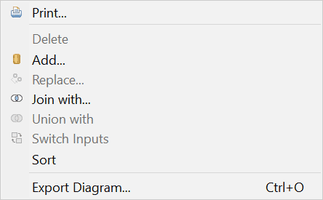
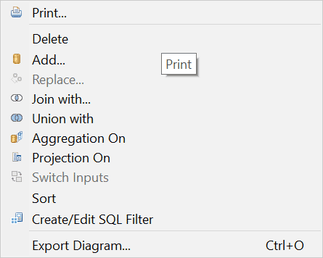
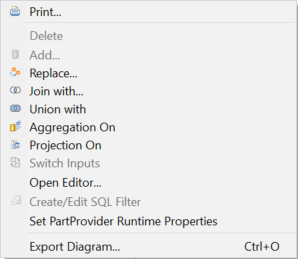
compare them and see what’s new, and we can go deeper in further posts. We start with the context menu of the scenario for the provider.
SAP BWonHANA 7.5
SAP BW/4HANA 1.0
SAP BW/4HANA 2.0
As you can see the BW/4HANA 1.0 and BWonHANA 7.5 is quite the same but BW/4HANA 2.0 has some more entries in the context menu. We now see there an Aggregation, Projection and a Create/Edit SQL
Filter. Also, the join types are enhanced with Full Outer-, Referential-, Right Outer Join instead of only Inner and Left Outer Join on BW/4HANA 1.0.
You have now also some different join operations like:
Equal to
Greater Than or Equal to
Greater Than
Less Than or Equal to
Less Than
Not Equal to
So you can build more flexible joins.
So we have here some similar functions to a SAP HANA Calculation View? Or what can we do with it? I will build a Composite Provider with Aggregation or Projection and a SQL Filter in a demo. Now
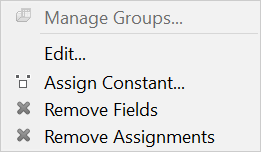
lets dive into the context menu of the mapping.
SAP BWonHANA 7.5
SAP BW/4HANA 1.0
SAP BW/4HANA 2.0
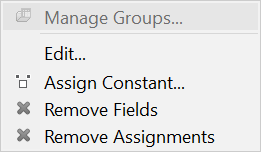
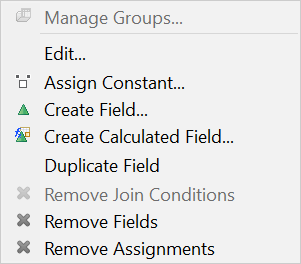
As you can see the context menu here also expanded with some new features. Like Create Field, Create Calculated Field and Duplicate Field. So what are these new things?
Aggregation & Projection
To say it in SAP language the two new types of nodes (Aggregation and Projection) is to simplify modeling in SAP BW/4HANA. But what can we do with it? With the Aggregation Node
we can aggregate key figure values in the target structure of the Composite Provider. This is similar to the functionality which is already provided in the SAP HANA Calculation View. But we have
in the Composite Provider less aggregation types than in a SAP HANA Calculation View.
The Projection Node is mainly there to define the output structure and add a filter on a specific part provider.
SQL Filter
We start with the function SQL Filter and see how it works. If you want to add a SQL Filter, you need either an Aggregation or a Projection on top of your part provider. Now we are able to add a
SQL Filter with the HANA SQL Script language. You find the HANA SQL Script reference here.
Create/Edit SQL Filter inactive
As you can see on a part provider the function is disabled.
Calculated Fields and Fields
With Calculated Fields it is possible to enrich or refine data from part providers with additional business logic in SAP HANA SQL syntax. You can also add simple Fields as well. Both fields can
be defined either as Characteristics or as a Key Figure. As a characteristic the option „Forced Group by“ can also be enabled.
Example
So let’s build some different cases and see what is happening. We have 3 ADSOs with the following structure:
As you can see every ADSO has a different structure and ADSO 2 has a detailed view of the data of ADSO 1. So let’s look into the data:
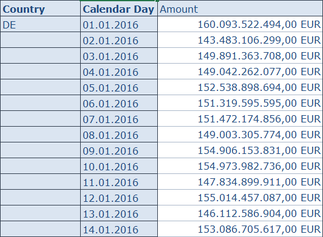
ADSO 1: Sales DE
ADSO 2: Sales US/DE
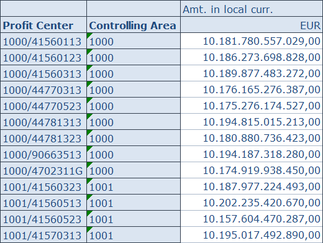
ADSO 3: Sales Profit Center
Now we want to combine the data of ADSO 1: Sales DE with information of ADSO 2: Sales US/D as well as enhance ADSO 1 data with ADSO 3: Sales Profit Center values. So let’s get started:
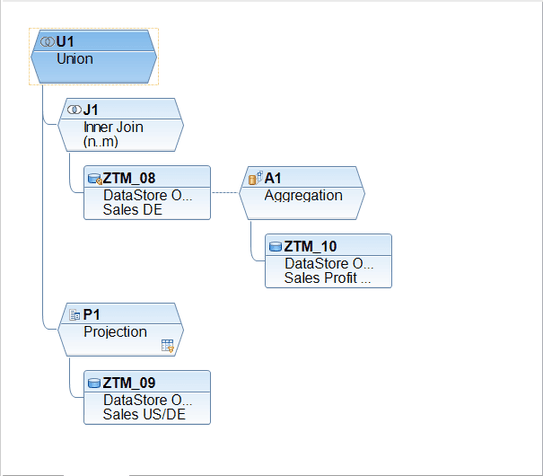
Composite Provider Modeling
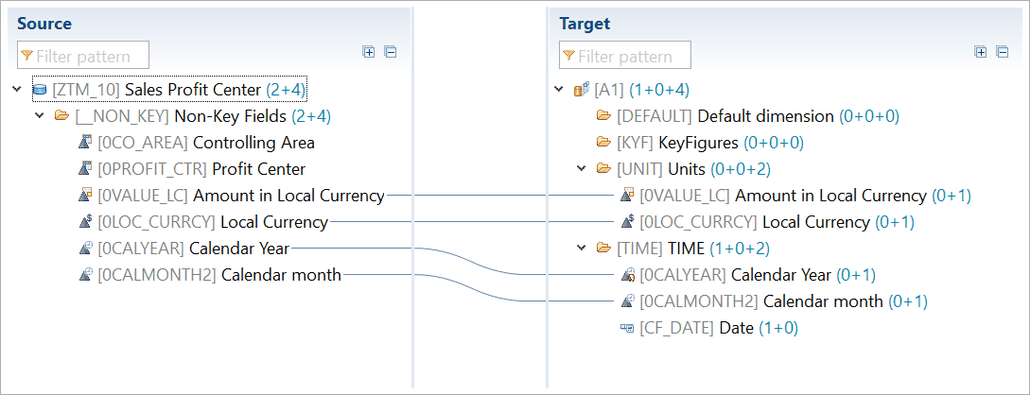
Step 1: Since our Sales DE and the Sales Profit Center have different granularity, an additional aggregation is build on top of the ADSO 3. We want to remove the Controlling Area
and Profit Center information and join it with ADSO 1: Sales DE.
Mapping ADSO 3: Sales Profit Center to Aggregation
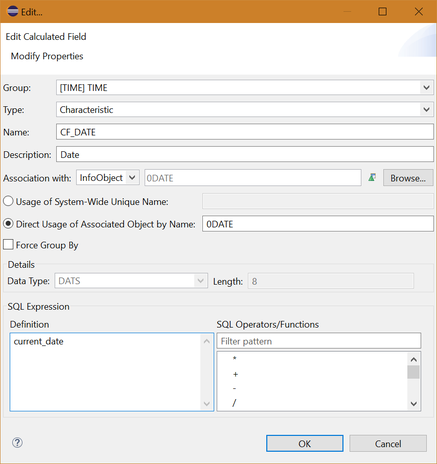
Step 2: In this example we get the current date as a calculation field as a characteristic, and we enable „Forced Group By“ for 0CALYEAR.
Calculated Field Date
0CALYEAR Force Group By
Step 3: ADSO 1 is joined with the aggregation of our ADSO 3. Here we define a calculation field and calculate the variance between the Amount and the Amount in Local Currency.
The join condition is based on 0CALYEAR and 0CALMONTH2.
Join between ADSO Sales DE and Sales Profit Center
Join between ADSO Sales DE and Sales Profit Center
Calculated Field Variance
Step 4: Our Sales US/DE includes the Sales from US and from DE. To avoid duplicate data with ADSO 1: Sales DE, we create a projection on top of the ADSO 2 and use SQL Filter to
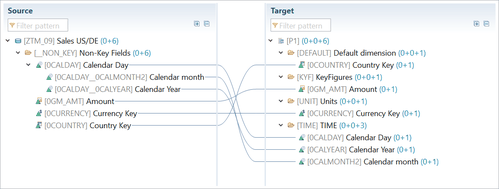
select only the US data. We also activate the navigation attributes 0CALMONTH2 and 0CALYEAR from 0DATE.
Mapping of navigation attributes
SQL Filter
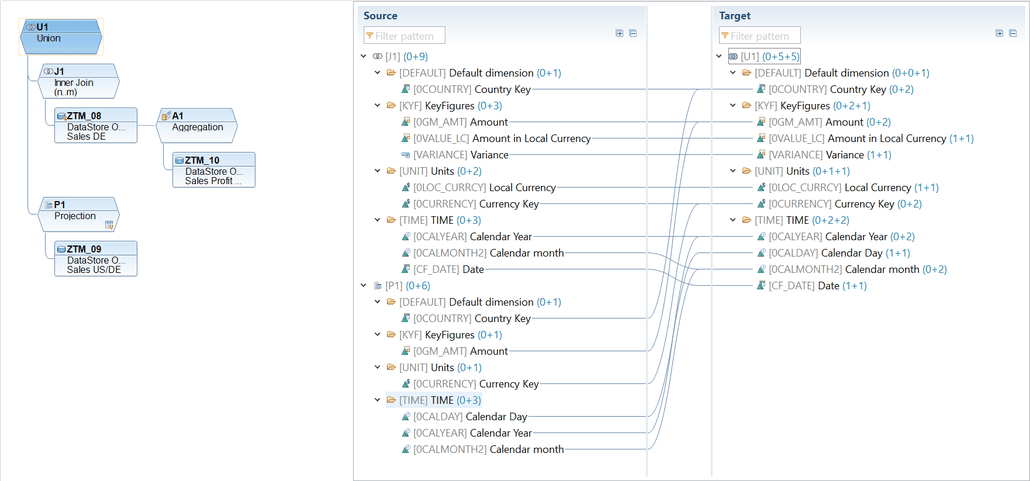
Step 5: In the UNION, we map the date field from ADSO 2: Sales US/DE to the current date from the Join. The fields 0CALMONTH2 and 0CALYEAR are mapped with from the
navigational attributes of 0CALDAY.
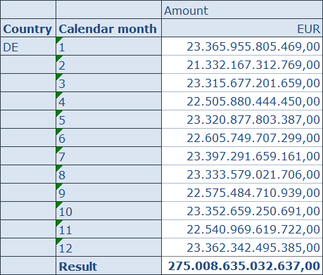
Step 6: The result is now showing in Analysis for Office. As you can see, the Sales DE ADSO is enriched to the Sales of the Profit Center ADSO. We also see the variance and the current date. The
Sales from US only get the column Amount filled.
Result of Composite Provider
Conclusion
It is really cool, that we are able to build more flexible Composite Provider, but I miss a data preview function for each node. This could be a nice feature in the future. Do you like this
feature? Any ideas what you can do with it?
I am Tobias, I write this blog since 2014, you can find me on twitter, facebook and youtube. I work as a Senior Business
Warehouse Consultant. In 2016, I wrote the first edition of . If you want you can leave me a paypal coffee donation.
You can also contact me directly if you want.
Last week I ask on Twitter if anybody knows a good strategy to get all sources of a SAP HANA Calculation View (CV). I got different answers I want to share with you. One approach is really
fascinating.
Does anyone know how I get a list of source tables of a calculation view? Is there any table where this information is stored like the normal #BW rsz tables?
I got an answer from Georgios who recommended the SYS.OBJECT_DEPENDENCIES. There is
also a question in the SAP Community which describes the solution with SYS.OBJECT_DEPENDENCIES. There is
also a blog entry on sap.com about this topic. Another way is which Alexey offered via the ACTIVE_OBJECTCROSSREF table, and he also gave me a hind with this post which
describes the „SAP HANA Auto-Documentation“ the Excel way.
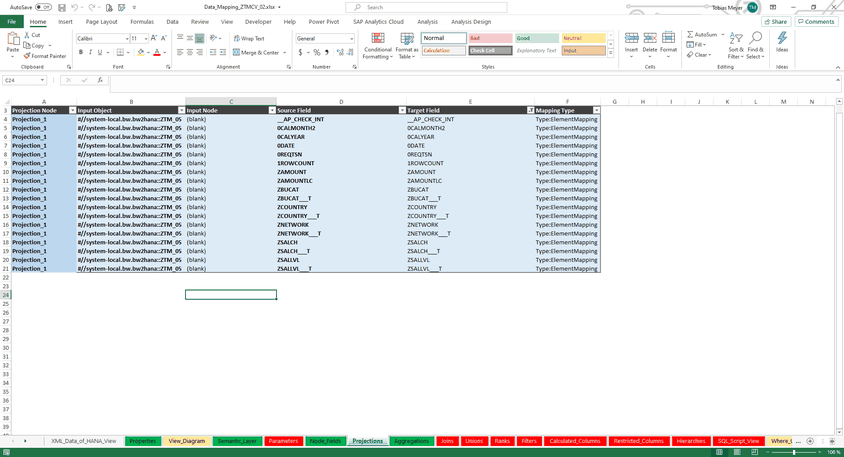
And let me say we have a winner. The SAP HANA Auto-Documentation – Excel Way is a very good solution to solve my issue.
SAP HANA Calculation View Documentation
As you can see very cool tool to get all information you need. Thanks to the SAP Community.
author.
I am Tobias, I write this blog since 2014, you can find me on twitter and youtube. If you want you can leave me a paypal coffee donation. You can also contact me directly if you want.
You have different ways to store the logic of your customer exit variables in SAP BW/4HANA. After my last post about Customer Exit Variables with an own enhancement spot I want to share another solution
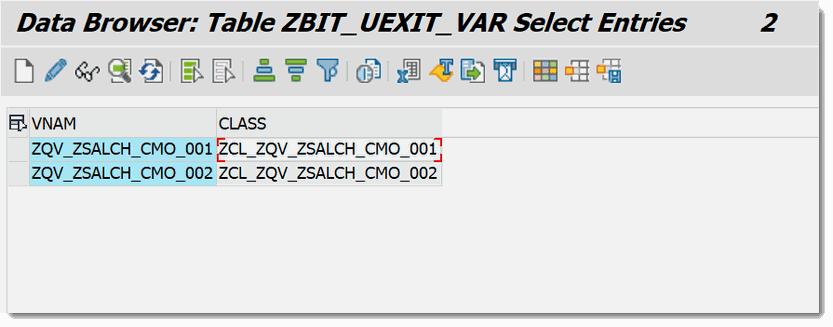
with you. In this blog post I want to show you how you can implement a BAdI implementation with a Z-Table (Customer Table). In this table you find the assignment between the BEx variable and the corresponding class for the customer exit. This is how the table will look like:
Customer Table with assignment between variable and class
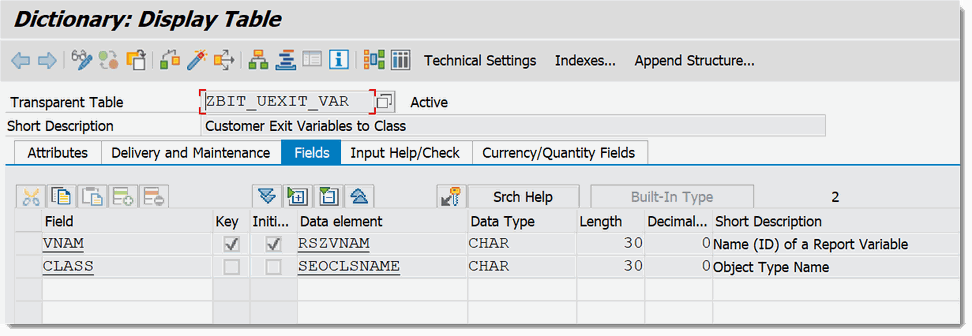
We use this table to determine the corresponding class for our variable. The table structure is very simple. Just create this table in the transaction SE11. As you see the
table has only two fields.
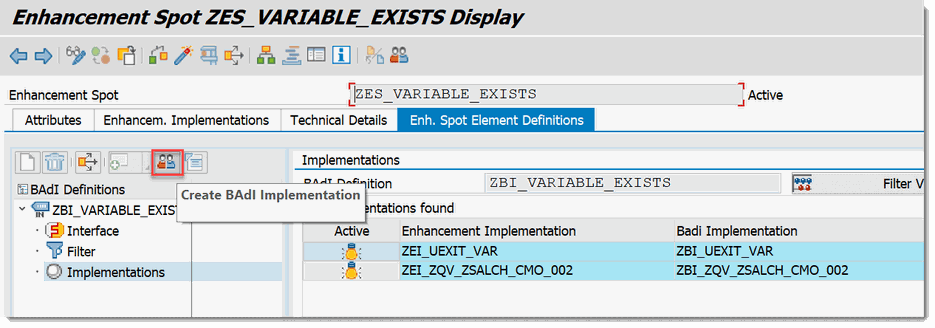
There we create a new BAdI Implementation we will use for our dynamic assignment.
Create BAdI Implementation
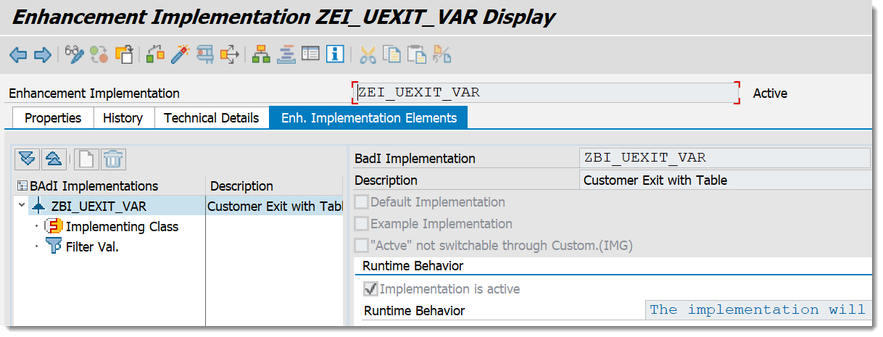
In my case I give the name ZEI_UEXIT_VAR as Enhancement Implementation, ZBI_UEXIT_VAR as BAdI Implementation and ZCL_UEXIT_VAR as class.
Enhancement Implementation ZEI_UEXIT_VAR with BAdI Implementation
After we created the Enhancement Implementation, BAdI and class we now go to the transaction SE80 or to the Eclipse ADT and open our class. And add an attribute to the class.
Add an attribute to our class
We add the attribute GV_VARIABLES_EXIT with the default value IF_RSROA_VARIABLES_EXIT_BADI to our class. After we have done this, we now implement the following code:
For a long time we used for checking and manipulation of customer exit variables the enhancement RSR00001. Since SAP BW 7.3
SAP offers the BAdI RSROA_VARIABLES_EXIT_BADI. Since BW/4 you only could use this BAdI and not anymore the enhancement RSR00001.
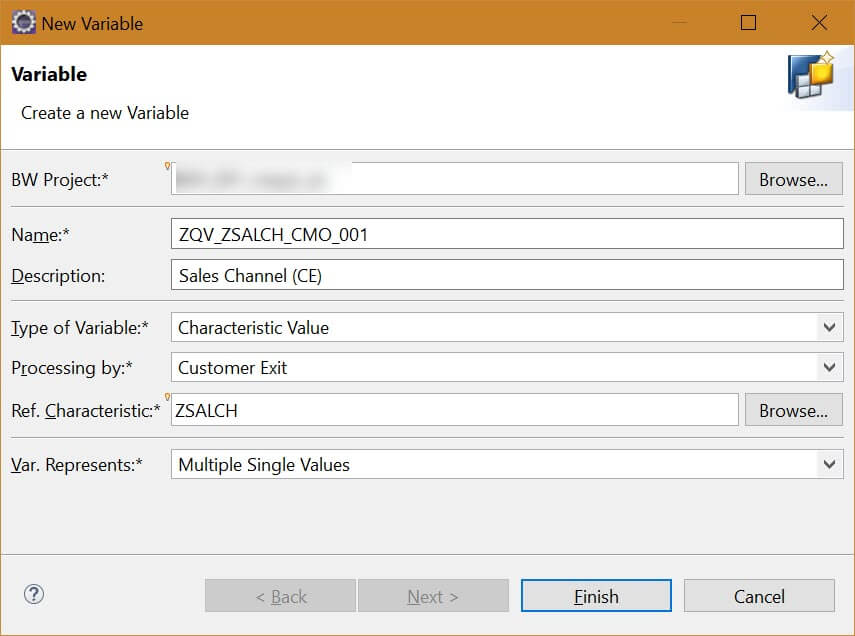
The BAdI RSROA_VARIABLES_EXIT_BADI is a filter based BAdI. As filter object is used the InfoObject which the variable is based on. Every implementation calls the interface IF_RSROA_VARIABLES_EXIT_BADI~PROCESS. So now let’s create an example customer exit variable. The variable is based on Sales Channel (ZQV_ZSALCH_CEO_001) and can handle
multiple single values.
Customer Exit Variable
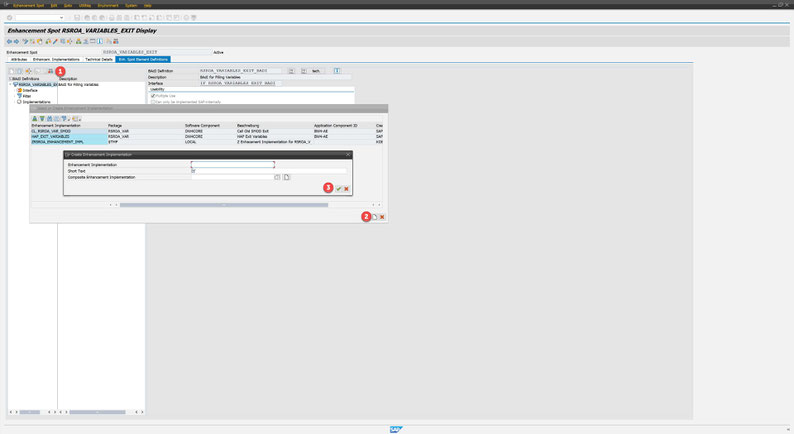
After we created this variable we go to the transaction SE18 and open the enhancement spot RSROA_VARIABLES_EXIT.
Create new enhancement implementation
Frist we create a new BAdI Implementation
Then we create a new Enhancement Implementation
Select the Enhancement Implementation
Create new BAdI implementation
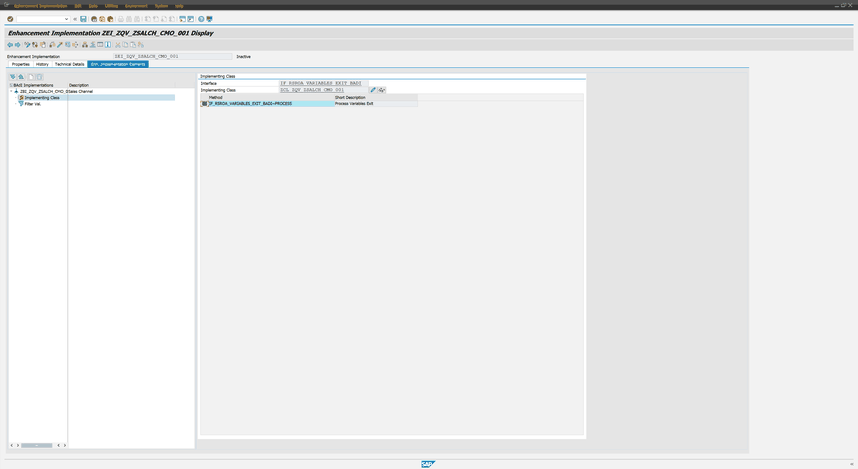
So after we select our Enhancement Implementation we can create our BAdI Implementation and Implementation Class.
Enhancement Implementation with Implementation Class
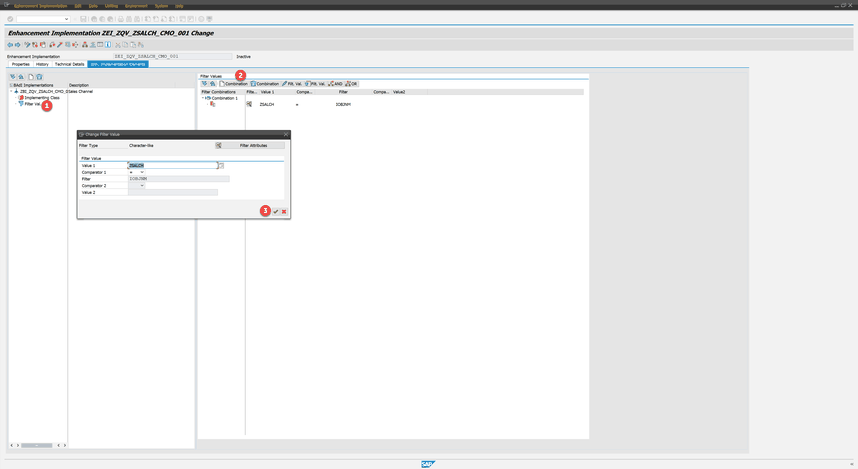
Now we can implement our own coding for this implementation class and define the filter for the Enhancement Implementation.
Enhancement Implementation with Filter Value
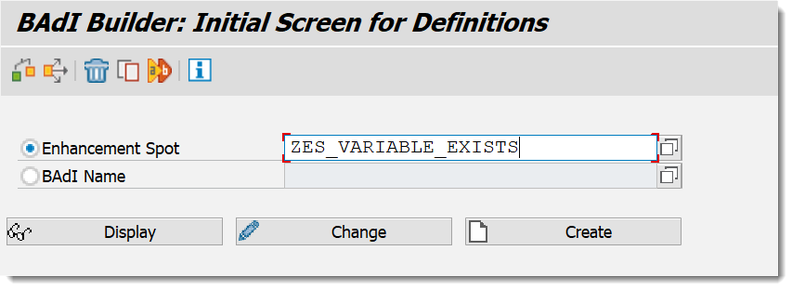
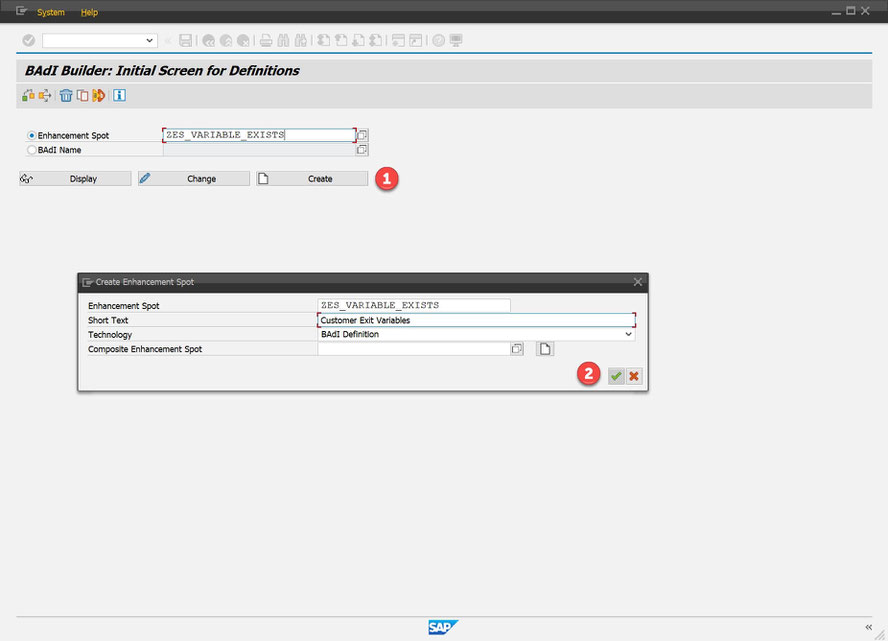
This is the normal implementation way. But now we implement an own enhancement spot to encapsulate our developments. Therefore we go to the se18 and implement the enhancement spot ZES_VARIABLE_EXISTS.
Create own Enhancement Spot
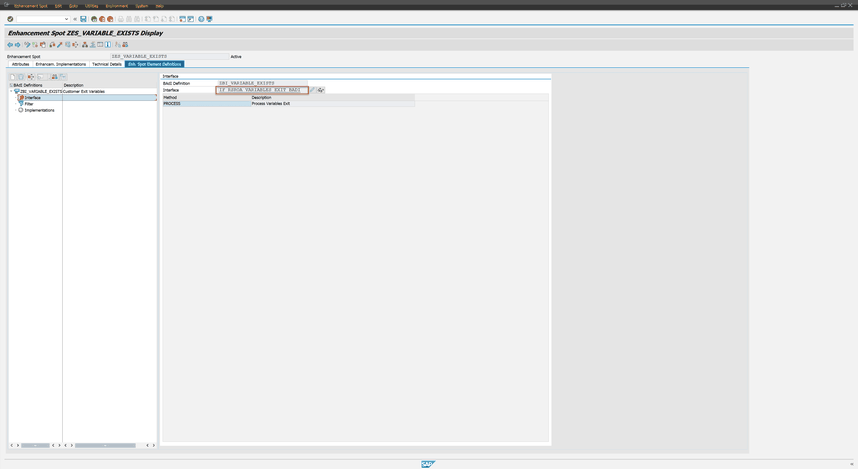
After we created our Enhancement Spot we now have to implement a BAdI definition and add the Interface IF_RSROA_VARIABLES_EXIT_BADI to our BAdI.
Add Interface to BAdI
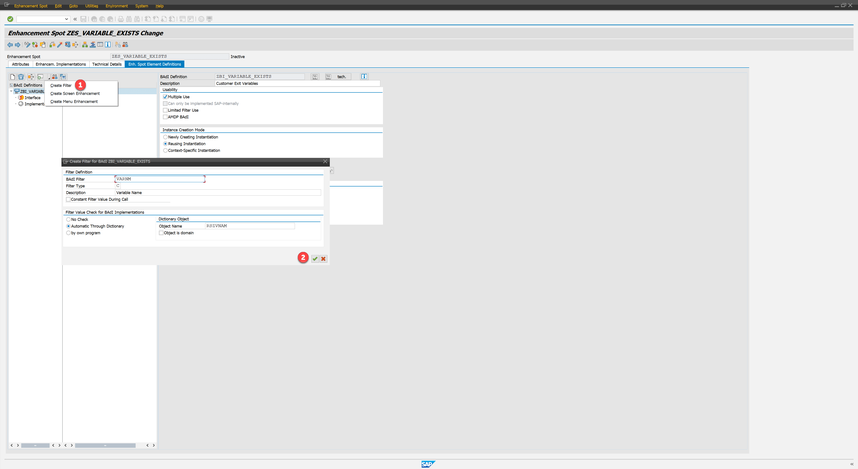
Now we add a filter to our BAdI.
Create filter for enhancement implementation
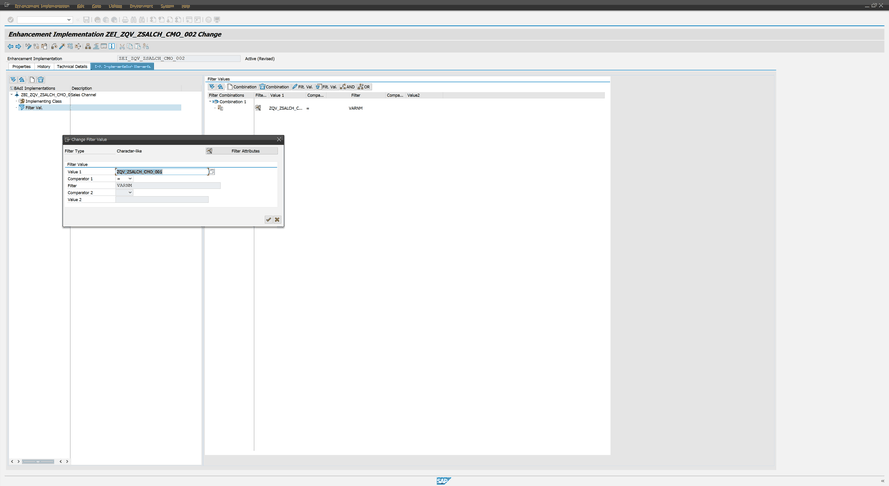
Now we can implement as above mentioned our enhancement implementation and BAdI for the variable exist. The only thing we have to change is the filter because we now based it on the variable name
instead of the InfoObject.
Create Filter based on variable
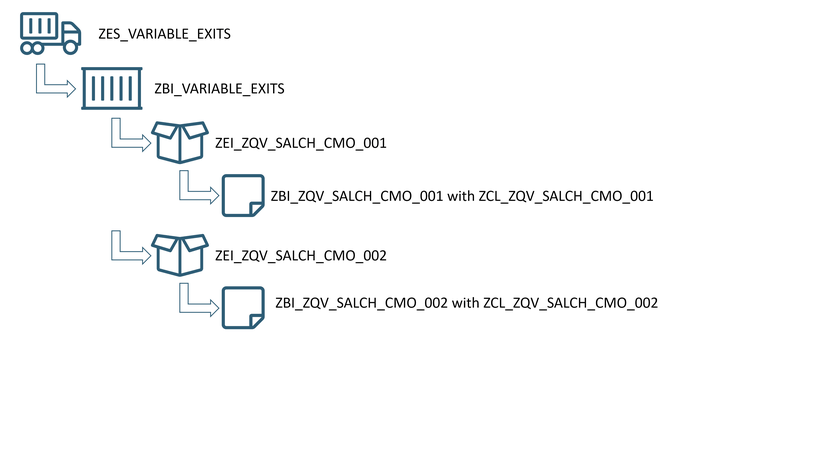
So now we have one enhancement spot with several enhancement implementations (for each variable) with several BAdIs and Classes to separate each implementation with the variable name. The
advantage of this is in a large project if one customer exit variable doesn’t work it only affect this variable and not the whole system.
Example for own enhancement spot
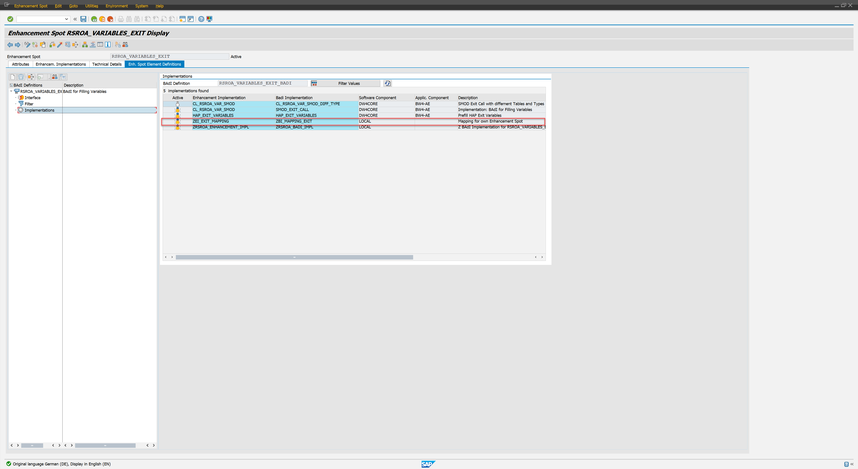
I hope this makes it a little bit easier to understand. Now what’s only missing is the call from RSROA_VARIABLES_EXIT to our own enhancement spot ZES_VARIABLE_EXISTS. Therefore we have to
add an implementation to RSROA_VARIABLES_EXIT to call our enhancement spot. We add a new implementation with the following coding:
DATA: lo_var_badi TYPE REF TO ZBI_VARIABLE_EXITS.
DATA: lt_range_tmp TYPE rsr_t_rangesid.
GET BADI lo_var_badi FILTERS varnm = i_vnam.
IF LINES( lo_var_badi->imps ) <> 0.
CALL BADI lo_var_badi->process
EXPORTING
i_vnam = i_vnam
i_vartyp = i_vartyp
i_iobjnm = i_iobjnm
i_s_cob_pro = i_s_cob_pro
i_s_rkb1d = i_s_rkb1d
i_periv = i_periv
i_t_var_range = i_t_var_range
i_step = i_step
CHANGING
c_t_range = c_t_range
c_no_screen = c_no_screen
c_check_again = c_check_again
c_s_customer = c_s_customer.
ENDIF.
RSROA_VARIABLES_EXIT with Mapping
So the SAP standard enhancement spot only points to our enhancement spot and we are completely independent from other developments.
author.
I am Tobias, I write this blog since 2014, you can find me on twitter and youtube. If you want you can leave me a paypal coffee donation. You can also contact me directly if you want.
I recently got a BW/4HANA 2.0 project. So I want to share some ideas and thoughts I discover in the whole process. First things first. Everything and I mean everything is only available in the
BW/4 cockpit now. ADSO, InfoObject, Hierarchy management and even the Process Chain management is only available in the web. Some things are very confusing when you see it first. But let’s dive
in.
The modeling objects which are left should know everybody. You have only these items to build your data model:
InfoObject
Advanced DataStore Object (ADSO)
InfoSource
CompositeProvider
Open ODS View
This is it. And I think that is what @m_cubillos_o mean with „is really easier and faster to model?“ Yes of course you have different options for
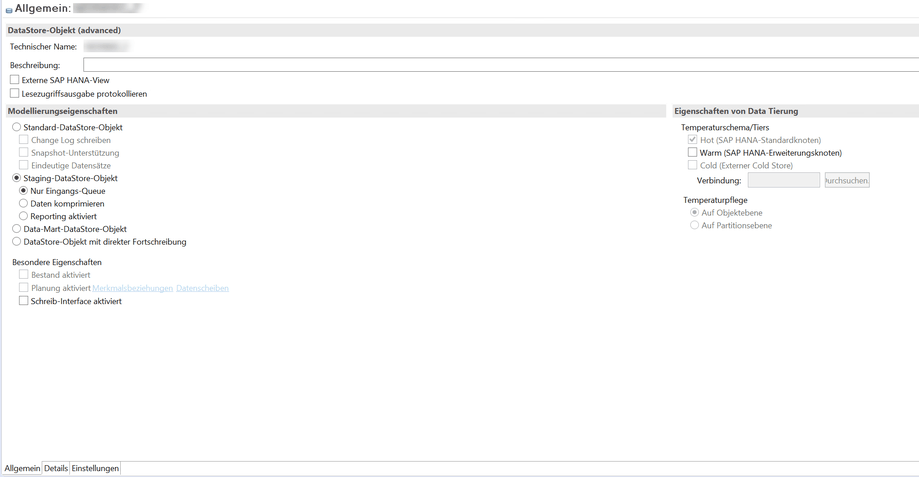
an ADSO to model:
ADSO Settings
Unfortunately I only have a screenshot in German. So you can model different types of ADSO with only one object. So is it really easier and faster to model? But let’s go back to the web
thing.
I think some things are cool but I am slower than with my transactions and actions in the backend. The maintaince of an ADSO or InfoObject is in my opinion very slow and you have to wait when the
system „thinks about the world“ and after that display you the necessary information.
This is the start of several posts about BW/4HANA 2.0 and I show you some things I implemend. I hope you like this short overview. I know that there are no really cool post in the last time but
if you like I published some videos on youtube.
author.
I am Tobias, I write this blog since 2014, you can find me on twitter and youtube. If you want you can leave me a paypal coffee donation. You can also contact me directly if you want.
My video course about Analysis for Office is done. It will be released on 06.07.2020 @ 8:00 am MESZ. You find it under and you get more than 4 hours of 4k content for only 199€. The content will be
extended if it is necessary. Here is a overview of the curriulum.
Installation and Configuration
Customize Analysis Office
Basic Functionality
Advanced Funtions
Reporting with Analysis API and VBA
Every chapter has a lot of videos to explain certain functions in detail. You can also view some letures as a preview for the course so have a look into it. Here are some examples with to show
you what you can expect.
I hope you can imagine what you get in this course. I speeded the videos above a little bit up but on the site you see the whole preview. If you have any questions please feel free to contact me.
So join now the Analysis Office video course and the first 5 get my ebook Analysis Office – The Comprehensive Guide for free.
Get more than 4 hours of 4k content for 199€
The first 5 get my ebook for free (value 59,99€)
author.
I am Tobias, I write this blog since 2014, you can find me on twitter and youtube. If you want you can leave me a paypal coffee donation. You can also contact me directly if you want.