reyemsaibot

SAP BI Blog about SAP BW/4HANA, Analysis for Office and SAP HANA - by Tobias Meyer

Blog

  • What’s new in Analysis Office 2.8

    Yeah finally is Analysis Office 2.8 available. It took a long time. Here is a overview what’s new.

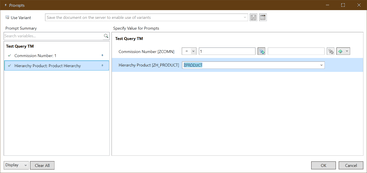
    • In the prompt dialog you can clear all values
    • In the prompt dialog you can insert easily ranges with „value“ „space“ „minus“ „space“ „value“ e.g. 2018 – 2019
    • You can display Dimension Groups in the Query.
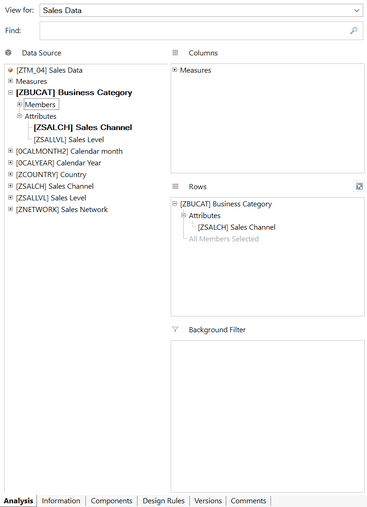
    • The used dimensions are highlighted in the design panel
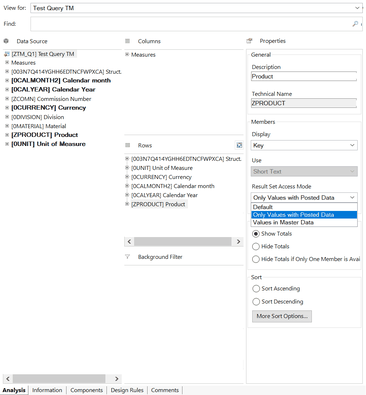
    • You can easily select the access mode in the property view
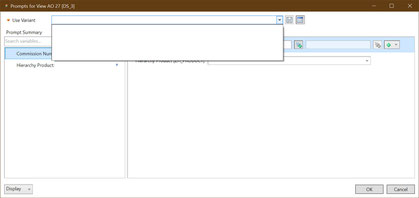
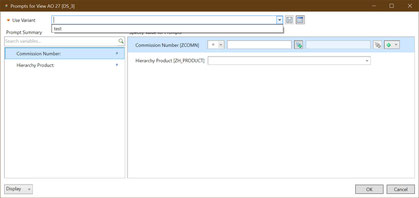
    • Variants in the prompt dialog are now in alphabetical order
    • You can easily get the admin or user guide by pressing F1 in the ribbon menu or the help on this function in the insert function dialog. The sam works for the customize user interface and the
      technical configuration.

    This are some sweet features even not everything is running smoothly.
    Highlighted dimensions
    Highlighted dimensions
    Grouped dimensions
    Grouped dimensions


    Clear Prompt Button
    Clear Prompt Button
    Access mode
    Access mode


    If someone finds another interesting point, let me know.

    author.


    I am Tobias, I write this blog since 2014, you can find me on twitter and youtube. If you want you can leave me a paypal coffee donation. You can also contact me directly if you want.

  • Analysis Office 2.8 is available

    Since last week the latest version of Analysis Office is available. I installed it right away and want to test it. And what I have to see? You cann’t add hierarchies into the rows or columns of
    your crosstab. I tried to record it maybe you can see it in the video below.

    Does nobody test basic functions before releasing a new version? But they also fixed some bugs from previous versions.

    • Analysis Office: Red borders around valid new line cells (s-note 2831840)
    • AO: Documents opened from a BI Platform system are not displayed in Recent Documents List of AO (s-note 2848548)
    • Analyis Office: Content of new line cells is overwritten by content of other crosstab cells when opening workbook (s-note 2861063)
    • Analysis Office: Design rules formats of master crosstab not applied to dependent crosstab (s-note 2849041)
    • Analysis Office: Exception when closing workbook in case ‚Remove Data Before Saving‘ is active (s-note 2854979)
    • Analysis Office: Inconsistent behavior if RSADMIN parameter BICS_NEW_LINE_CHECK_ENABLED is set to blank or not existing (s-note 2844345)
    • Analysis Office: Performance Tuning (s-note 2821386)
    • Error after assigning attributes or while dragging them (s-note 2852220)
    • Filter of a planning function not set (s-note 2851131)
    • Grouped Crosstabs: „No Applicable Data“ in all Cells of the Dependants (s-note 2858675)
    • Login to SAC System fails due to not receiving a valid X-XSRF token from the root url (s-note 2853284)
    • New Lines – Value suggestion is not working for cell if display is combination of Text and Key (s-note 2859180)
    • New Lines and Format Cells entries not disabled in context menu while running Analysis for Office in embedded Excel (s-note 2860401)
    • RFC_METADATA error after upgrading BW server (client part) (s-note 2861026)
    • Refresh does not work when refreshing via Workbook_SAP_Initialize event (s-note 2848410)
    • Scheduling fails if Workbook contains several Styles Definitions for same Name (s-note 2840608)

    I hope SAP will release soon a serivce pack 1 for Analysis Office 2.8 and fix the problem with the hierarchy, because at the moment Analysis Office 2.8 is not useable.

    Update 09.12.19:

    As described in the comments, it works on SAP BW 7.5 SP11 and my test was on a SAP BW 7.5 SP16.

    author.


    Hi,

    I am Tobias, I write this blog since 2014, you can find me on twitterfacebook and youtube. I work as a Senior Business
    Warehouse Consultant. In 2016 I wrote the first edition of . If you want you can leave me a paypal coffee
    donation. You can also contact me directly if you want.


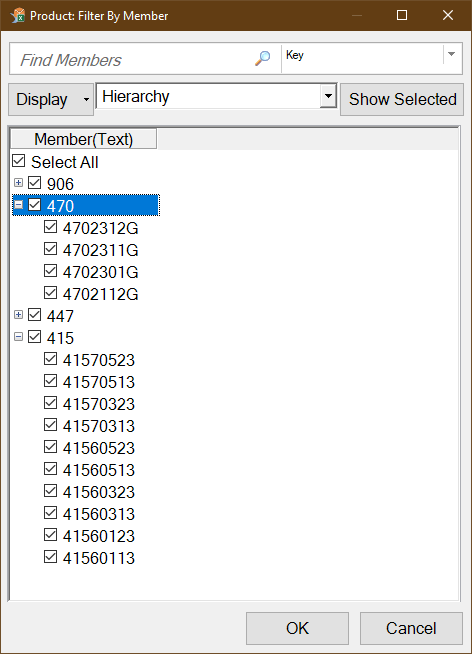
  • SAP Analysis for Office Filter multiple hierarchy nodes

    This week I discussed with a colleague. He ask if there is any way to filter multiple entries in a hierarchy because there is no Paste or Upload function in the
    hierarchy filter dialog.

    Filter Hierarchy Nodes by select manually
    Filter Hierarchy Nodes by select manually

    So he selects the nodes he needed manually. This could be very frustrating and time intense if you have a lot of nodes you want to select. But there is a smarter way to filter multiple hierarchy
    nodes either via Paste or Upload. How it works I show you in this post.


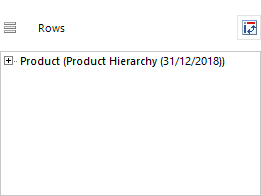
    First add your dimension into the rows.

    Hierarchy displayed in the crosstab rows
    Hierarchy displayed in the crosstab rows

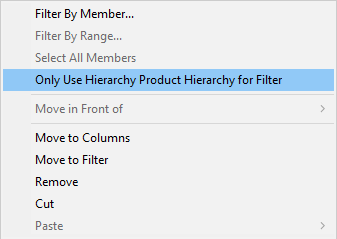
    Make a right click on the dimension and select the option Use only hierarchy Product Hierarchy for Filter. The term Product Hierarchy comes from your dimension. In
    my case the Product Hierarchy.

    Only use hierarchy for filter
    Only use hierarchy for filter

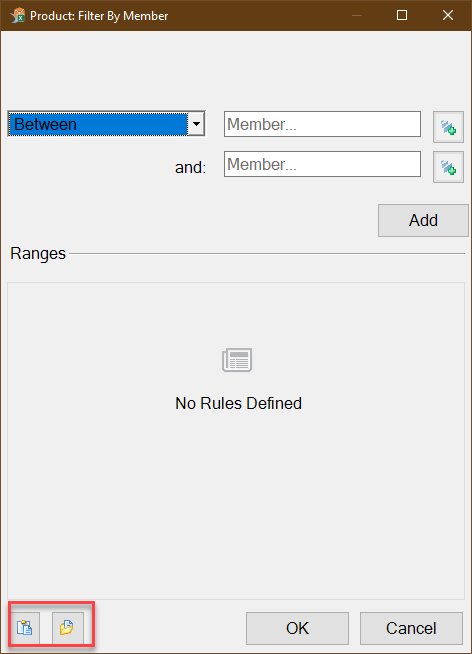
    And when you now select Filter By Range, the following filter dialog will be shown, where you get a Paste or Upload function.

    Filter with Paste & Upload function
    Filter with Paste & Upload function

    Now you can paste or upload your values and click OK. Your data will be filtered. When you now remove the the option Use only hierarchy for filter, the hierarchy
    wil be displayed again.

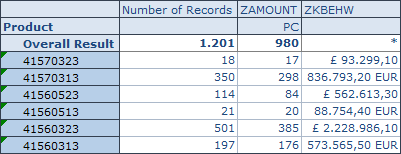
    Hierarchy after filter is applied
    Hierarchy after filter is applied

    If you have any questions or problems, just leave a comment or write me an email.

    author.


    I am Tobias, I write this blog since 2014, you can find me on twitter and youtube. If you want you can leave me a paypal coffee donation. You can also contact me directly if you want.
  • Decode an Analysis Office Workbook

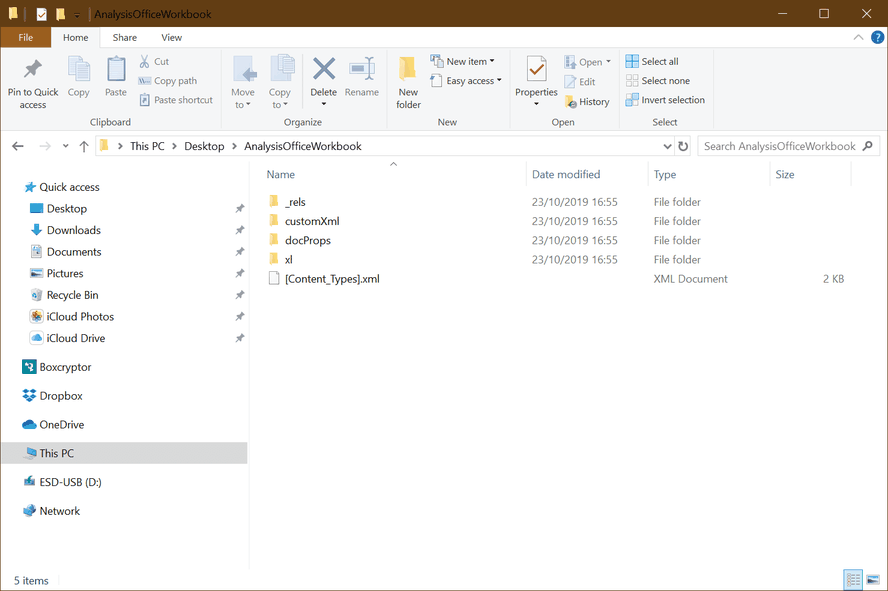
    The Analysis Office Workbook saves a lot of information in it. The Microsoft Excel format xlsx is a container which can save a lot of other information besides the normal data. When you rename a
    xlsx file to a zip file you can extract it with for example 7-Zip. Now you see the following folder structure.

    Analysis Office Workbook Structure
    Analysis Office Workbook Structure

    When you open the folder xl, you see the custom property. Normally there are several customProperty.bin files listed.

    Overview Custom Properties
    Overview Custom Properties

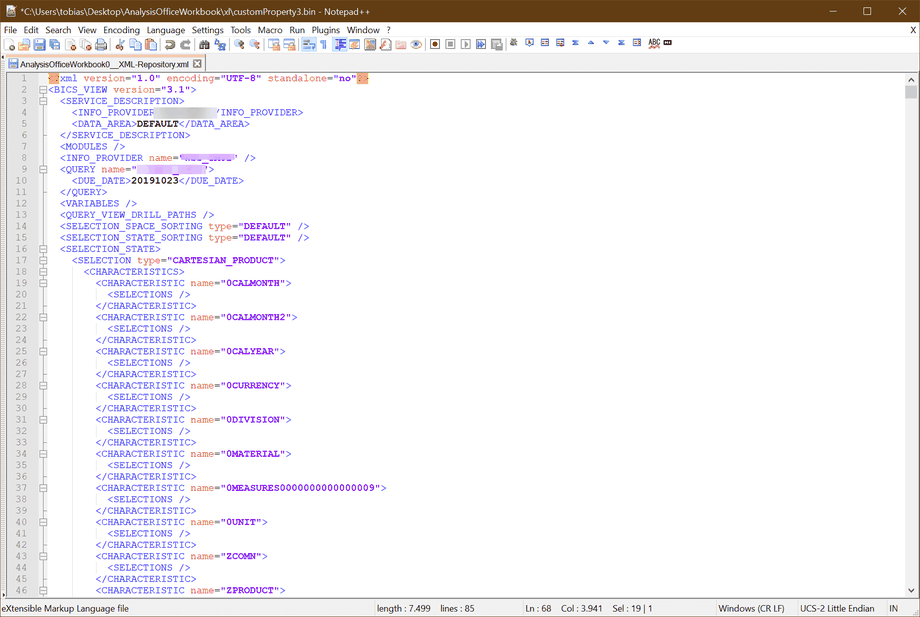
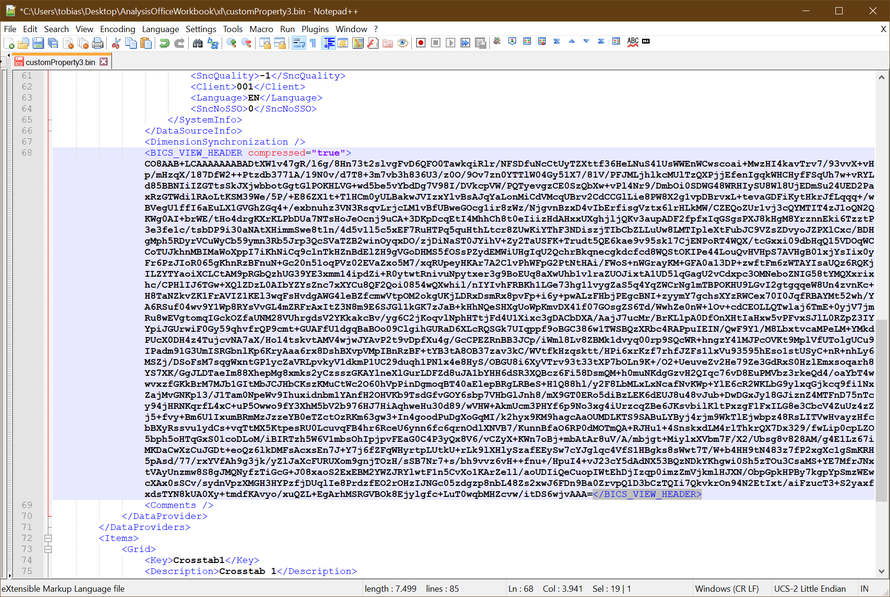
    In my case it is customProperty3.bin (just search for the custom property with the highest size). When you open it for example with notepad++ and select the language setting xml it should look
    like this.

    Custom Property
    Custom Property

    You see information like system ID, server, data source and all information which you can set in the component tab in Analysis Office. And you also see a compressed and encoded area which we will
    now analyze.

    Encoded Area
    Encoded Area

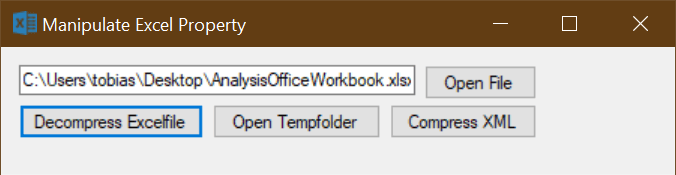
    In this encoded area SAP stores a lot of information which you cannot see at the first sight. I developed a little tool in Visual Studio to decrypt this area to a readable text.

    Manipulate Excel Property Tool
    Manipulate Excel Property Tool

    Now you see what SAP encoded in this <BICS_VIEW_HEADER> area.

    Decrypted <BICS_VIEW_HEADER>
    Decrypted <BICS_VIEW_HEADER>

    Here we go, we see which dimensions are in this workbook, how sorting for each dimension is adjusted or which valus are stored in the prompt. So we can analyze in detail how the workbook behaves
    and maybe discover difference between a development and production system.


    Is this something anyone needs? Then I would upload the program to github. Here is the link to github.com

    author.


    Hi,

    I am Tobias, I write this blog since 2014, you can find me on twitterfacebook and youtube. I work as a Senior Business
    Warehouse Consultant. In 2016 I wrote the first edition of . If you want you can leave me a paypal coffee
    donation. You can also contact me directly if you want.


  • Analysis Office – The Comprehensive Guide

    Now the book Analysis Office – The Comprehensive Guide 4th edition is now available via digistore24.com. You can use credit card, paypal and other payment options.


    >>> https://www.digistore24.com/product/284862

    author.


    I am Tobias, I write this blog since 2014, you can find me on twitter and youtube. If you want you can leave me a paypal coffee donation. You can also contact me directly if you want.
  • Analysis Office 2.7 SP8 is available

    The latest version of Analysis Office is now available. It was released on 27.09.2019 and after the go live of my project is now done, I may have time to look more into Analysis Office
    again. 

    •  AO Prompt Selection makes Excel.exe freeze (s-note
      2836430
      )
    • Analysis Office: Red borders around valid new line cells (s-note 2831840)
    • Exception when opening or saving a workbook or data source after Log Off (s-note 2838591)
    • RRI passes wrong context for axis tuple element (s-note
      2834404
      )
    • SAPSetFilterComponent and Time Characteristics (s-note
      2829371
      )

    As you can see in this version there is not many things fixed or maybe they found not more? But the What’s
    new Guide
    lists some new file system settings (technical parameter)


    • ForceWriteOlapConnectionInformationDuringWorkbookSave 
    • UseDocumentDescriptionToConstructBIDocumentFileName
    • UseDocumentDescriptionToConstructBWDocumentFileName
    • SacHttpSessionPingInterval
    • SearchFetchMemberLimit
    • AllowOverwritingOfDimensionNames
    • AllowOverwritingOfStructureMemberNames
    • ReverseVariableProcessingOrderForHanaFromOldxml
    • UseKeyForHierarchySelection
    • UseQueryVariantsForViews

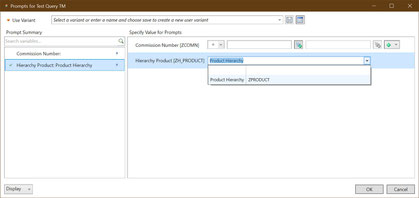
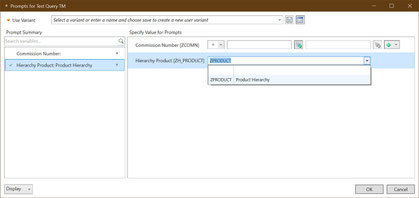
    The admin guide now documented now all these parameters. A nice parameter is UseKeyForHierarchySelection, which allows you to define if you want to see the keys of a
    hierarchy in the first coloumn or second column of your prompt.

    Default Value UseKeyForHierarchySelection
    Default Value UseKeyForHierarchySelection
    Changed Value UseKeyForHierarchySelection
    Changed Value UseKeyForHierarchySelection


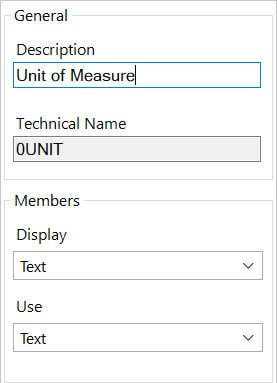
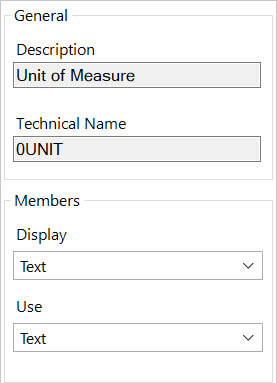
    As you can see, the user can now either see the description or the technical name in his selection. Another setting is the AllowOverwritingOfDimensionNames. The default value is true,
    that means the user can overwrite the name of a dimension in the design panel.

    Default Value AllowOverwritingOfDimensionNames
    Default Value AllowOverwritingOfDimensionNames
    Changed Value AllowOverwritingOfDimensionNames
    Changed Value AllowOverwritingOfDimensionNames


    The same works with the setting AllowOverwritingOfStructureMemberNames for structures. The best setting is UseQueryVariantsForViews. With this setting you can get the query
    variant when you insert a query view.

    Default Value UseQueryVariantsForViews
    Default Value UseQueryVariantsForViews
    Changed Value UseQueryVariantsForViews
    Changed Value UseQueryVariantsForViews


    As you can see in the right picture, I can access the variant of my query. This is really cool when I use a lot of variants. I know this service pack is not the hotest shit, but slowly it gets
    better. I am still hoping for Analysis Office 2.8 with new features.

    author.


    I am Tobias, I write this blog since 2014, you can find me on twitter and youtube. If you want you can leave me a paypal coffee donation. You can also contact me directly if you want.
  • Aleksandra

    Hi,


    I just got an email from you via the contact formula. But When I answer to your email or to your shop order, I get an error „The email account that you tried to reach does not exist.“ I tried it
    several times, maybe your account is full? So can you please provide me another mail address or contact information? Maybe via Linkedin or so?


    Thanks, I don’t know any other way to contact you 🙂

    author.


    I am Tobias, I write this blog since 2014, you can find me on twitter and youtube. If you want you can leave me a paypal coffee donation. You can also contact me directly if you want.

  • Analysis Office – The Comprehensive Guide Discount Code

    Until the end of the month you can get my book with 30% off. Just use the discount code Summer2019. You can buy it here.

    author.


    I am Tobias, I write this blog since 2014, you can find me on twitter and youtube. If you want you can leave me a paypal coffee donation. You can also contact me directly if you want.

  • What’s new in Analysis Office 2.7 SP7

    It’s a kind of summer break at the moment and I haven’t done a lot for this blog in the last time. But SAP now release the 7th service pack of Analysis Office. 


    You can now use the filtering data access mode with SAP Analytics Cloud data sources, analytic and planning models. There are also 3 new file system settings:

    • ShowCutCopyPasteInGridContextMenu
    • EnableImprovedAddInCompatibility
    • UseSeparateDisplaySettingsForFilterDialog

    The setting ShowCutCopyPasteInGridContextMenu allows you to sepcify whether the cut, copy and paste entries should be available in the context menu for a crosstab cell. The setting
    EnableImprovedAddInCompatibility should improve the compatibility with other Microsoft Office add-ins. How this work we will see.


    The setting UseSeparateDisplaySettingsForFilterDialog you can define if the display settings defined in the filter dialog should be saved with the workbook.


    So as you can see nothing spectecularit fixes also a little bit:

    • ALL: Current View Edition mode when a member start with the same characters that another member (s-note 2811124)
    • ALL: during a customized drill through Excel remains frozen (s-note 2813223)
    • ALL: last selection not saved when set to Base Level (s-note 2811297)
    • AO 2.7 SP6: Office 2010 – Can’t open AO workbooks via launcher (s-note 2814329)
    • Analysis Office Performance Issue when Refreshing Workbooks with Many Format (Design) Rules (s-note 2813968)
    • ALL:Report options are truncated (s-note 2814791)

     I am still looking for Analysis Office 2.8, but now I am first enyoing my vacation.

    author.


    I am Tobias, I write this blog since 2014, you can find me on twitter and youtube. If you want you can leave me a paypal coffee donation. You can also contact me directly if you want.
  • SAP BW F4 BAdI to restrict hierarchy nodes

    In our current project we had to deal with the requirement that the enduser only want to show a certain node of a hierarchy to filter. So we used the F4 restriction from the transaction spro. You
    find the entry under Business Warehouse >> Enhancements >> BAdI: Restricting the Value Help in the Variables Screen. We implemented it in
    the method GET_RESTRICTION_NODE.


    At this time I had only experience with the method GET_RESTRICTION_FLAT and searched for implementation examples. I found a wiki entry on scn. In our case we had bookable nodes so we implemented it like
    this to get these node and all children of it.


    l_s_node-nodename = ‚NODE1‘.

    l_s_node-niobnjm      = ‚ZZ_IO‘.

    Append l_s_node to c_t_node.


    But it didn’t work out. The debugging showed no error, but the restriction always showed the complete hierarchy. After a little digging we found our mistake, it have to look like the follwing:


    l_s_node-nodename = ‚LEAF1‘.

    Append l_s_node to c_t_node.

    l_s_node-nodename = ‚LEAF2‘.

    Append l_s_node to c_t_node.


    And so on for all leafs. So we had to add all leafs and not the nodes. I didn’t found any good explanation so here is the short article about it. Thanks to my
    collegue who had the problem.

    author.


    I am Tobias, I write this blog since 2014, you can find me on twitter and youtube. If you want you can leave me a paypal coffee donation. You can also contact me directly if you want.