In the comments of this blogpost on blogs.sap.com, Stephen Hobbs showed his idea of insert a product
Image besides the crosstab in combination with the new Customize User Interface function. So I make my
own thoughts how I can realize a thing like this.
My first thought was, where can I store the pictures and how can I get a product number and the picture together. The solution is very easy, I created a folder on my hard drive and put the
pictures in it. The name of the pictures are the same like the product numbers.

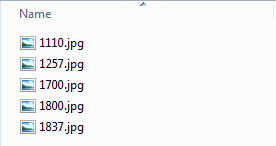
The next step is to write the corresponding VBA code, so that the pictures are insert into a cell. Open the Visual Basic Editor (ALT + F11) and
insert a new module. After we have to define serveral variables.
1 2 3 4 5 6 7 8 9 |
Dim material As String Dim i As Integer Dim picturePath As String Dim rowMax As Long Dim picture As Object Dim t As Double Dim l As Double Dim w As Double Dim h As Double |
Now we have to find out, how many rows our crosstab has.
1 2 |
'Number of rows rowMax = Range("SAPCrosstab1").Rows.Count |
Now we can add our pictures.
1 2 3 4 5 6 7 8 9 10 11 12 13 14 15 16 17 18 19 20 21 22 23 24 25 26 27 28 |
For i = 5 To rowMax 'Set height for each row Rows(i & ":" & i).RowHeight = 100 'Material material = Sheet3.Cells(i, 3).Value 'Define Picture Path picturePath = "U: 40 Analysis Office Workbookspics" & material & ".jpg" Set picture = ActiveSheet.Pictures.Insert(picturePath) 'Get size of the Picture Cell With Range("B" & i & ":" & "B" & i) t = .Top l = .Left w = .Offset(0, .Columns.Count).Left - .Left h = .Offset(.Rows.Count, 0).Top - .Top End With 'Format Picture into the right size With picture .Top = t .Left = l .Width = w .Height = h End With Set p = Nothing Next |
The pictures are added on the left side of the crosstab. If you want to add your pictures automatically you can use the callback AfterRedisplay.

It is just an example what you can do. So If you have any suggestions for other examples, post them into the comments.
These posts might also be interesting:
author.
I am Tobias, I write this blog since 2014, you can find me on twitter and youtube. If you want you can leave me a paypal coffee donation. You can also contact me directly if you want.
Schreibe einen Kommentar