This week the new open SAP course BW/4HANA in a Nutshell started. It is a free course.
One big thing is that BW/4HANA no longer supports the good old BEx Suite. You now have to use the BW Modeling Tools based on Eclipse. In this and further posts I will go deeper into the BW Modeling Tools and what is possible and what is not possible at the
moment.
If you have any questions feel free to ask or correct me 😉 So let’s get started.
First we need Eclipse, which we can download here. But be aware when you download the Mars version,
you need the Mars version of the BW Modeling Tools. And if you download the Neon version, you need the Neon version of the BW Modeling Tools.
After you installed Eclipse you can download the BW Modeling Tools directly in Eclipse.
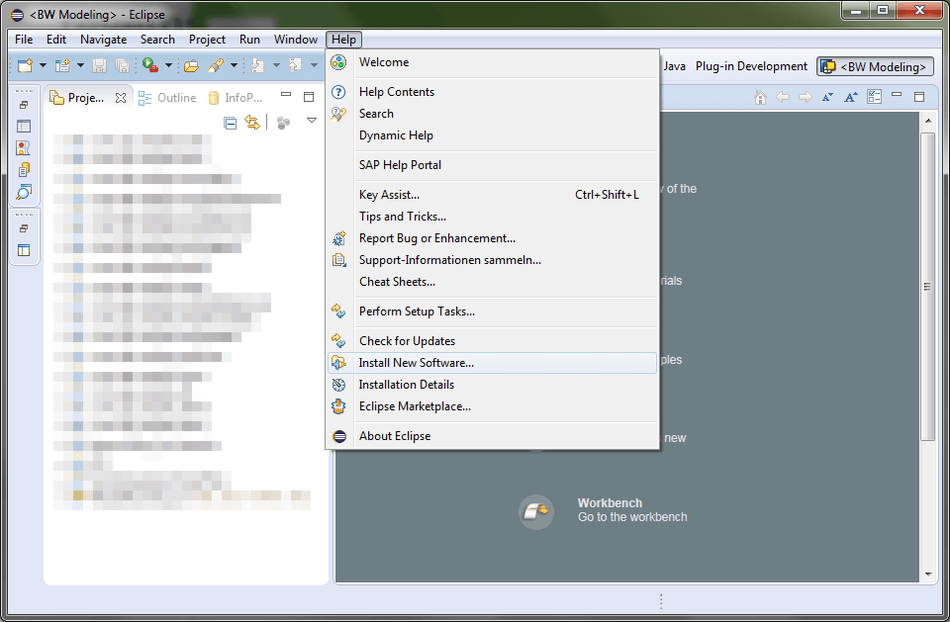
In Eclipse, choose in the menu bar Help >> Install new software and enter for Neon version (https://tools.hana.ondemand.com/neon) and for
Mars (https://tools.hana.ondemand.com/mars). Press Enter to display the available features.
Eclipse Install new software
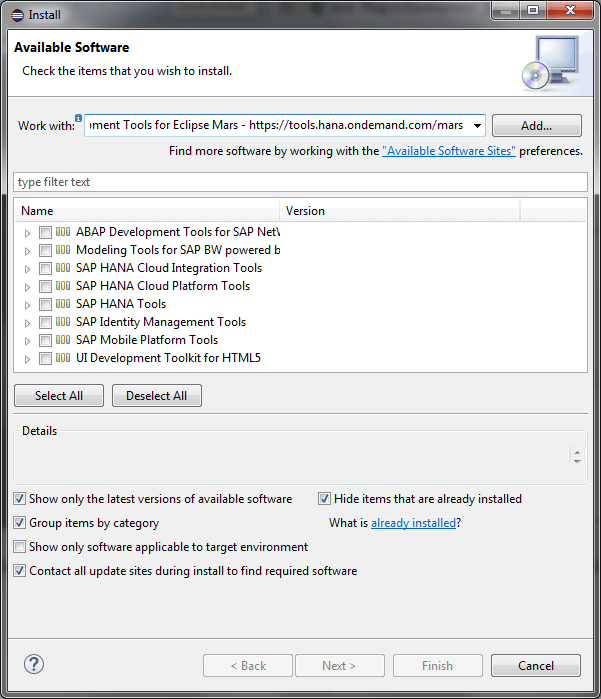
Eclipse Select BW Modeling Tools
Select the Modeling Tools for SAP BW powered by SAP HANA and choose Next. On the next page you get an overview of features to be installed. Choose Next. Confirm the licenseagreements and choose Finish to start the installation.
After the installation is done, you need to set up da new BW project to access the
BW-Repository. More about the Modeling Tools will be covered in future articles. So stay tuned.
I am Tobias, I write this blog since 2014, you can find me on twitter and youtube. If you want you can leave me a paypal coffee donation. You can also contact me directly if you want.
I just got access to a NetWeaver 7.5 SP2 and I want to test it with Analysis for Office 2.3. So I open Excel and insert a query. And here we go first error: „unable to open data
source“, so I thought maybe the query is broken and I developed a new query and insert it. Here we go, same error. Maybe queries don’t work, so I insert a InfoCube directly. Same error…
Now I refresh the insert query and got an Analysis for Office message: Error while executing function module: BICS_PROV_OPEN
In the explanation was one line with the hint „wrong parameter type in an rfc call“, so I looked into st22 and saw a dump which the message: CALL_FUNCTION_ILLEGAL_P_TYPE
The explanation of this dump is „This error appears if parameters submitted incorrectly in a Remote Function Call.“
I searched but found nothing which should help me. After a longer research I found in the SCN this thread and the simple solution is:
Delete all contents in C:Users<your_user>AppDataRoamingSAP AGSAP BusinessObjects Advanced Analysiscache
After deleting the content, close Analysis for Office and it works. Either the Analysis for Office message or the BW dump explain the solution. But maybe someone has the same issue, this is the solution.
I am Tobias, I write this blog since 2014, you can find me on twitter and youtube. If you want you can leave me a paypal coffee donation. You can also contact me directly if you want.
I am Tobias, I write this blog since 2014, you can find me on twitter and youtube. If you want you can leave me a paypal coffee donation. You can also contact me directly if you want.
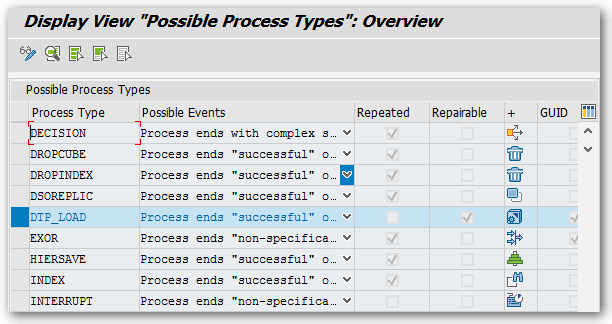
Now you can see, that the process type DTP_LOAD is repairable but not repeated. If you want to change this option, you have to select „Display -> Change“ (CTRL + F1)
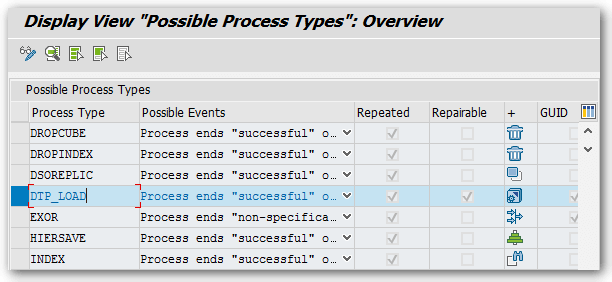
DTP_LOAD changed
Now you can see the process type can be repeated as well.
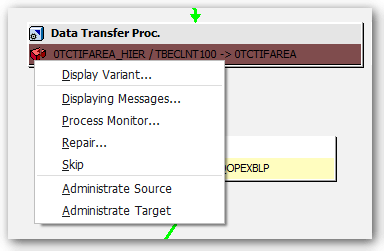
Before option was changed. No repeat available.
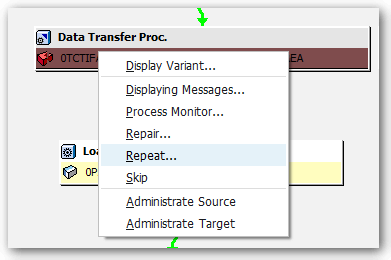
After option was changed. Now you can repeat a DTP.
I am Tobias, I write this blog since 2014, you can find me on twitter and youtube. If you want you can leave me a paypal coffee donation. You can also contact me directly if you want.
In some cases you want to trigger an external program from a SAP system. In this part 1 I explain how to build a RFC Server with NCo 3.0. I had several problems when I started with this topic so
I decided to write a short example. If someone want the Visual Studio project files, please contact me.
So let’s go.
This Post describes how to build a simple RFC Server using SAP NCo 3.0 and the app.config. Part 2 will be describe how to build a RFC Server with RFC Parameter. As example program I use
STFC_CONNECTION. It is a good example, because it contains importing and exporting parameters.
First you have to download and install NCo 3.0 (OSS login required). Afterwards you have
to start a new project in Visual Studio.
Setting up the Visual Studio Project:
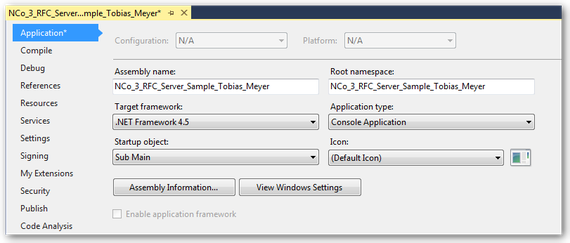
In the properties of the project you have to use a new console application. As target framework I use .Net Framework 4.5.
Visual Studio Project Properties
Next you have to add references to the SAP .Net Connector. There are two DLLs (sapnco.dll and sapnco_utils.dll). Since NCo 3.0 SAP offers a help manual which describes all commands.
Visual Studio Project References
Define the SAP Connections
There are many methods you can use to define a SAP host. For a quick and simple solution you can use the app.config to define your SAP connection.
For basic RFC server configuration, there are two sections that are used. One section are the ClientSettings, the other the ServerSettings. A RFC server configuration is linked to a RFC
repository by using the REPOSITORY_DESTINATION attribute. To be able to access function metadata, this attribute must match the name of a destination in the
client settings.
All RFC servers communicate with a SAP system through a service called the SAP gateway service. The server settings
defines how the application connects to the gateway. In the server section the NAME field identifies this entry to your RFC Connection in a SAP system. The SAP .Net Connector uses the values in
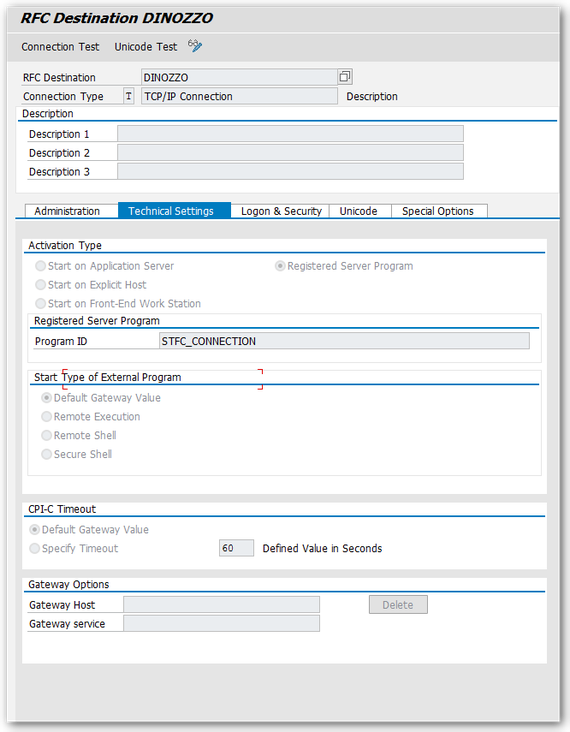
the GWHOST, GWSERV and PROGRAM_ID fields to register your program on the SAP Gateway. The PROGRAM_ID must match the Registered Server Program of your RFC
Destination.
<? xml version="1.0" encoding="utf-8" ?><configuration><configSections><sectionGroupname="SAP.Middleware.Connector"><sectionGroupname="ServerSettings"><sectionname="ServerConfiguration"type="SAP.Middleware.Connector.RfcServerConfiguration, sapnco"/></sectionGroup><sectionGroupname="ClientSettings"><sectionname="DestinationConfiguration"type="SAP.Middleware.Connector.RfcDestinationConfiguration, sapnco"/></sectionGroup></sectionGroup></configSections><SAP.Middleware.Connector><ServerSettings><ServerConfiguration><servers><addNAME="DINOZZO"GWHOST="xxx.xxx.xxx.xxx"GWSERV="SAPGW00"PROGRAM_ID="STFC_CONNECTION"REPOSITORY_DESTINATION="ABC"REG_COUNT="1"/></servers></ServerConfiguration></ServerSettings><ClientSettings><DestinationConfiguration><destinations><addNAME="ABC"USER="user"PASSWD="password"CLIENT="client"LANG="EN"ASHOST="xxx.xxx.xxx.xxx"SYSNR="00"/></destinations></DestinationConfiguration></ClientSettings></SAP.Middleware.Connector><startup><supportedRuntimeversion="v4.0"sku=".NETFramework,Version=v4.5"/></startup></configuration>
SAP Function module:
SAP transaction se37 can be used to find out the parameters for the STFC_CONNECTION. In this example, you receive a parameter REQUTEXT, which will be returned to the caller in ECHOTEXT.
It also return a text string to the caller in field RESPTEXT.
Transaction sm59 is used to configure the RFC Destination. The name of the RFC Destination.
SAP RFC Destination
Coding:
First you have to create a class that exposes a method that can be called via a SAP RFC Call. In the example that class is named ServerFunction and it
contains one method which will supply the STFC_CONNECTION functionality.
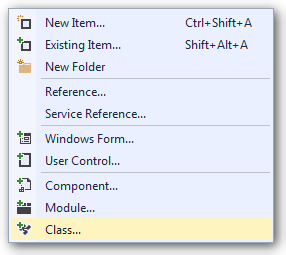
Add a new class in the Visual Studio
Visual Studio Add new class
Import the NCo functions
Create a method, similar to this one
Visual Studio Method
Now you have to implement the coding for Main()
First Import the NCo functions
Afterwards you have to create a similar coding
Visual Studio Sub
RfcServerManager.GetServer(„DINOZZO„, New Type(0) {GetType(ServerFunction)})
DINOZZO references to the RFC Destination name in transaction sm59 and in the app.config.
ServerFunction references to the class above.
The RFC Server will be started by following code: RemoteServer.Start
In SAP transaction SMGW >> Goto >> Logged on Clients you can now see your program running on the application gateway.
SAP Connection (transaction SMGW)
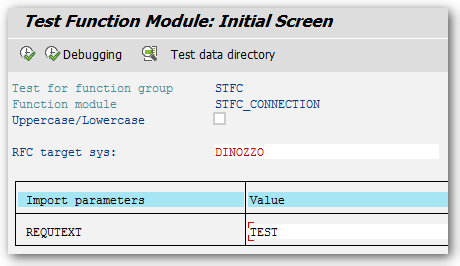
Now you can use the test function screen in transaction se37 to test STFC_CONNECTION. The RFC Target System is set to the name of the RFC destination (sm59)
SAP Test Function Module
Click Execute (F8)
SAP Result Function Module
The console will also display some information.
Console result
Part 2 will be describe how to build a RFC Server with a custom RFC repository and how to be flexible
with RFC config parameters.
I am Tobias, I write this blog since 2014, you can find me on twitter and youtube. If you want you can leave me a paypal coffee donation. You can also contact me directly if you want.
In the last time I had several problems with external access to a SAP BW System. The access was realized with an old version of the SAP Connector. And that is the problem. If you have a SAP Business Warehouse System
version which is greater than 7.3, you maybe get troubles. For example SAP added new fields or like in 7.4 you now have the option for „Long text is XL“ in the master data. So the old versions
would not work with this.
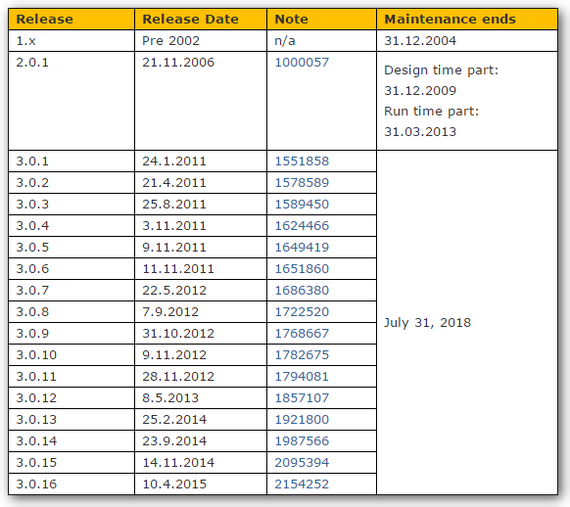
I just found a very good table about the maintenance of all versions in Martins blog.
Overview Support SAP NCo Connector
So to make sure you work with the latest version of NCo, you should have an eye to the SAP Note 856863 or visit service.sap.com/connectors
author.
I am Tobias, I write this blog since 2014, you can find me on twitter and youtube. If you want you can leave me a paypal coffee donation. You can also contact me directly if you want.
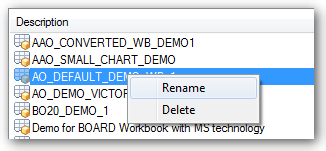
If you want to delete or rename an Analysis for Office Workbook, you have to right click on the Workbook Opendialog.
Analysis for Office Contextmenu
So every user can rename or delete workbook. If you don’t want this, you have to authorize the object S_RS_AO. The object can be add manually in transaction PFCG.
I am Tobias, I write this blog since 2014, you can find me on twitter and youtube. If you want you can leave me a paypal coffee donation. You can also contact me directly if you want.
I am Tobias, I write this blog since 2014, you can find me on twitter and youtube. If you want you can leave me a paypal coffee donation. You can also contact me directly if you want.
In BEx Analyzer you could jump into another query from a query / workbook. The GoTo-Function make sense if you have one query for overview and
one for detail.
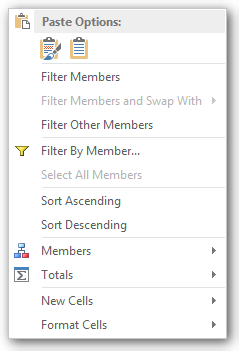
Analysis for Office without GoTo Function
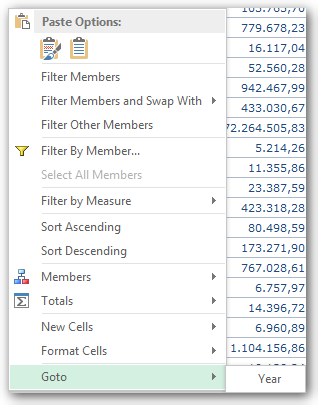
This function is also available in Analysis for Office. It must be maintained as before in transaction RSBBS. After that,
the following entry appears in the Analysis for Office workbook.
I am Tobias, I write this blog since 2014, you can find me on twitter and youtube. If you want you can leave me a paypal coffee donation. You can also contact me directly if you want.
You can use the ABAP program RRMX_WORKBOOKS_GARBAGE_COLLECT to find workbooks that are currently assigned to a user or group of users via the transaction SE38. Through
the hook „Workbooks found erase“ these are removed from the system.
I am Tobias, I write this blog since 2014, you can find me on twitter and youtube. If you want you can leave me a paypal coffee donation. You can also contact me directly if you want.