reyemsaibot

SAP BI Blog about SAP BW/4HANA, Analysis for Office and SAP HANA - by Tobias Meyer

Schlagwort: sapbw

  • BW/4HANA 2.0 Customer Exit Variables with own enhancement spot

    For a long time we used for checking and manipulation of customer exit variables the enhancement RSR00001. Since SAP BW 7.3
    SAP offers the BAdI RSROA_VARIABLES_EXIT_BADI. Since BW/4 you only could use this BAdI and not anymore the enhancement RSR00001.


    The BAdI RSROA_VARIABLES_EXIT_BADI is a filter based BAdI. As filter object is used the InfoObject which the variable is based on. Every implementation calls the interface
    IF_RSROA_VARIABLES_EXIT_BADI~PROCESS. So now let’s create an example customer exit variable. The variable is based on Sales Channel (ZQV_ZSALCH_CEO_001) and can handle
    multiple single values.
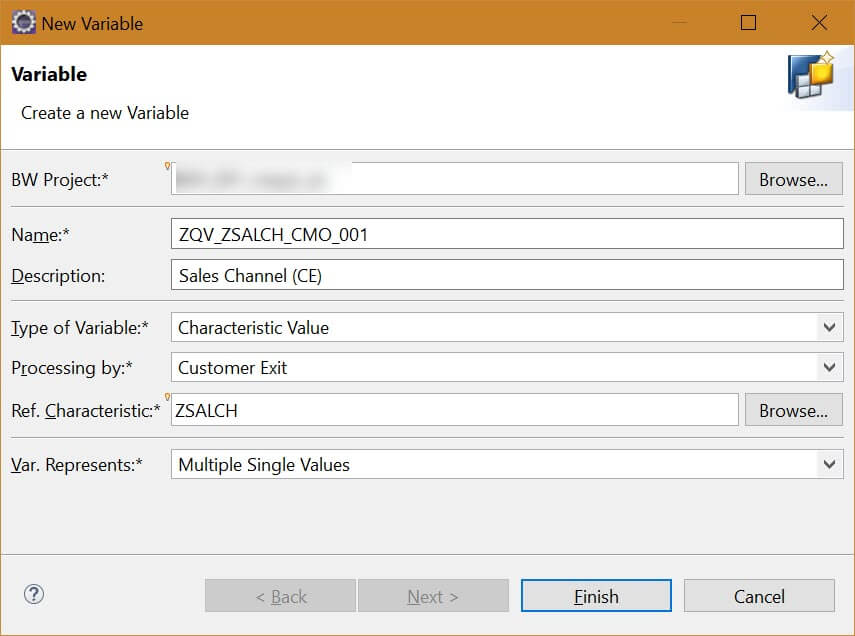
    Customer Exit Variable
    Customer Exit Variable

    After we created this variable we go to the transaction SE18 and open the enhancement spot RSROA_VARIABLES_EXIT.
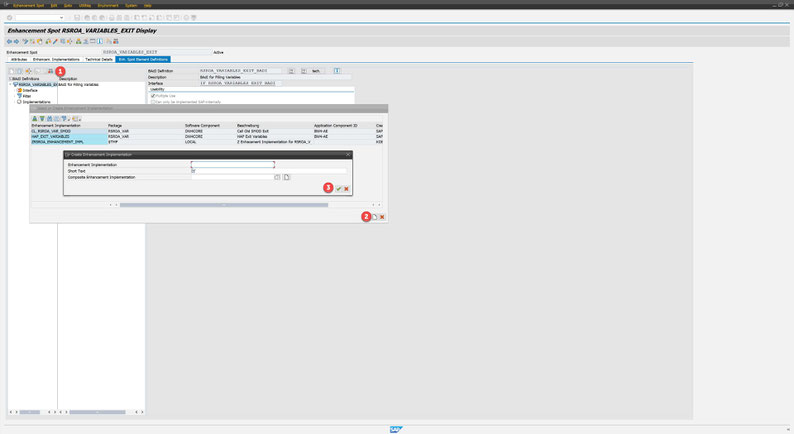
    Create new enhancement implementation
    Create new enhancement implementation
    1. Frist we create a new BAdI Implementation
    2. Then we create a new Enhancement Implementation
    3. Select the Enhancement Implementation
    Create new BAdI implementation
    Create new BAdI implementation

    So after we select our Enhancement Implementation we can create our BAdI Implementation and Implementation Class.
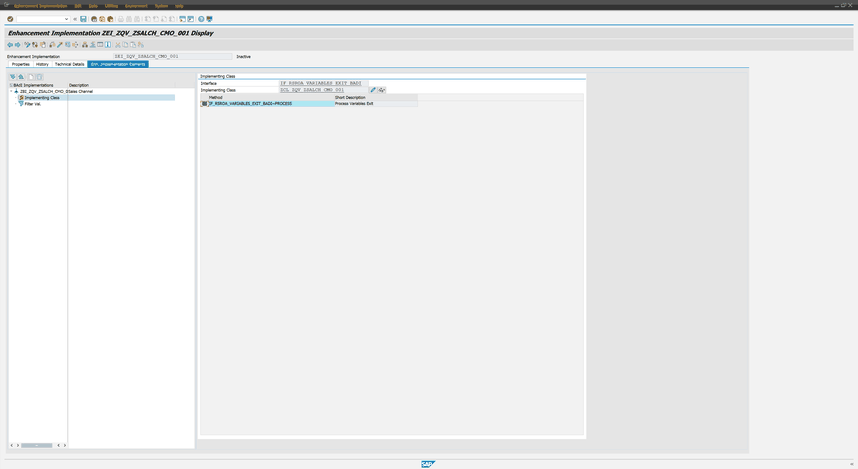
    Enhancement Implementation with Implementation Class
    Enhancement Implementation with Implementation Class

    Now we can implement our own coding for this implementation class and define the filter for the Enhancement Implementation.
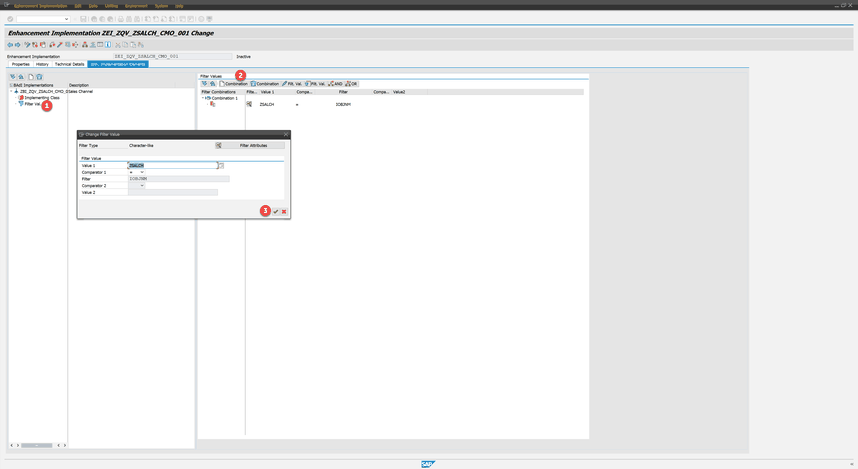
    Enhancement Implementation with Filter Value
    Enhancement Implementation with Filter Value

    This is the normal implementation way. But now we implement an own enhancement spot to encapsulate our developments. Therefore we go to the se18 and implement the enhancement spot
    ZES_VARIABLE_EXISTS.
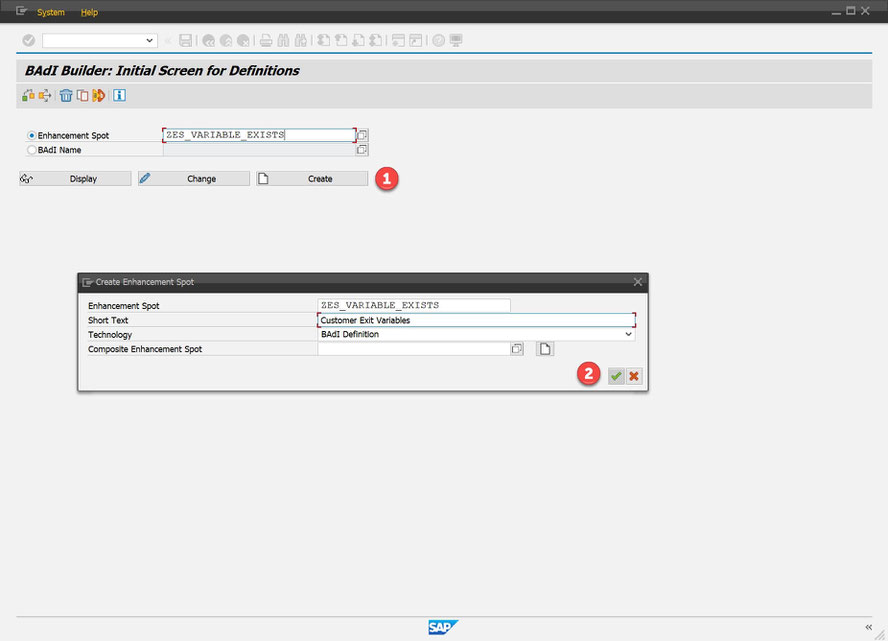
    Create own Enhancement Spot
    Create own Enhancement Spot

    After we created our Enhancement Spot we now have to implement a BAdI definition and add the Interface IF_RSROA_VARIABLES_EXIT_BADI to our BAdI.
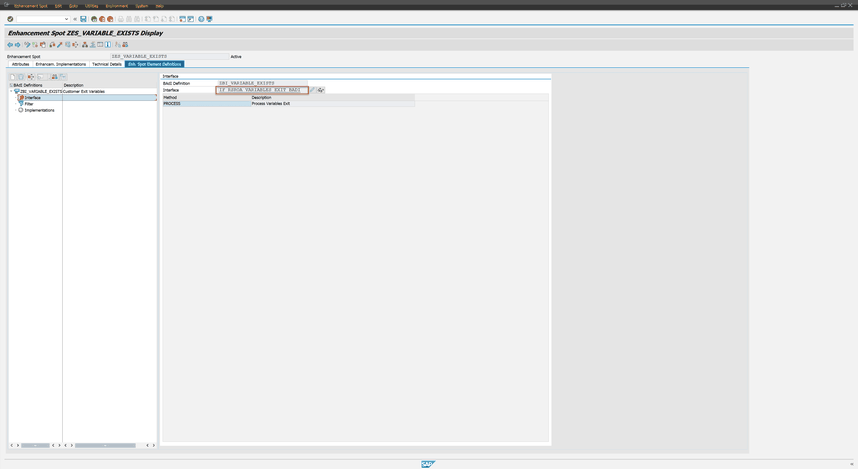
    Add Interface to BAdI
    Add Interface to BAdI

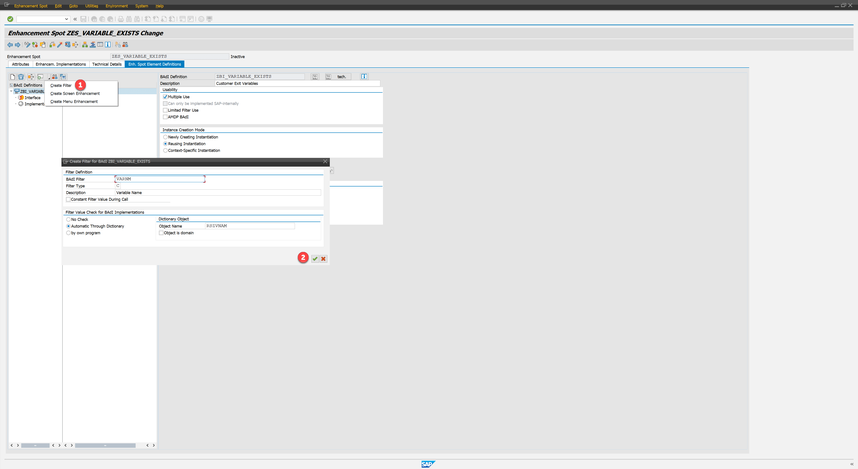
    Now we add a filter to our BAdI.

    Create filter for enhancement implementation
    Create filter for enhancement implementation

    Now we can implement as above mentioned our enhancement implementation and BAdI for the variable exist. The only thing we have to change is the filter because we now based it on the variable name
    instead of the InfoObject.
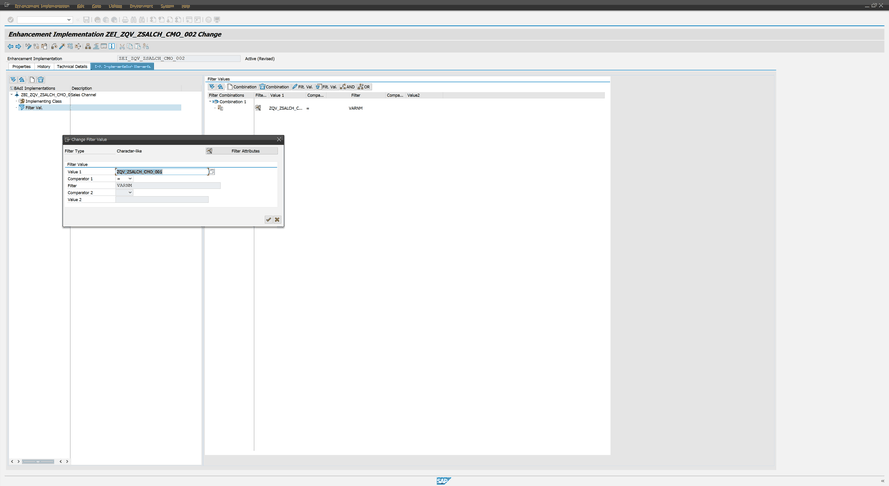
    Create Filter based on variable
    Create Filter based on variable

    So now we have one enhancement spot with several enhancement implementations (for each variable) with several BAdIs and Classes to separate each implementation with the variable name. The
    advantage of this is in a large project if one customer exit variable doesn’t work it only affect this variable and not the whole system.
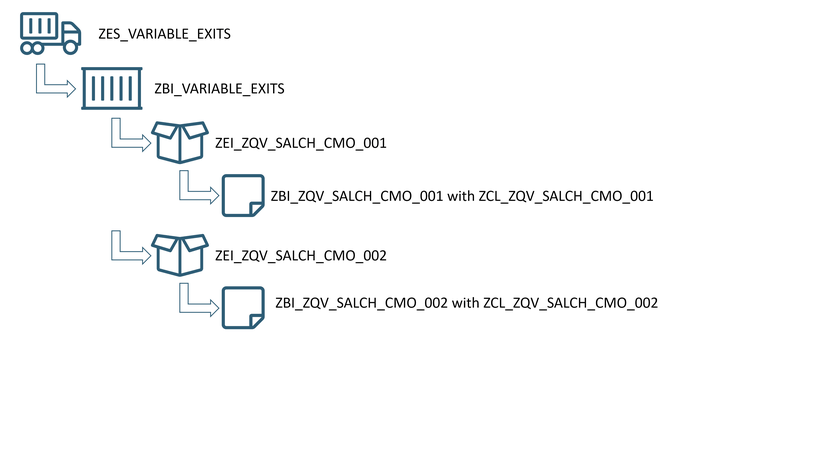
    Example for own enhancement spot
    Example for own enhancement spot

    I hope this makes it a little bit easier to understand. Now what’s only missing is the call from RSROA_VARIABLES_EXIT to our own enhancement spot ZES_VARIABLE_EXISTS. Therefore we have to
    add an implementation to RSROA_VARIABLES_EXIT to call our enhancement spot. We add a new implementation with the following coding:

    DATA: lo_var_badi TYPE REF TO ZBI_VARIABLE_EXITS.

    DATA: lt_range_tmp TYPE rsr_t_rangesid.


    GET BADI lo_var_badi FILTERS varnm = i_vnam.


    IF LINES( lo_var_badi->imps ) <> 0.

    CALL BADI lo_var_badi->process

    EXPORTING

    i_vnam            = i_vnam

    i_vartyp           = i_vartyp

    i_iobjnm          = i_iobjnm

    i_s_cob_pro   = i_s_cob_pro

    i_s_rkb1d         = i_s_rkb1d

    i_periv              = i_periv

    i_t_var_range = i_t_var_range

    i_step               = i_step

    CHANGING

    c_t_range         = c_t_range

    c_no_screen     = c_no_screen

    c_check_again = c_check_again

    c_s_customer   = c_s_customer.

    ENDIF.
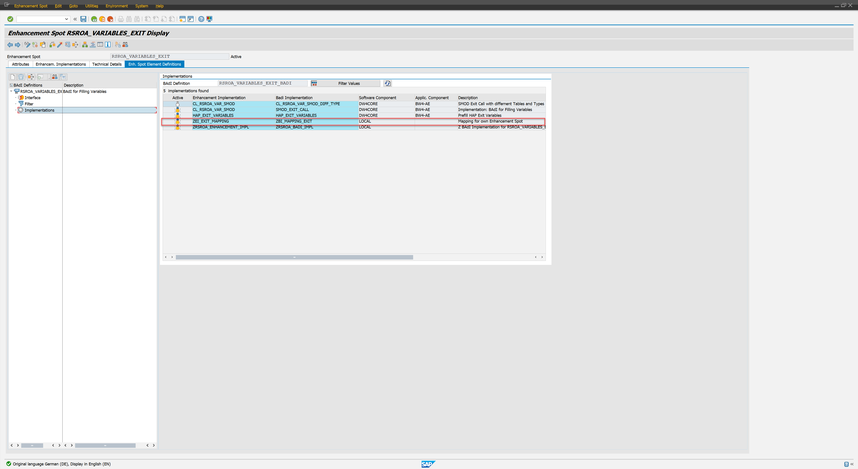
    RSROA_VARIABLES_EXIT with Mapping
    RSROA_VARIABLES_EXIT with Mapping

    So the SAP standard enhancement spot only points to our enhancement spot and we are completely independent from other developments.

    author.


    I am Tobias, I write this blog since 2014, you can find me on twitter and youtube. If you want you can leave me a paypal coffee donation. You can also contact me directly if you want.

  • BW/4HANA 2.0 first impressions

    I recently got a BW/4HANA 2.0 project. So I want to share some ideas and thoughts I discover in the whole process. First things first. Everything and I mean everything is only available in the
    BW/4 cockpit now. ADSO, InfoObject, Hierarchy management and even the Process Chain management is only available in the web. Some things are very confusing when you see it first. But let’s dive
    in.

    The modeling objects which are left should know everybody. You have only these items to build your data model:

    • InfoObject
    • Advanced DataStore Object (ADSO)
    • InfoSource
    • CompositeProvider
    • Open ODS View

    This is it. And I think that is what @m_cubillos_o mean with „is really easier and faster to model?“ Yes of course you have different options for
    an ADSO to model:

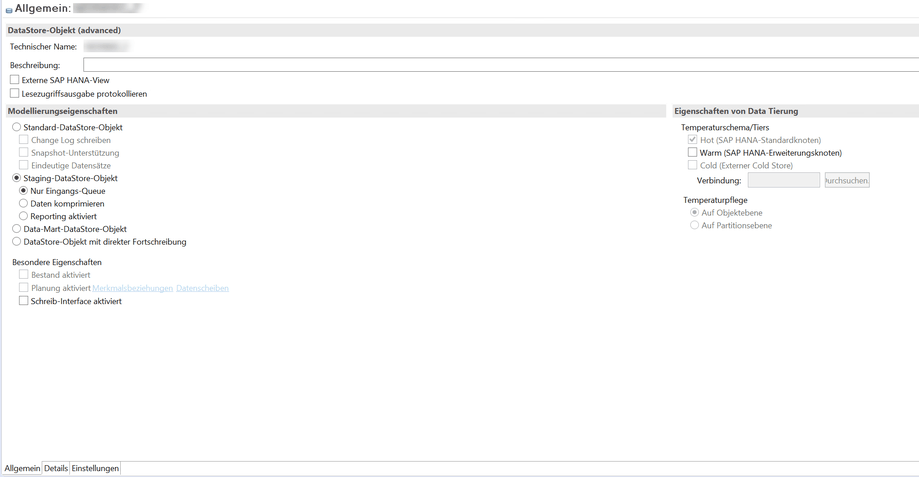
    ADSO Settings
    ADSO Settings

    Unfortunately I only have a screenshot in German. So you can model different types of ADSO with only one object. So is it really easier and faster to model? But let’s go back to the web
    thing. 


    I think some things are cool but I am slower than with my transactions and actions in the backend. The maintaince of an ADSO or InfoObject is in my opinion very slow and you have to wait when the
    system „thinks about the world“ and after that display you the necessary information.


    This is the start of several posts about BW/4HANA 2.0 and I show you some things I implemend. I hope you like this short overview. I know that there are no really cool post in the last time but
    if you like I published some videos on youtube.

    author.


    I am Tobias, I write this blog since 2014, you can find me on twitter and youtube. If you want you can leave me a paypal coffee donation. You can also contact me directly if you want.

  • SAP Transport Dependency Check

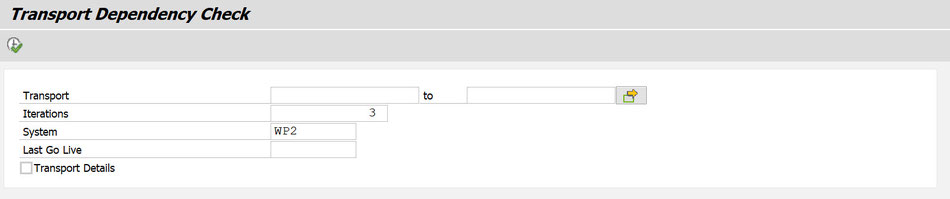
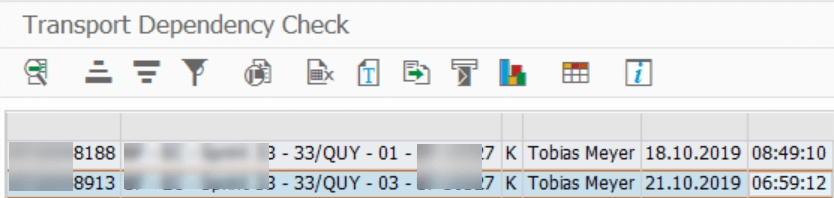
    The SAP Transport Dependency Check (TDC) is a little tool that helps you to find corresponding transport requests in your SAP NetWeaver Business Warehouse  which are not imported yet in your
    target system (e.g. production system). First you have to enter a transport request you want to check and also a target system and the last considered date (e.g. last go live).


    You can either have a look at a compressed view where you can only see the transport requests.

    Transport Dependency Check compact view
    Transport Dependency Check compact view

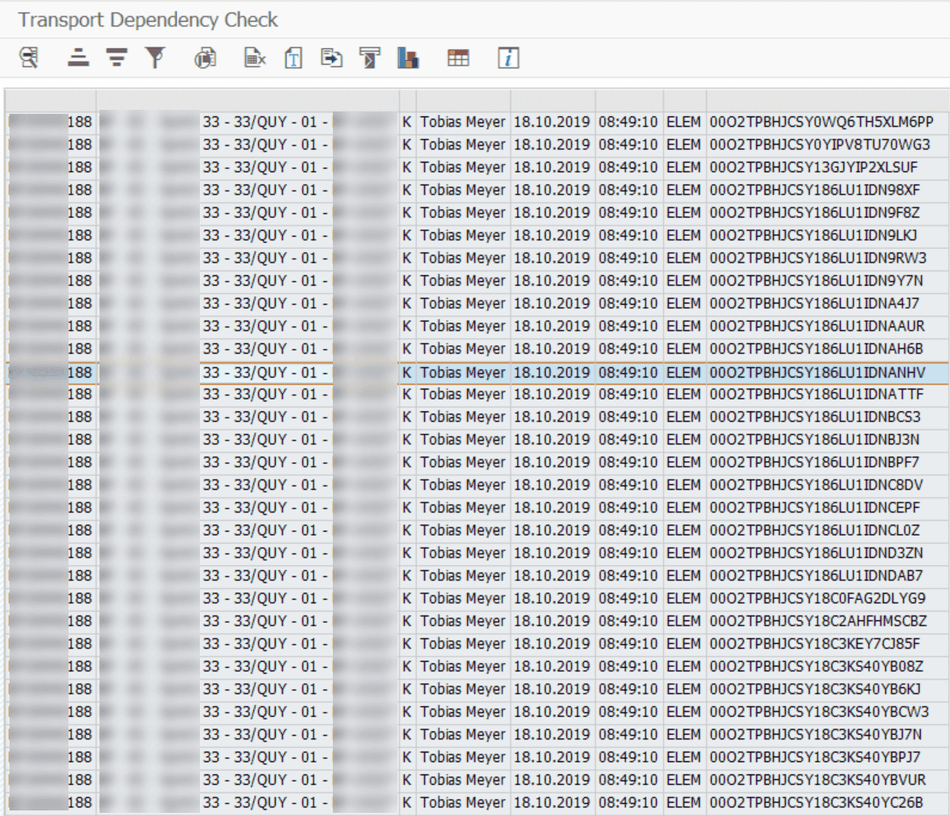
    Or you choose the detail view which allows you to see every object on the transport request.

    Transport Dependency Check detail view
    Transport Dependency Check detail view

    If you have the same problems as I do in some projects you will love this tool, because it makes your project day easier. If you have any questions feel free to contact me. You can get it in the
    online store and soon there will be other useful ABAP tools available.

  • SAP BW F4 BAdI to restrict hierarchy nodes

    In our current project we had to deal with the requirement that the enduser only want to show a certain node of a hierarchy to filter. So we used the F4 restriction from the transaction spro. You
    find the entry under Business Warehouse >> Enhancements >> BAdI: Restricting the Value Help in the Variables Screen. We implemented it in
    the method GET_RESTRICTION_NODE.


    At this time I had only experience with the method GET_RESTRICTION_FLAT and searched for implementation examples. I found a wiki entry on scn. In our case we had bookable nodes so we implemented it like
    this to get these node and all children of it.


    l_s_node-nodename = ‚NODE1‘.

    l_s_node-niobnjm      = ‚ZZ_IO‘.

    Append l_s_node to c_t_node.


    But it didn’t work out. The debugging showed no error, but the restriction always showed the complete hierarchy. After a little digging we found our mistake, it have to look like the follwing:


    l_s_node-nodename = ‚LEAF1‘.

    Append l_s_node to c_t_node.

    l_s_node-nodename = ‚LEAF2‘.

    Append l_s_node to c_t_node.


    And so on for all leafs. So we had to add all leafs and not the nodes. I didn’t found any good explanation so here is the short article about it. Thanks to my
    collegue who had the problem.

    author.


    I am Tobias, I write this blog since 2014, you can find me on twitter and youtube. If you want you can leave me a paypal coffee donation. You can also contact me directly if you want.
  • SAP BW fix incorrect data in a DataStore-Object

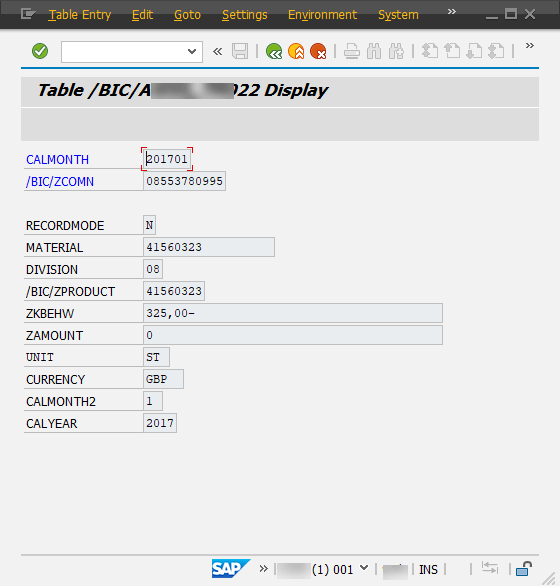
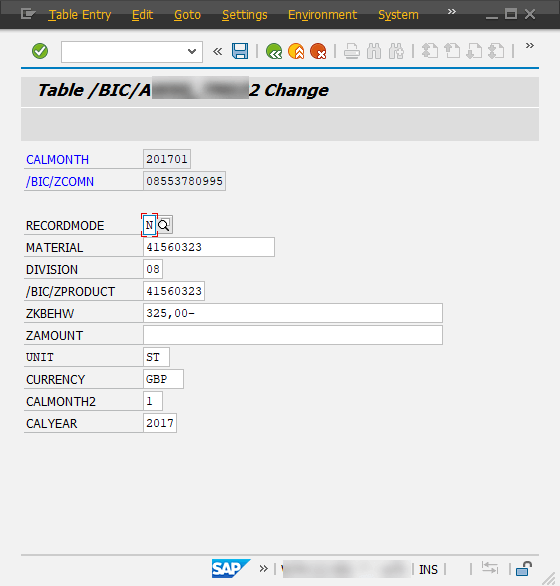
    Here just a short notice if somebody doesn’t know it yet. If you have a false information in a data record you can fix this manually either in a PSA or (A)DSO. Just select the desired entry and
    click Display (F7).

    Detail view of an entry
    Detail view of an entry

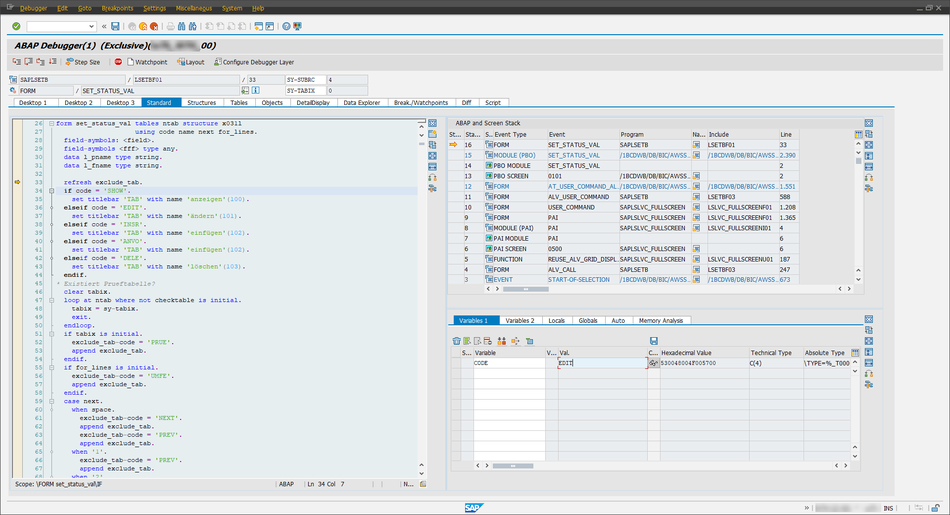
    Now click in the menu bar, write /h and click Enter. You now see in the status bar „Debugging switched on“. When you now click Enter again an
    ABAP Session will be opened.

    ABAP Debugger
    ABAP Debugger

    Click on the variable code and change it with the pensil to your needs. In my case I used EDIT. Click Enter and than Continue
    (F8)
    .

    Entry can be edited
    Entry can be edited

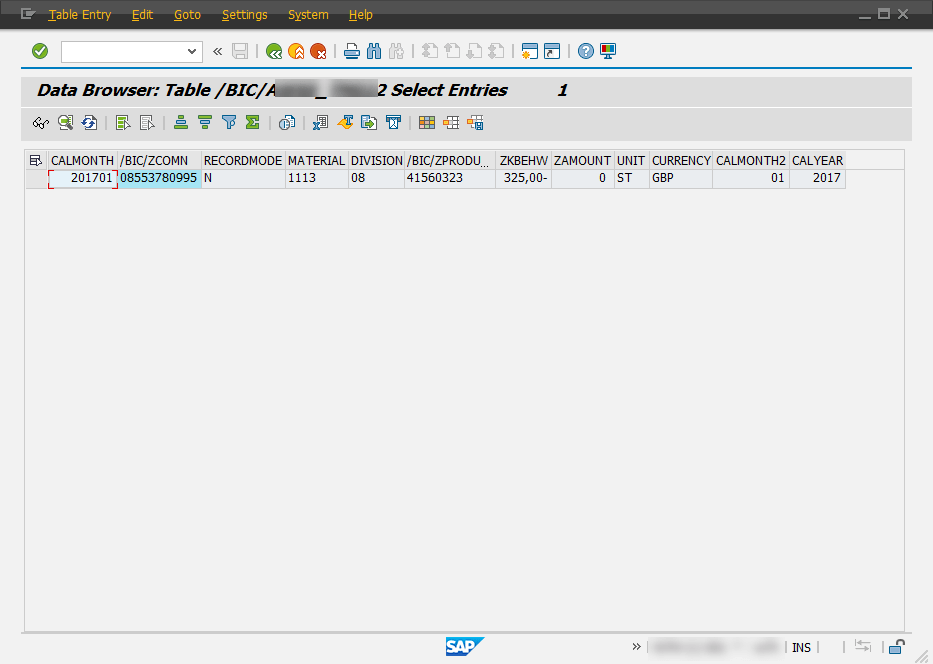
    Now I change the material numer to 1113 and save the entry. Here is the result.

    In normal case every one should know how this can be done, so it is just a little documation 😉


    You can change every SAP table so beware what you are doing.

    author.


    I am Tobias, I write this blog since 2014, you can find me on twitter and youtube. If you want you can leave me a paypal coffee donation. You can also contact me directly if you want.
  • Customer exit variable to hide hierachy node

    In my current project we have the hide a position in a hierarchy, because it is a departmental requirement. The hierarchy is used by many departments so we cannot change it and we also don’t want
    to have the same hierarchy two times (except for the one position). So we first excluded the position in the query.

    Hide hierachy node in BEx Query Designer
    Hide hierachy node in BEx Query Designer

    But this didn’t worked.

    Only one position is left in the hierarchy
    Only one position is left in the hierarchy

    So we had to think what could we do to hide the specific position of the hierarchy. So we think how could we hide a specific position and the idea was to use a customer exit variable. You find
    the coding on Github. After I implemented the
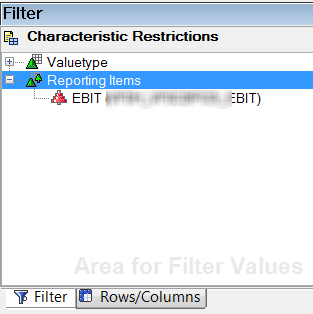
    customer exit, only the position „EBIT“ is now hided.

    With the customer exit only EBIT position is hide
    With the customer exit only EBIT position is hide

    author.


    I am Tobias, I write this blog since 2014, you can find me on twitter and youtube. If you want you can leave me a paypal coffee donation. You can also contact me directly if you want.
  • SAP BW DTP Filter with ABAP Routine

    In my current project I have to filter data with a lot of logic. So I build some ABAP routines in a DTP filter to receive the necessary data.
    First you have to open the DataTransferProcess (DTP) in change mode and select the Filter button on the Extraction tab.

    DTP Extraction tab
    DTP Extraction tab

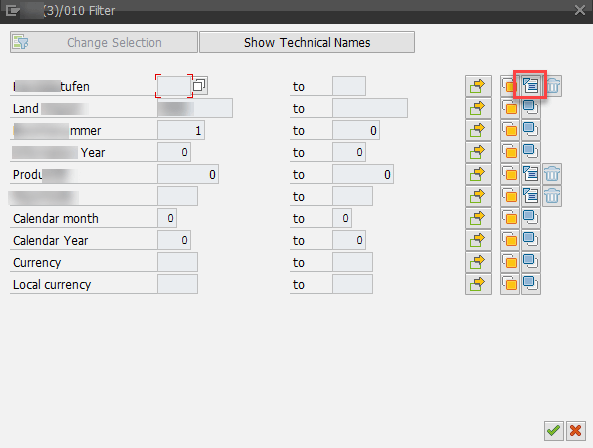
    Now a new window is opened. You see the selection for the DTP. If your field is not visible, click on Change Selection and select the necessary field. When you have the field you
    want to filter, use the small icon on the right to create a ABAP routine.

    DTP Filter
    DTP Filter

    Enter a name for the routine and you see the following screen.

    Create ABAP routine
    Create ABAP routine

    And now we have the full power of ABAP to build some really cool stuff. My example is we read a hierarchy and select all leaves under a node and set the DTP Filter with it. Or you read the
    attributes of an InfoObject and select all entries which are equal to the attributes and enter them into the filter.

     1
     2
     3
     4
     5
     6
     7
     8
     9
    10
    11
    12
    13
    14
    15
    16
    17
    18
    19
    20
    21
    22
    23
    24
    25
    26
    27
    28
    29
    30
    31
    32
    33
    34
    35
    36
    37
    CONSTANTS: lc_iobjnm_zsaleschannel TYPE rsiobjnm VALUE 'ZSALESCHANNEL'.
    
    DATA: ls_rssh_hiedir TYPE rshiedir,
          lt_rssh_hiedir TYPE rssh_t_hiedir,
          ls_subtreesel  TYPE rssh_s_nodebyname,
          lt_hierarchy   TYPE /bic/whzsaleschannel,
    
    FIELD-SYMBOLS: <ls_hierarchy> TYPE /bic/hzsaleschannel,
    
    "Get all hierarchies from the object
    CALL FUNCTION 'RSSH_HIER_OF_IOBJ_GET'
      EXPORTING
        i_objvers = rs_c_objvers-active
        i_iobjnm  = lc_iobjnm_zsaleschannel
        i_langu   = sy-langu
      IMPORTING
       e_t_rshiedir = lt_rssh_hiedir.
    
    "Get technical hierarchy id to hierarchy name
    CLEAR ls_rssh_hiedir.
    
    READ TABLE lt_rssh_hiedir INTO ls_rssh_hiedir WITH KEY hienm   = i_zsaleschannel_h
                                                           objvers = rs_c_objvers-active.
    
    "Sub-Tree to Note/Leaf
    CLEAR: ls_subtreesel.
    ls_subtreesel-iobjnm = lc_iobjnm_zsaleschannel
    ls_subtreesel-nodename = i_node.
    
    "Get Hierarchy Elements
    CALL METHOD cl_rssh_hierarchy_func=>get
      EXPORTING
       i_objvers      = rs_c_objvers-active
       i_hieid        = ls_rssh_hiedir-hieid
       i_s_subtreesel = ls_subtreesel
      IMPORTING
       e_t_hiestrucall = lt_hierachy
    

    After I have now all elements in an internal table, I can add them to the DTP Filter.

     1
     2
     3
     4
     5
     6
     7
     8
     9
    10
    11
    12
    13
    "Loop over the internal table and assign the value to the dtp filter
    LOOP AT lt_hierarchy ASSIGNING <ls_hierarchy>.
      l_t_range-fieldname = '/BIC/ZSALESCHANNEL'.
      l_t_range-iobjnm    = '/BIC/ZSALESCHANNEL'.
      l_t_range-sign      = 'I'.
      l_t_range-option    = 'EQ'.
      l_t_range-low       = <ls_hierarchy>-/bic/zsaleschannel.
      IF l_idx <> 0.
        MODIFY l_t_range INDEX l_idx.
      ELSE.
        APPEND l_t_range.
      ENDIF.
    ENDLOOP.
    

    After we saved our development and go back, we see a the little ABAP icon on the right (highlighted in red). If you want to remove a filter, click on the trashcan to remove the logic.

    DTP with active ABAP method
    DTP with active ABAP method

    Conclusion

    Sometimes it is necessary to filter your data. You could do this in different ways, but the most effiencient way is the DTP filter. Because the loading don’t touch the data you not select. If you
    remove the data via a start routine, all the data has to be catched from the database and you select more than you need at the end. 


    Besides ABAP routine you could also use variables to filter data. In SAP BW/4HANA the filter is a little bit different this will be covered in another post. 

    author.


    Hi,


    I am Tobias, I write this blog since 2014, you can find me on twitterfacebook and youtube. I work as a Senior Business
    Warehouse Consultant. In 2016 I wrote the first edition of . If you want you can leave me a paypal coffee
    donation. You can also contact me directly if you want.


  • SAP BW Reset request/task status

    In my current project we have a go live. So I needed a function to reset the transport status of some transports. So if you release your transport falsely the transport is locked by release and
    can no longer be removed from the transport status. Maybe you also want to delete the entire transport request. This option is also denied as soon as the tasks have been released. The standard
    procedures are very laborious and not only cost a lot of time, but also have a certain risk potential. SAP offers a report which solves your problem. The report is RDDIT076.
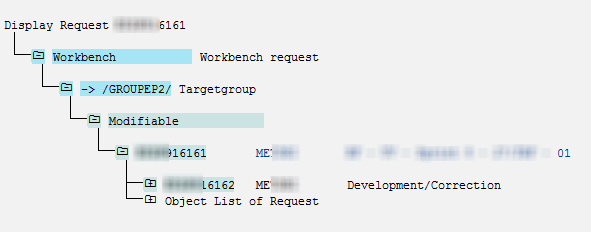
    As you see in the next picture, the transport is released.

    Transport already released
    Transport already released

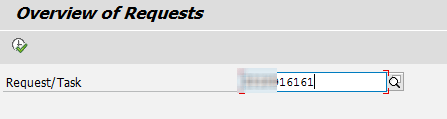
    First start the transaction SE38 and execute the report RDDIT076. You now see the selection screen where you choose the corresponding transport request.

    Report RDDIT076
    Report RDDIT076

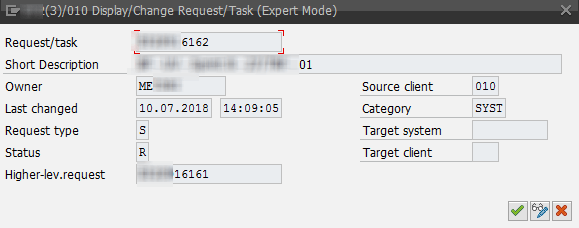
    After you click execute you see an overview of the requests. Now you have to select the entry you want to change and see the details of it.

    RDDIT076 Overview
    RDDIT076 Overview

    Use the pen to switch into the edit mode and change for example the status to undo the release. Confirm and save the changes. 

    Change request/task
    Change request/task

    As you can see in this figure the transport request has been reset and it is back in development status.

    Transport is modified again
    Transport is modified again

    Blame on me, I found an old post which just described the steps. Look here.

    author.


    I am Tobias, I write this blog since 2014, you can find me on twitter and youtube. If you want you can leave me a paypal coffee donation. You can also contact me directly if you want.
  • Analysis Office Data Source for Defining Formulas

    A new function in Analysis Office 2.7 is „Select Data Source for Defining Formulas“. But what does this mean? First
    the prerequisites:

    So I just logged into my BW 7.50 test system and what I have to see, we only have a BW 7.5 SP11. So I have applied the notes and each note need further notes to implemented. I just want to test
    something and now I have to implement more than 30 notes.


    After this was done I could start finally to test this function. Alexander
    Peter
    showed in the latest DSAG webcast an example so I had a slight idea what to do.

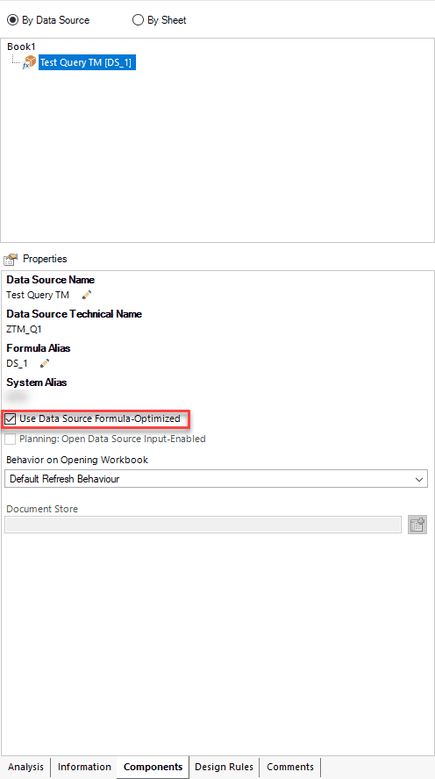
    First I logged to my BW 7.5 and selected my query. You have to make sure that the option Use Data Source Formula-Optimized is active. If not, you cannot use it. If
    it is not active you can in return create a Crosstab which you cannot do if it is formula optimized.

    Analysis Office Components tab - Use Data Source Formula-Optimized
    Analysis Office Components tab – Use Data Source Formula-Optimized

    So now just create an example. First I create a simple SAPSelectMember to use it for the next steps.


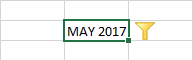
    =SAPSelectMember(„DS_1″;“0CALMONTH{pres=INTERNAL_KEY}=201705″;“0CALMONTH“;“Text“)


    This is how it looks like:

    Formula SAPSelectMember
    Formula SAPSelectMember

    Now I build a little compley formula to get my data.


    =SAPGetData(„DS_1“;F3;“0CALMONTH=“&SAPGetMember(„DS_1″;“0CALMONTH=“&I3;“KEY“))


    This is how it looks like:

    Formula SAPGetData
    Formula SAPGetData

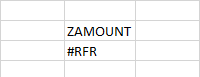
    As you might wonder, you see now #RFR. This mean you need to refresh your data source and now you see the result.

    Formula SAPGetData with value
    Formula SAPGetData with value

    After you change the Filter Component you always see the #RFR. This could be better, I hope SAP will make improvements here. Now you can use this „new“ function to build beautiful dashboards.


    But what is now the thing, why I should use the new function? You sure now the SAPGetData formula from earlier versions. But the SAPGetData formula in older versions need a query view  that contains
    all cells which you want to query. That means you have to drill down hierarchies and add dimensions if you want to query these characteristic combinations.


    This can mean, that you have to quest 100.000 cells to represent two values. In the new handling since the actual version it is the other way around. This mean you write the combination you need
    and Analysis Office generates the best possible queries.


    Thanks to Alexander Peter for clearing this up.

    author.


    I am Tobias, I write this blog since 2014, you can find me on twitter and youtube. If you want you can leave me a paypal coffee donation. You can also contact me directly if you want.
  • SAP BW Assign navigation attribute to InfoObject

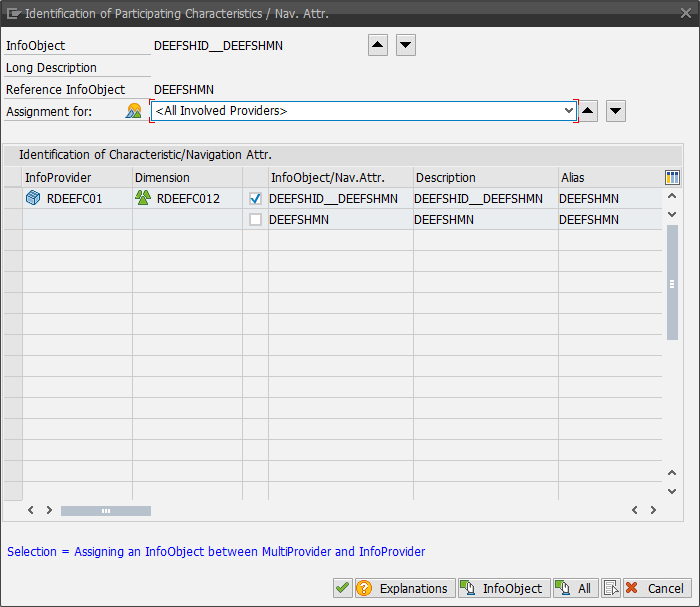
    In my current project we run into an issue that we have to match navigation attributes from one ADSO to an infoobject of another ADSO. The old feature of a MultiProvider was to Identify (assign).

    SAP BW Assign infoobject to MultiProvider
    SAP BW Assign infoobject to MultiProvider

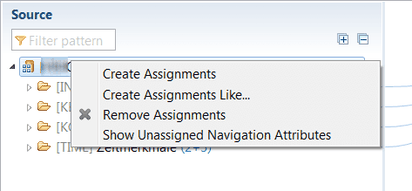
    So I searched for the correlating setting in BW Modeling Tools for Composite Provider and I found nothing in my SAP BW 7.4 SP17. After a little research I found that a SAP BW 7.5 has this
    information. It is hide under „Show unassigned Navigation Attributes„.

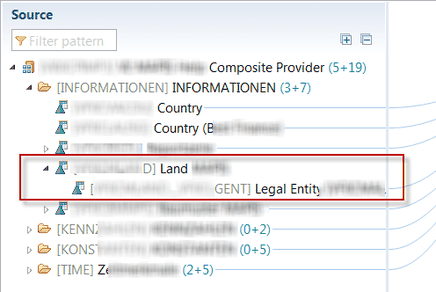
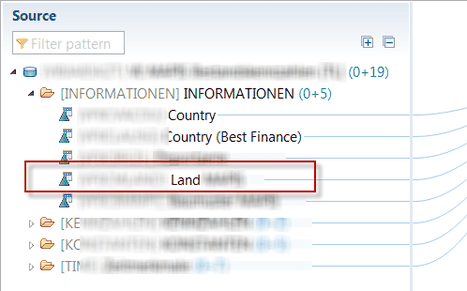
    Eclipse: Show Unassigned Navigation Attributes
    Eclipse: Show Unassigned Navigation Attributes
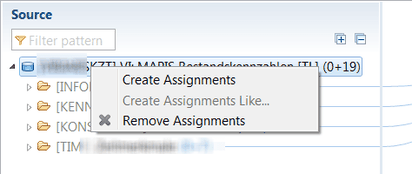
    Eclipse: Assign Navigation Attributes to InfoObject
    Eclipse: Assign Navigation Attributes to InfoObject

    If you show the unassigned navigation attributes, you can assign them to a normal InfoObject like the old MultiProvider. But a SAP BW 7.4 has no such setting.

    Eclipse: No Show Unassigned Navigation Attributes
    Eclipse: No Show Unassigned Navigation Attributes
    Eclipse: No navigation attributes to assign
    Eclipse: No navigation attributes to assign

    I found this Wiki entry, which
    descibes exactly what I need. At the end there is an information which is important if you use Advanced Data Store Objects. You have to read the s-note 2215947. The solution is to build one CompositeProvider (HCPR)
    with your ADSO and its navigation attributes.

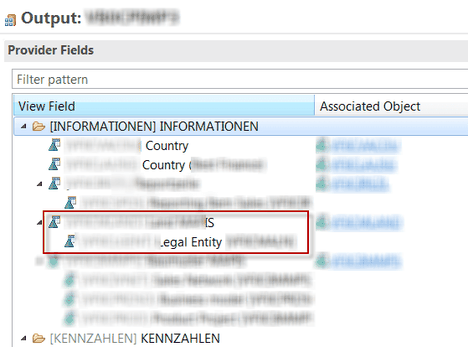
    Eclipse: Activiate Navigation Attribute on Output tab
    Eclipse: Activiate Navigation Attribute on Output tab

    Then activate the setting „This CompositeProvider can be added to another CompositeProvider“and add the first CompositeProvider to a new CompositeProvider. Now you are able to assign the
    navigation attributes to a characteristic in the output of the new CompositeProvider.


    I hope this can help someone to solve a similar problem.

    author.


    Hi,

    I am Tobias, I write this blog since 2014, you can find me on twitterfacebook and youtube. I work as a Senior Business
    Warehouse Consultant. In 2016 I wrote the first edition of . If you want you can leave me a paypal coffee
    donation. You can also contact me directly if you want.