reyemsaibot

SAP BI Blog about SAP BW/4HANA, Analysis for Office and SAP HANA - by Tobias Meyer

Schlagwort: analysis for office

  • Analysis Office Restrictions

    Here is a short post about something I just found and never used until now. You can create restrictions in Analysis Office by either
    using the context menu of a measure or via the ribbon menu entry under Calculations >> Add Restrictions. It will display a new dialog where you can define your restrictions.
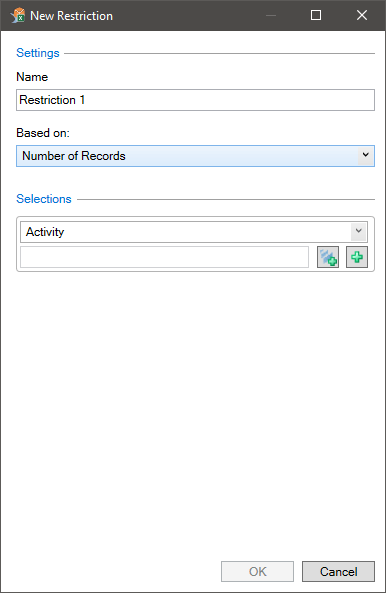
    Analysis Office Add new restriction
    Analysis Office Add new restriction

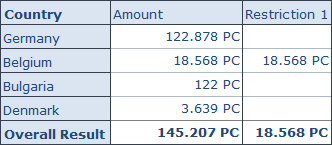
    You have to define a name, a based on measure and your selection(s). After you defined your parameters, click OK and a new column will be added to your crosstab.
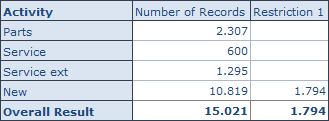
    Crosstab with Restriction
    Crosstab with Restriction

    As you can see the restriction just show I have defined on my selection in the dialog above. I hope this could help someone.

    author.


    I am Tobias, I write this blog since 2014, you can find me on twitter and youtube. If you want you can leave me a paypal coffee donation. You can also contact me directly if you want.
  • What’s new in Analysis Office 2.6 SP1

    Analysis Office 2.6 SP1 is available since last week. When you look at the What’s new guide from SAP, you see nothing spectacular new. You have now a new file system setting called
    AlwaysDoApplicationSteps. You can use this setting to write entries into the table RSDDSTAT_OLAP afer each action without the need to close Analysis Office.


    There is also a new style called SAPDataRemoved, to format cells whose data was removed with the workbook property Remove Data Before Saving. Also you have now more
    options for scheduling a workbook on the BI platform


    That’s it. As you can see it is not much new. I think the most what was done is bug fixing.

    author.


    I am Tobias, I write this blog since 2014, you can find me on twitter and youtube. If you want you can leave me a paypal coffee donation. You can also contact me directly if you want.
  • Analysis Office 2.6 SP1 is available

    Since today Analysis Office 2.6 SP1 is available. You need as always a S-User to download the latest version. Here is a short overview what it might fix.

    • AO 2.6 Table design rule: Error with Formula VLOOKUP to external excel (s-note 2590137)
    • AO: Exceptions occur when loading AO after opening an AO workbook (s-note 2595959)
    • Analyis Office: Text and Key are concatenated in new line attributre cells (s-note 2586756)
    • Analysis Office: Saving a workbook destroys the layout of the workbook (s-note 2594627)
    • Prompts dialog: Hierarchy variable shows wrong value (s-note 2587530)
    • Scheduling A.O. Workbook Generates Corrupted Workbooks (s-note 2589444)
    • Sheets option are lost when Excel document is opened from server repos (s-note 2593473)
    • Table Design formats are not applied (s-note 2594716)

     A overview what’s new will be available next week. If you find something interesting, please feel free to post a comment.

    author.


    I am Tobias, I write this blog since 2014, you can find me on twitter and youtube. If you want you can leave me a paypal coffee donation. You can also contact me directly if you want.
  • Analysis Office Filter by Member Attribute

    Crosstab before Filter by Member Attribute
    Crosstab before Filter by Member Attribute

    A feature which I didn’t know even it is available since Analysis Office 2.2 is to search and filter by attribute. First
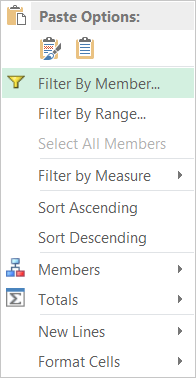
    select a dimension you want to filter.

    Filter by Member via Context Menu
    Filter by Member via Context Menu

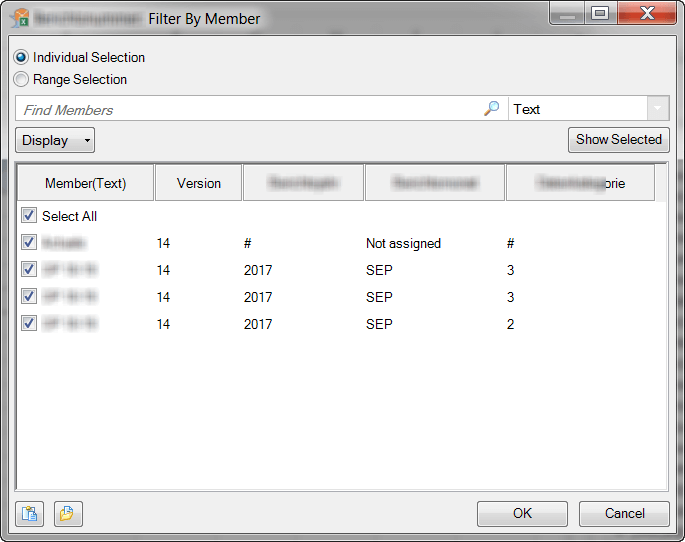
    Now you see the Filter by Member dialog and you can display the necessary attribute you want to filter.

    Filter by Member Dialog
    Filter by Member Dialog

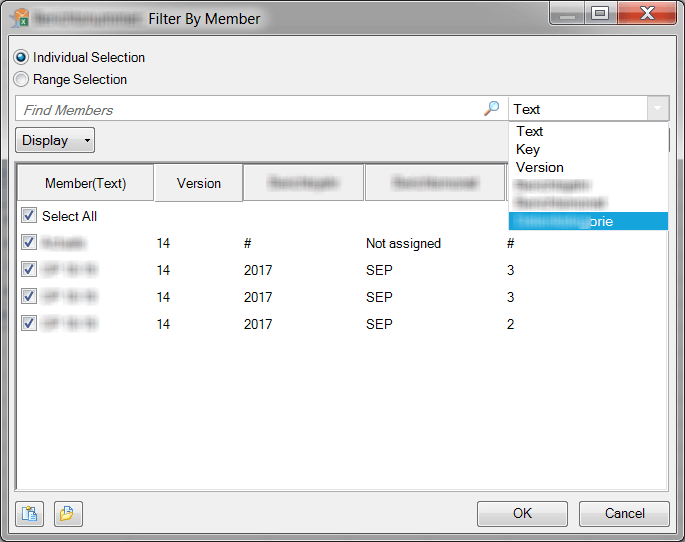
    Now select in the dropdown menu the attribute you want to filter.

    Filter by Member Select Attribute
    Filter by Member Select Attribute

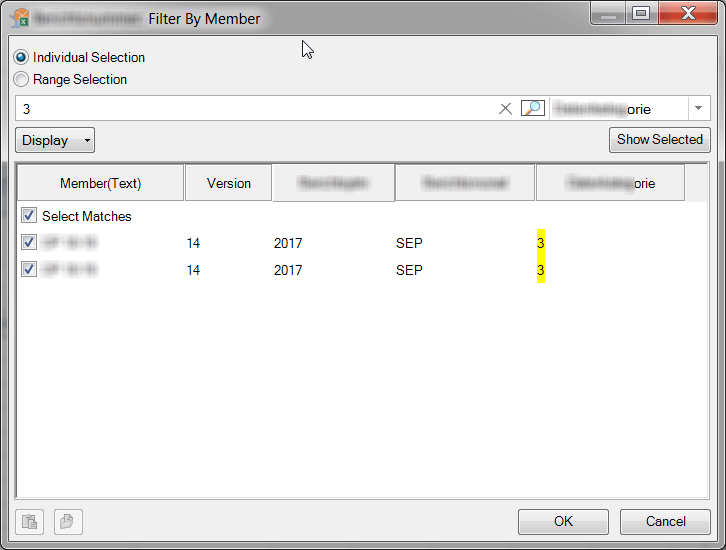
    After you select the attribute, you can use the search bar to filter your result.

    Filter by Member via Attribute
    Filter by Member via Attribute

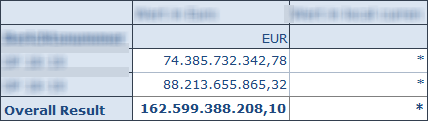
    The result of the crosstab should look like the following screenshot.

    Crosstab after Filter by Member
    Crosstab after Filter by Member

    So as you can see, you cannot only Filter by Member for a dimension, you can also Filter By Member for an attribute. This might be interesting for you, when you use a lot of attributes.

    author.


    I am Tobias, I write this blog since 2014, you can find me on twitter and youtube. If you want you can leave me a paypal coffee donation. You can also contact me directly if you want.
  • Analysis Office 2.6 is available

    As you might know, Analysis Office 2.6 is available now. To download it, you need a S-User with download credentials. First SAP
    BusinessObjects Analysis for Microsoft Office is now called, SAP Analysis for Microsoft Office. Damn I have to rewrite my book, just kidding.
    Here is a short overview of What’s new in Analysis Office 2.6:

    • You can now copy a Table Design formula by using Microsoft Excel Fill Handling
    • The formula SAPSetFilterComponent has a new selection type MEMBERSSELECTOR.
    • The API Command NumberOfNewLines can now set the number of new lines for a crosstab
    • According to Matthew Shaw you can now connect to/report on SAP Analytics Cloud.

    So I just downloaded Analysis Office 2.6 and maybe I can write a little bit more in the next days.

    author.


    I am Tobias, I write this blog since 2014, you can find me on twitter and youtube. If you want you can leave me a paypal coffee donation. You can also contact me directly if you want.
  • Analysis Office 2.5 SP2

    In the last month I was very busy with my thesis and my project at work, so I had no time to write a lot of blog posts. So here is a short overview what Analysis Office 2.5 SP2 fix. But keep in mind, Analysis Office 2.6 is up coming.

    •  An execption is thrown when grouping crosstabs (s-note 2530837)
    • Formula SAPGetVariable does not return value for BASEINFOOBJT if variables are merged (s-note 2529886)
    • Group Crosstabs / Compact Display does not work properly (s-note 2527113)
    • Native date, date time and time span rendering (s-note
      2482546
      )
    • Not able to change presentation of attribute (s-note 2525435)
    • Refresh in Open dialog does not work (s-note 2536320)
    • Launching a second workbook starts an empty Excel (s-note 2551513)

    There are a lot more bugs which are now patched, so install the latest version.

    author.


    I am Tobias, I write this blog since 2014, you can find me on twitter and youtube. If you want you can leave me a paypal coffee donation. You can also contact me directly if you want.
  • What’s new in Analysis Office 2.6

    Today Alexander Peter showed in the ASUG Webcast Analysis Office 2.6. The expected GA is in three weeks. New in Analysis Office 2.6 are the following things:

    • Table Design Improvements (auto complete enhancements)
    • Improved handling of new lines in planning applications (SAP BW 7.5 SP11)
    • Open Analysis Office workooks using variables (BI Platform 4.2 SP5)
    • Editing schedule jobs (BI Platform 4.2 SP5)
    • Scheduling based on events (BI Platform 4.2 SP5)
    • Publications (BI Platform 4.2 SP5)
    • More features with SAP Analytics Cloud such as exception aggregation
    • Access repository of all (native) cloud models
    • Exception aggregation on the fly
    • Use Dynamic Calculations Rank and Rank Olympic (planned for SP1)
    • Launch Workbooks directly from the BI Platform with variables (BI Platform 4.2 SP5)
    • Rescheduling Jobs on the BI Platform 4.2 SP5
    • Scheduling workbooks with events (e.g. successful/failed data load to BW)
    • Use VLOOKUP with Table Design
    • Filter by Range is now possible
    • New Parameter such as EnableNativeFormatting or UseNewLinesLegacyMode

    author.


    I am Tobias, I write this blog since 2014, you can find me on twitter and youtube. If you want you can leave me a paypal coffee donation. You can also contact me directly if you want.
  • Analysis Office 2.5 – Technical Configuration

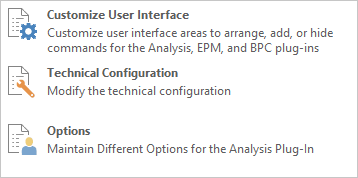
    A really cool feature of Analysis Office 2.5 can you see in the „backend“ under File >> Analysis. The function
    Customize Analysis offers now new options. Besides the Customize User Interface from Analysis Office 2.4
    which allows you to change the ribbon menu of Analysis Office, you now can directly modify the technical settings of Analysis Office.

    Customize User Interface
    Customize User Interface

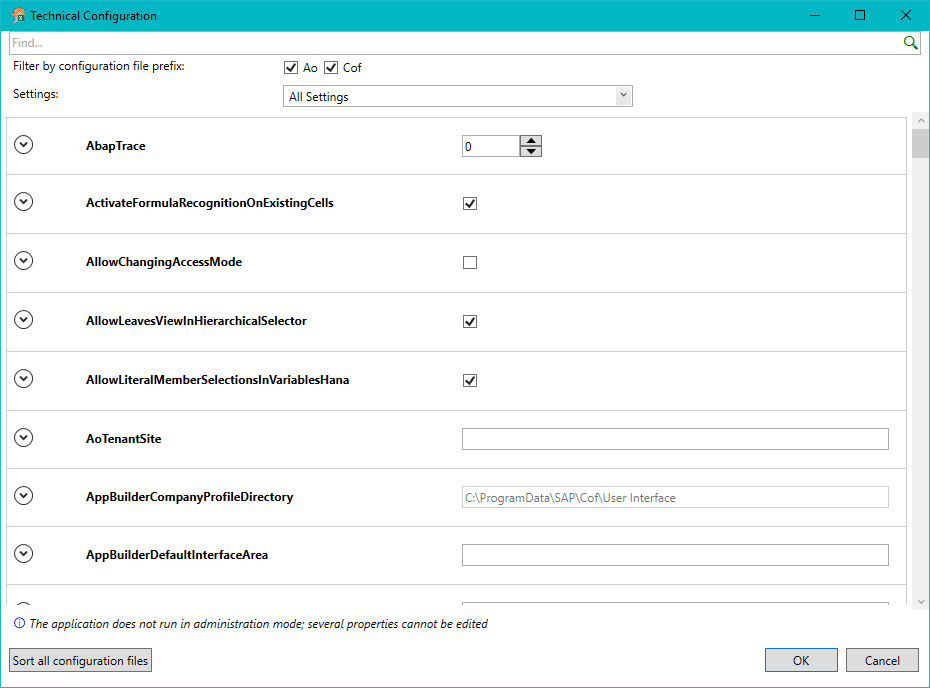
    With the function Technical Configuration you can modify all setting parameters from the file system settings.

    Technical Configuration
    Technical Configuration

    This is nice, because several properties could be edit while Excel with Analysis Office Addin is open and you don’t have to search for the parameter files in the file system. You have a little
    search bar on the top. The only thing what I am missing is that there is a direct link to a help file oder something similar to see what the property does. Maybe someone from SAP reads this and
    add this feature for a future release.

    author.


    I am Tobias, I write this blog since 2014, you can find me on twitter and youtube. If you want you can leave me a paypal coffee donation. You can also contact me directly if you want.
  • Analysis Office 2.5 DataSource Information

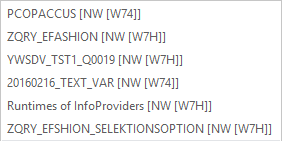
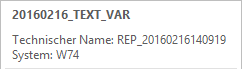
    This week is very short in case of the day of German unity and we have sprint change next week, I haven’t time to write a lot so here is just one goodie. When you insert a DataSource in Analysis Office 2.5 you see the recent inserted DataSource. Now in Analysis Office 2.5 you also see the technical name of the query and the system. I think this is nice if you are testing a query on different systems.

    Recent DataSource
    Recent DataSource
    Recent DataSource Detail Information
    Recent DataSource Detail Information


    Sorry for the German text on the screenshot. At the moment I have only a German Excel. Is there any cool feature which Analysis Office now
    provide you do not want to do without? Just tell me in the comments.

    author.


    I am Tobias, I write this blog since 2014, you can find me on twitter and youtube. If you want you can leave me a paypal coffee donation. You can also contact me directly if you want.
  • Analysis Office 2.5 Scaling Factor

    In my current project I work a lot in the backend of a BW 7.4 on HANA but I finally found time to look into Analysis
    Office 2.5
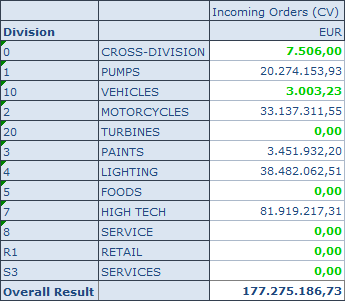
    . Here is a short explanation about the feature that the scaling factor works now with conditional formatting. If you configure your conditional formatting like the following
    screenshot and apply after that your favourite scaling factor. It automatically adjusts.

    Define Conditional Formatting
    Define Conditional Formatting

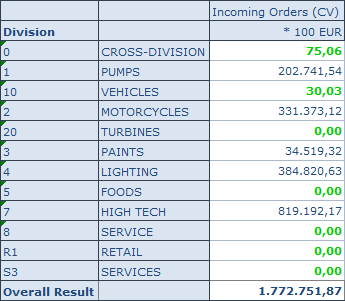
    If you now apply the scaling factor, it adjusts.

    Scaling Factor applied
    Scaling Factor applied

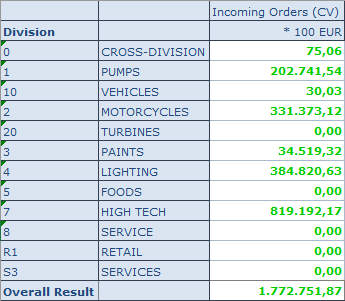
    Here you can see the difference to Analysis Office 2.4 SP3. After I applied the scaling factor, all items are green.

    Scaling Factor in Analysis Office 2.4
    Scaling Factor in Analysis Office 2.4

    author.


    I am Tobias, I write this blog since 2014, you can find me on twitter and youtube. If you want you can leave me a paypal coffee donation. You can also contact me directly if you want.