reyemsaibot

SAP BI Blog about SAP BW/4HANA, Analysis for Office and SAP HANA - by Tobias Meyer

Schlagwort: analysis for office

  • Analysis Office 2.4 SP1 is available

    Since 13.01.2017 the SP1 of Analysis for Office 2.4 is available. You can download it here. You need a S-User to download it.
    There are three new file system settings:

    • UseDataSourceDeltaUpdate
    • EnforceDatePickerForCalendarDayVariable
    • SetEmptiedDoubleDataCellsToValue0

    There are also some changes in the User Interface Customization.

    You can now create, delete and reorganize groups and elements. A nice feature too is when you create a toggle button, you can get the button state. This I haven’t tested yet, but it could be very
    useful. About the file system settings:

    • UseDataSourceDeltaUpdate

    The default value is true and you can use this setting to specify if you only want the delta data or the complete data of a data source when you reload or update. If you change it to false, the
    complete data of the data source will be reloaded. I don’t know if this setting makes so much sense but maybe someone use it.

    • EnforceDataPickerForCalendarDayVariable

    The default value is false, this means the date picker is not enabled and the dates are displayed in a list. If you change it to true, you get a date picker and also there is no fetching of date
    values from the backend system. This is very useful, many threads in the SCN are about the date picker problem. Thanks.

    • SetEmptiedDoubleDataCellsToValue0

    The default value is true, this means if you save empty planning data cells, they are saved as 0. If the value is false, the old value remains and the cells are not saved as 0. I don’t know if
    some „features“ are necessary when you see that there are other problems like this.

    author.


    I am Tobias, I write this blog since 2014, you can find me on twitter and youtube. If you want you can leave me a paypal coffee donation. You can also contact me directly if you want.
  • Analysis Office 2.4 Workbook Protection and Styles

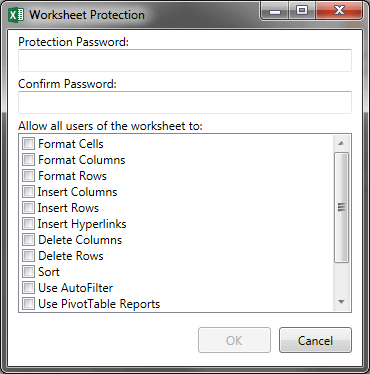
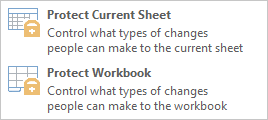
    A new feature of Analysis for Office 2.4 is workbook or sheet protection. It is similar to the Microsoft
    Excel Protect Sheet / Workbook function, but it is also different. When you need to protect your workbook or sheet and you use the Excel
    functionality, you can not refresh or drill down your Crosstab. But when you want to refresh your data or give the users the opportunity to drill down or filter, you have to use the workbook /
    sheet protection from Analysis for Office.

    SAP Analysis for Office Protect Options
    SAP Analysis for Office Protect Options

    You can define almost the same options like the normal Excel function. But if you protect your workbook or sheet with this function, the Excel ribbon also shows the protection. But if you remove
    it from there and and set it again with another password, it is no longer the Analysis for Office protection, it is the Excel protection, which means you can not refresh or drill down anymore.

    Microsoft Excel Protected Sheet
    Microsoft Excel Protected Sheet

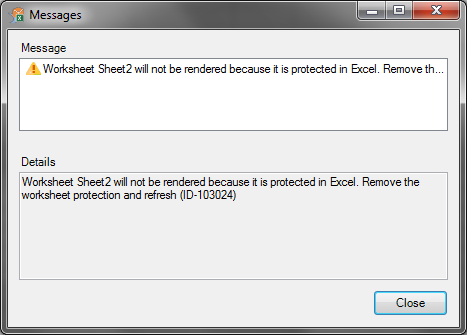
    Instead you receive the following message. So be aware of which protection you use and communicate this also to your colleagues.

    SAP Analysis for Office Excel Sheet Protection
    SAP Analysis for Office Excel Sheet Protection

    If you use Analysis for Office IP you now have a new custom style called SAPError. This style shows you information if something in your planning doesn’t work correctly. When you
    enter your value you can simply autocomplete them. Enter a prefix for a member and use F4/value help or CTRL-Space (autocomplete).

    SAPError
    SAPError

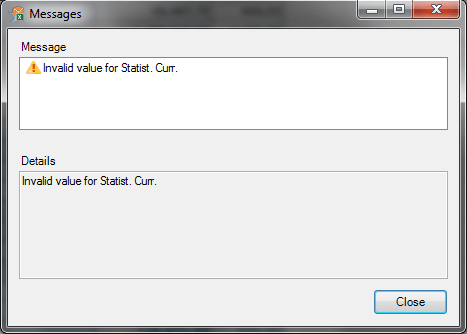
    Normally you get also a message, but if you have suppress all messages, you don’t see them.

    SAP Analysis for Office Integrated Planning Message
    SAP Analysis for Office Integrated Planning Message

    author.


    I am Tobias, I write this blog since 2014, you can find me on twitter and youtube. If you want you can leave me a paypal coffee donation. You can also contact me directly if you want.
  • Analysis Office 2.4 File System Settings

    Analysis for Office 2.4 also provides new file system settings. Especially for the new Customize User Interface function. The file Cof_app.config provides all these parameters:

    • AppBuilderDefaultProfilePath
    • AppBuilderUserProfileDirectory
    • AppBuilderCompanyProfileDirectory
    • AppBuilderReadOnlyProfileDirectories

    And also these parameters:

    • CurrentCodePage
    • SapWebGuiPath
    • NwbcTicketIssuerPath

    Only then AppBuilderCompanyProfileDirectory is a PerMachine parameter, the others are UserRoaming. How the other parameters exactly work has to be tested. The
    Ao_app.config also provides new parameters:

    • DefaultBWQueryDesigner
    • DoSelectorHierarchyExplicitSelection
    • AutoCompleteFetchMemberLimit
    • HanaHttpConnectionTimeout

    So it can be possible that the user can choose between the old BEx Query Designer and the new BW
    Modeling Tools
    . The default parameter is „0“, so at the moment I cannot say what exactly has to be the value for other query designers. The parameter
    DoSelectorHierarchyExplicitSelection should select only the child nodes of a node and the parent node is not automatically checked. But I haven’t got a chance to test this. So I
    can’t confirm this. I don’t know at the moment how the parameter AutoCompleteFetchMemberLimit works, I only know the default value is 30. But as soon as possible
    I add these information to this post.

    author.


    I am Tobias, I write this blog since 2014, you can find me on twitter and youtube. If you want you can leave me a paypal coffee donation. You can also contact me directly if you want.

  • Analysis Office 2.4 Customize User Interface

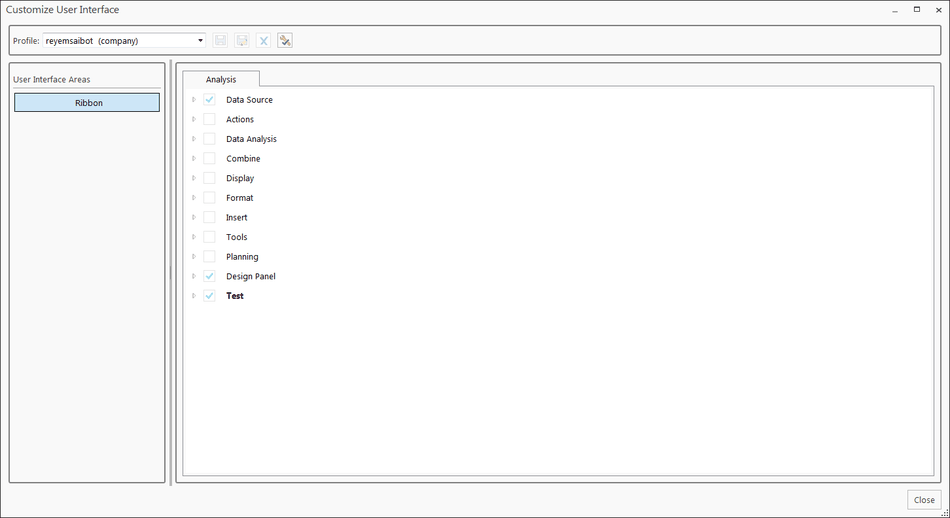
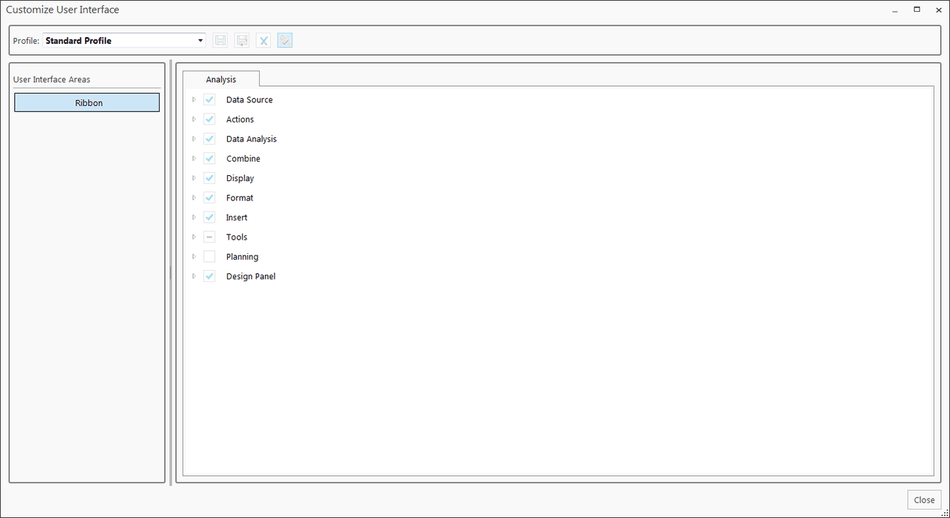
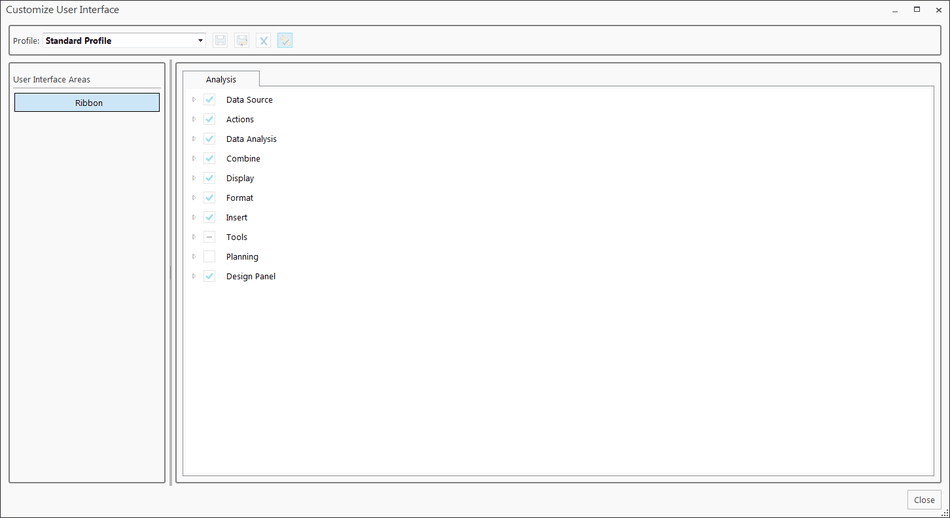
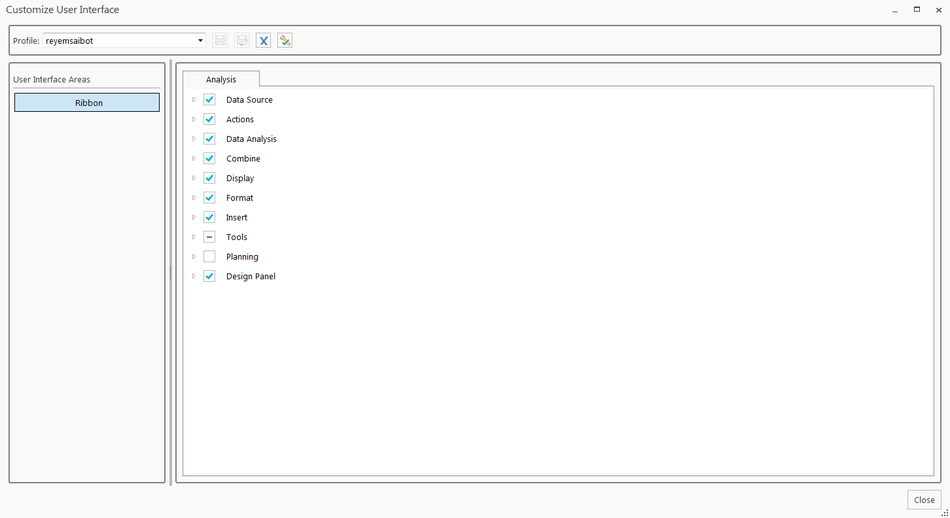
    A new feature of Analysis for Office 2.4 is that you have a function called Customize User Interface. On the
    first view it looks similar to the Excel customize ribbon function. But it has more flexiblity to switch between different interfaces. First you have to open the Customize User
    Interface
    dialog via File >> Analysis. The following dialog appears.

    SAP Analysis for Office Customize User Interface
    SAP Analysis for Office Customize User Interface

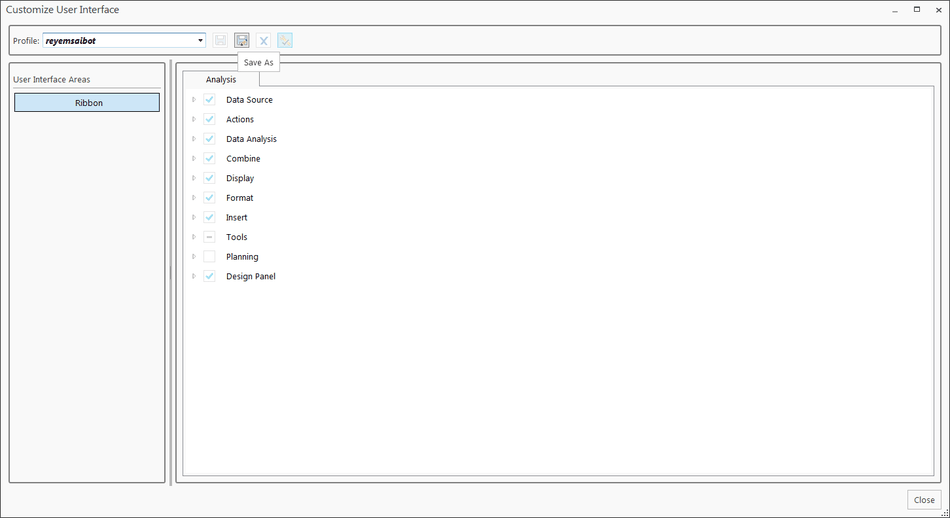
    To define a new profile you have to click into the drop down box and enter a name, e.g. reyemsaibot. After you entered your profile name, the save button is active.

    SAP Analysis for Office Customize User Interface save profile
    SAP Analysis for Office Customize User Interface save profile

    After you saved your profile, you can delete it or set it as standard profile.

    SAP Analysis for Office Customize User Interface saved
    SAP Analysis for Office Customize User Interface saved

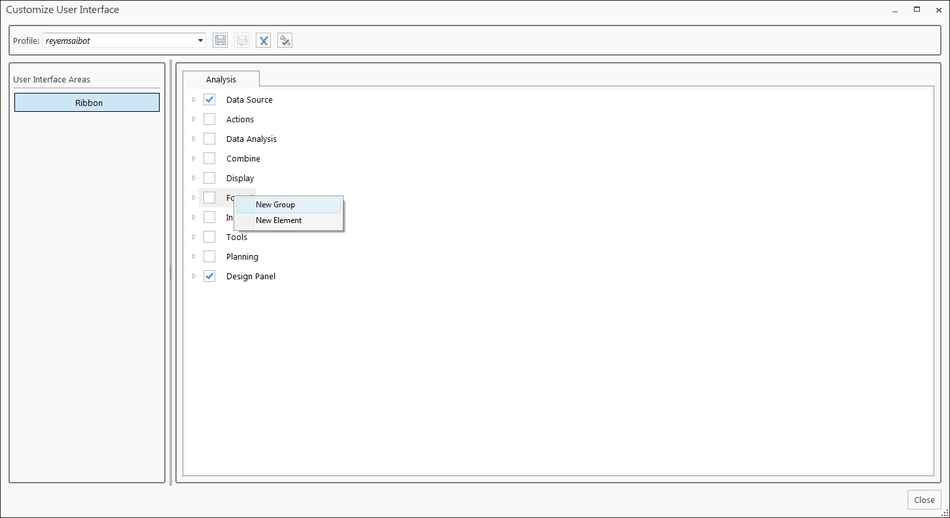
    Now you can modify the ribbon interface by select or unselect the groups and elements. If you want to add a own function, make right click and add a New Group.

    SAP Analysis for Office Customize User Interface add new group
    SAP Analysis for Office Customize User Interface add new group

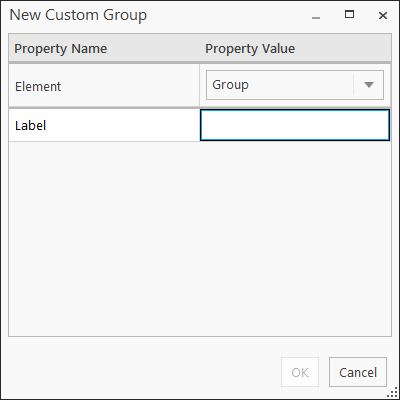
    You can now define the group.

    SAP Analysis for Office Customize User Interface define group
    SAP Analysis for Office Customize User Interface define group

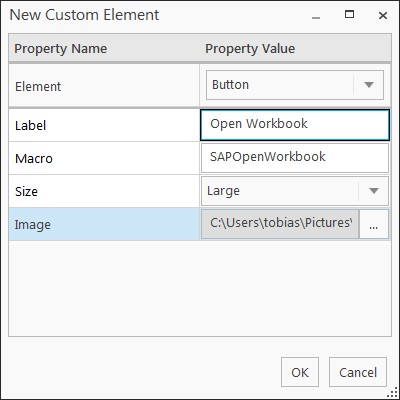
    After you add the group, you are able to add your own elements to this group. Make a right click and select New Element. You can choose between Button,
    Separator, Split Button and Toggle Button as element. For all elements except for Separator you have to define a
    Label, Macro, Size and an Image.

    SAP Analysis for Office Customize User Interface add new element
    SAP Analysis for Office Customize User Interface add new element
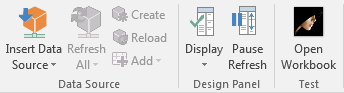
    SAP Analysis for Office Customize User Interface Ribbon
    SAP Analysis for Office Customize User Interface Ribbon

    For example I add a Button Open Workbook and choose my macro SAPOpenWorkbook. You can choose your macro either in this workbook or in an external source like a
    Excel add-in. So you are able to design different interface for different people or use cases. The interfaces are stored under
    C:Users<User>AppDataRoamingSAPCofUser Interface. There you find a xml and an image folder, in which are the selected images are saved.

    Appdata User Interfaces
    Appdata User Interfaces

    If you want to distribute them in your company, take these files (xml and the image folder) and move them to C:ProgramDataSAPCofUser Interface. Now it is a company user
    interface and can’t be deleted by the user.

    SAP Analysis for Office Customize User Interface Company Interface
    SAP Analysis for Office Customize User Interface Company Interface

    If there is any question feel free to write a comment. I think it is a cool feature if you want to restrict the view of the ribbon and distribute it in your company. If it will be used a lot,
    will we see in the future. So stay tuned for other Analysis for Office 2.4 content.

    author.


    I am Tobias, I write this blog since 2014, you can find me on twitter and youtube. If you want you can leave me a paypal coffee donation. You can also contact me directly if you want.
  • What’s new in Analysis Office 2.4

    Since yesterday Analysis for Office 2.4 is available. You can download it with a S-User under Support Packages and Patches >>
    By Alphabetical Index (A-Z) >> A >> SBOP Analysis Office >> SBOP Analysis MS Office 2.4
    .


    The SAP help page isn’t updated yet. But I think it would be updated in the next days.

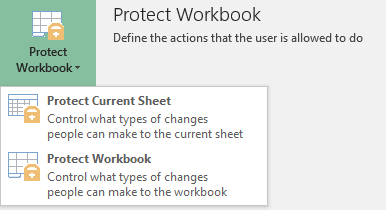
    A new feature is to protect your workbook. You can choose between the complete workbook and only
    sheet protection. It seems like a stripped down protection from Microsoft Excel. Why this should be necessary must be clarified.

    SAP Analysis for Office Protect Workbook
    SAP Analysis for Office Protect Workbook
    SAP Analysis for Office Protect Workbook Options
    SAP Analysis for Office Protect Workbook Options


    Also a new feature is to load and save comments directly from the SAP Business Objects BI platform. How this exactly works I
    have to discover. A really cool feature is the Customize User Interface where you can
    easily configure different user interface. Maybe you can also configure them through the file system
    settings
    .

    SAP Analysis for Office Customize User Interface
    SAP Analysis for Office Customize User Interface

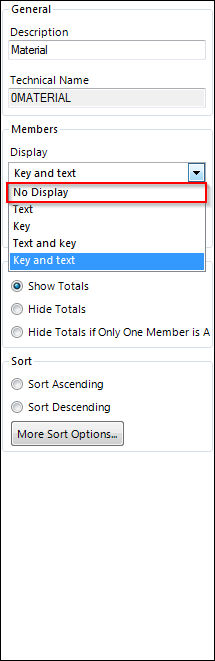
    You can now define in the properties of the design panel to set a dimension to No Display.

    SAP Analysis for Office Design Panel Properties
    SAP Analysis for Office Design Panel Properties

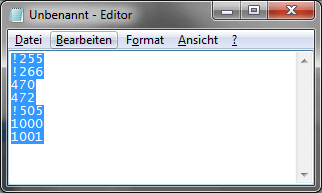
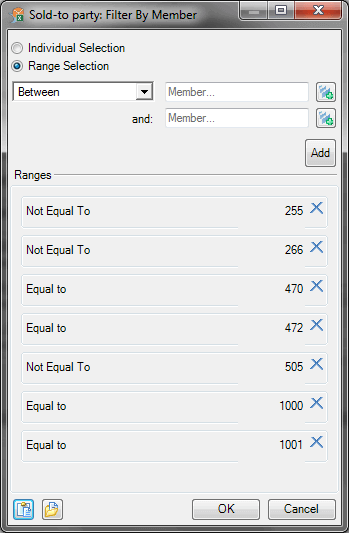
    The Table Design Rules editor now has a copy button, if the previous restrictions are obsolete now, have to be seen. You can now also exlcude copy and paste values from clipboard or file.

    Values for clipboard copy and paste
    Values for clipboard copy and paste
    SAP Analysis for Office add filter via clipboard
    SAP Analysis for Office add filter via clipboard


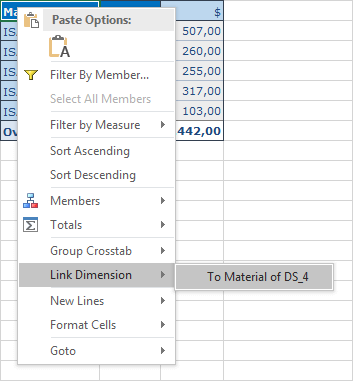
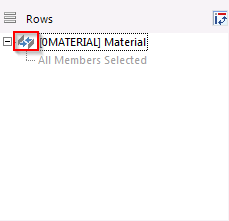
    Also new is Link Dimension. This means when you filter on the main Crosstab it will also affect the linked Crosstabs. You can see the little icon that indicates the Crosstabs are
    linked.

    SAP Analysis for Office Link Dimension
    SAP Analysis for Office Link Dimension
    SAP Analysis for Office Dimension Linked
    SAP Analysis for Office Dimension Linked


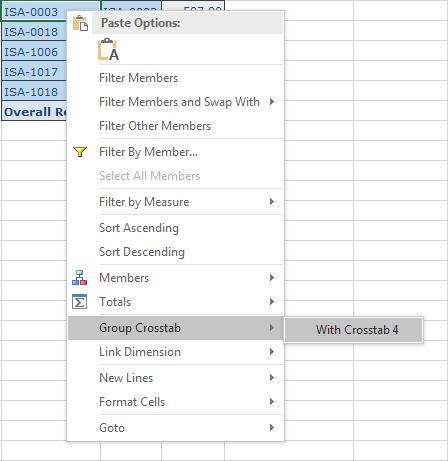
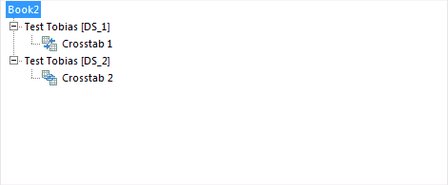
    A really cool feature is Group Crosstabs. This means, that you combine to Crosstabs to one.

    SAP Analysis for Office Group Crosstabs
    SAP Analysis for Office Group Crosstabs
    SAP Analysis for Office Components View Group Crosstabs
    SAP Analysis for Office Components View Group Crosstabs


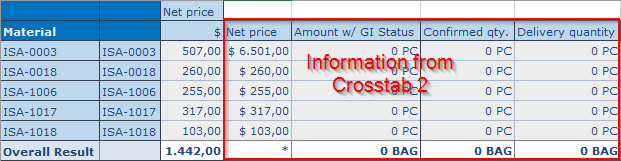
    Here is the result of the Group Crosstabs.

    SAP Analysis for Office Group Crosstabs
    SAP Analysis for Office Group Crosstabs

    So a first look at Analysis for Office 2.4 is done. I hope SAP release the necessary help files so we can found more about this version.

    author.


    I am Tobias, I write this blog since 2014, you can find me on twitter and youtube. If you want you can leave me a paypal coffee donation. You can also contact me directly if you want.
  • Analysis Office – The Comprehensive Guide

    After @xjhacking conviced me or say talk round, here is a one day offer for my book Analysis Office – The Comprehensive Guide. You can buy it for 9,99 € until tomorrow evening.

    author.


    I am Tobias, I write this blog since 2014, you can find me on twitter and youtube. If you want you can leave me a paypal coffee donation. You can also contact me directly if you want.
  • Move Analysis Office workbooks from BW to BI Platform

    This week I don’t have much time to write an article about Analysis Office, but I found an interesting article from Xavier about Migrating Analysis for Office workbooks from BW to BI Platform last week.


    The topic came up yesterday as a collegue asked me if I know why he can’t save a workbook to the BI platform. The workbook was opened from a NetWeaver system and than the option save to BI Platform isn’t available.


    So read this article if you have the same problem.

    author.


    I am Tobias, I write this blog since 2014, you can find me on twitter and youtube. If you want you can leave me a paypal coffee donation. You can also contact me directly if you want.
  • Analysis Office SAPInsertLine

    The API command SAPInsertLine is available since version 2.2 SP3 of Analysis for Office. With this function you can insert a new line into a crosstab. There are five input-parameters available:

    • RuleID
    • Data Source Alias
    • Position
    • PositionBy
    • PositionBy parameters

    You can define the RuleID, if you do not define an ID, the system generates one automatically. As Data Source Alias, you have to enter the data source alias,
    e.g. DS_1. As Position you can choose between Before, After, BelowHeader or BesideHeader. For PositionBy you can enter one of the following
    elements:

    • Dimension
    • DimensionResult
    • DimensionGroup
    • DimensionMember
    • HierarchyNode
    • Tuple

    Here is an example code, more detail information can be found in my book. This code insert a new
    line after the dimension 0Material.


    1
    2
    Dim ret As String
    ret = Application.Run("SAPInsertLine", "NewLine1", "DS_1", "After", "DIMENSION", "0MATERIAL")
    
    Analysis for Office SAPInsertLine After Dimension
    Analysis for Office SAPInsertLine After Dimension

    This example code insert a new line before the dimension 0Material.


    1
    2
    Dim ret As String
    ret = Application.Run("SAPInsertLine", "NewLine1", "DS_1", "Before", "DIMENSION", "0MATERIAL")
    
    Analysis for Office SAPInsertLine Before Dimension
    Analysis for Office SAPInsertLine Before Dimension

    More examples can detailed information can be found in my book SAP Analysis for Office – The
    Comprehensive Guide
    .

    author.


    I am Tobias, I write this blog since 2014, you can find me on twitter and youtube. If you want you can leave me a paypal coffee donation. You can also contact me directly if you want.
  • Analysis Office Excel formula video

    Here is the post Analysis for Office: How to work with Excel formulas as a short video.

    More about Excel formulas and Table Design can be found in my book.

    author.


    I am Tobias, I write this blog since 2014, you can find me on twitter and youtube. If you want you can leave me a paypal coffee donation. You can also contact me directly if you want.
  • Analysis Office Cancel long-running Queries

    Since Analysis for Office 2.3 was released, you are able to cancel long-running queries. In the Ao_app.config you can define the
    parameter CancelPopupDelay. The default value is 5 seconds. You can change this setting to specify after how many seconds the cancel dialog should be displayed. The dialog could
    appear when you inserting a data source or navigating through the data and it took more than 5 seconds.


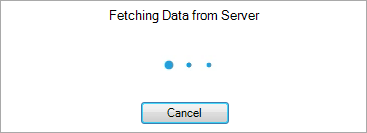
    If the dialog is displayed, you could press „cancel“ to cancel the server request. In the following message dialog, you can select restart to go back to the workbook and the data source is
    active. Or you select close to go back to the workbook and the data source is offline. If you don’t cancel the request, the dialog will disappear automatically
    when the server request is completed.


    Analysis for Office fetching data from server
    Analysis for Office fetching data from server

    author.


    I am Tobias, I write this blog since 2014, you can find me on twitter and youtube. If you want you can leave me a paypal coffee donation. You can also contact me directly if you want.