reyemsaibot

SAP BI Blog about SAP BW/4HANA, Analysis for Office and SAP HANA - by Tobias Meyer

Schlagwort: analysis for office

  • Analysis Office 2.5 is available

    Analysis Office 2.5 is finally available since the end of August for everyone. After I submit my diploma thesis last week, I have now
    time to see whats new in Analysis Office 2.5. Here is the first short overview of the new feature:

    • You are now able to connect to SAP BusinessObjects Cloud
    • Customize User Interface has new options
    • New different troubleshooting modes
    • New options with Table Design
    • A new API method SAPCallMemberSelector
    • Changes on the grouping Crosstab function
    • New file system setting ShowUtcTimeStampsInDataCells

    This is a first view on the What’s new Guide. I am also published Analysis Office – The Comprehensive Guide (2nd
    edition)
    as a Kindle ebook on amazon. Feel free to choose where to buy it. So stay tuned.

    author.


    I am Tobias, I write this blog since 2014, you can find me on twitter and youtube. If you want you can leave me a paypal coffee donation. You can also contact me directly if you want.
  • Analysis Office 2.5 & AMDP

    At the moment it is very quiet about new blog post. This is maybe the summer break everybody talks about. 😉

    I am at the final phase of my diploma thesis and have no time to do cool stuff and also SAP doesn’t release Analysis
    Office 2.5
    . It is still in ramp up and nothing new at the moment.


    So I could only say, my current project is a BW on HANA and I am testing how HANA SQL Script (AMDP) works and how fast we could build some stuff. First tests show a transformation with routines
    for 800.000 records about 1:55 minutes. The same transformation with AMDP (ABAP Managed Database Procedures) only need between 15 – 23 seconds. This is really impressive. 


    So stay tuned, if SAP will release Analysis Office 2.5 and some examples with AMDP.

    author.


    I am Tobias, I write this blog since 2014, you can find me on twitter and youtube. If you want you can leave me a paypal coffee donation. You can also contact me directly if you want.

  • Analysis Office 2.4 SP3 is released

    Last week the Analysis Office 2.4 SP3 was released. Here is a short overview of notes, which may solves some problems.

    • 2460877 – Excel crashes when opening several workbooks with SAPListOfMessages
    • 2461196 – Advanced calculation editor throws error when inserting a member
    • 2468933 – Effective filter shows only # for compounded characteristic
    • 2463167 – Non-SAP (built-in) formula cells of workbook are not refreshed
    • 2467459 – Prompts dialog clears variable

    I am still waiting for Analysis Office 2.5, which is still in ramp up. Here is a first look from Tammy.

    author.


    I am Tobias, I write this blog since 2014, you can find me on twitter and youtube. If you want you can leave me a paypal coffee donation. You can also contact me directly if you want.
  • Analysis Office – The Comprehensive Guide 2nd edition

    After I had time in my parental leave to read proof the second edition of my book, I can say it is now finished. The second edition is now available in the store. You can download the table of content here. This version is only available here and at the
    moment not on Amazon.


    If you have any questions feel free to ask and send me either an email or a comment. I hope to publish regularly in the next weeks so stay tuned.

    author.


    I am Tobias, I write this blog since 2014, you can find me on twitter and youtube. If you want you can leave me a paypal coffee donation. You can also contact me directly if you want.

  • Analysis Office Video Course

    In this blogpost I want to know if there is an interesting about an Analysis Office Video Course. Thanks for your time and your answers. Open the survey.

    author.


    I am Tobias, I write this blog since 2014, you can find me on twitter and youtube. If you want you can leave me a paypal coffee donation. You can also contact me directly if you want.
  • Analysis Office 2.4 SP2 is released

    On 10.03.2017 a new service pack for Analysis Office was released. The main reason why you should update from SP0 or SP1 is that they fixed a lot of bugs in it (and maybe they build some new).
    Here is a short overview of the fixed problems:

    • 2424808 – AO 2.x: Planning – Error occurs when saving a new line that contains fields of the type „Date“
    • 2431548 – Exception after inserting Query
    • 2431738 – Analysis Office: Swap Axis button active for grouped crosstabs when cursor is outside the grouped crosstabs
    • 2431821 – Analysis Office: SAPContainer visible after ungrouping all crosstabs
    • 2422924 – Paste values: Members containing „-“ are handled like a intervals
    • 2426904 – VBA callbacks of wrong workbook are executed
    • 2422141 – Analysis Office: If saving to NetWeaver platform into ‚My Documents‘ the ‚Save‘ button is not active
    • 2429271 – Analysis Office: Formula =SAPGetWorkbookInfo(„LogonUser“) does return an empty string when logging in to BIP with SSO
    • 2438868 – AO 2.x: Formula SAPGetVariable shows wrong value for Hierarchy Node variable

    And many more. So if you use Analysis Office 2.4 you should consider to update.

    author.


    I am Tobias, I write this blog since 2014, you can find me on twitter and youtube. If you want you can leave me a paypal coffee donation. You can also contact me directly if you want.
  • Analysis Office Get Calendar Week for SAPSetFilter

    A few weeks ago, a colleague of mine, ask me how he can get the calendar week to use it in the Analysis Office API SAPSetFilter. I developed a short macro which defines the calendar week to use it in 0CALWEEK. Maybe someone has another
    solution for this.

    First we need different variables:

    1
    2
    3
    4
    Dim lresult As Long
    Dim week As Integer
    Dim today As Date
    Dim yearCalWeek As String


    After this, I needed the actual date and year, so I used the DateValue-function.

    1
    2
    today = DateValue(Now)
    yearCalWeek = year(today)


    Now I need the week, for this I used the WorksheetFunction IsoWeekNum.

    1
    week = Application.WorksheetFunction.IsoWeekNum(today)


    So I calculated the week and the year and now we have to put it into the SAPSetFilter.

    1
    lresult = Application.Run("SAPSetFilter", "DS_1", "0CALWEEK", week & yearCalWeek, "INPUT_STRING")


     As you can see it is very easy to get the week from the actual date. Here is the complete source code:

     1
     2
     3
     4
     5
     6
     7
     8
     9
    10
    11
    12
    13
    14
    Sub GetCalendarWeekForSAPSetFilter()
      Dim lresult As Long
      Dim week As Integer
      Dim today As Date
      Dim yearCalWeek As String
      
      today = DateValue(Now)
      yearCalWeek = year(today)
    
      week = Application.WorksheetFunction.IsoWeekNum(today)
    
      lresult = Application.Run("SAPSetFilter", "DS_1", "0CALWEEK", week & yearCalWeek, "INPUT_STRING")
    
    End Sub
    

    I hope this idea helps someone to build a dynamic report.

    author.


    I am Tobias, I write this blog since 2014, you can find me on twitter and youtube. If you want you can leave me a paypal coffee donation. You can also contact me directly if you want.

  • Analysis Office Hide Customize User Interface

    In this thread on blogs.sap.com, Michael Hamm asked how to hide or deactivate the
    Customize User Interface button. At first, at the moment SAP doesn’t offer any checkbox which you can
    check and uncheck in the settings.

    But there is a solution how you can hide or deactivate the Customize User Interface button. It is called MinorVersion. The official admin guide define MinorVersion like this:

    You use this setting to specify the minor version that should be used. The default value is the integer value of the installed version, for example value 3 for version 2.3.
    If you change the value to 1, version 2.1 will be used.

    The setting can only be maintained by an administrator and you find it in the file system under C:ProgramDataSAPCof. If you set the value to 3, you can see
    how the Analysis Office Menu Change.

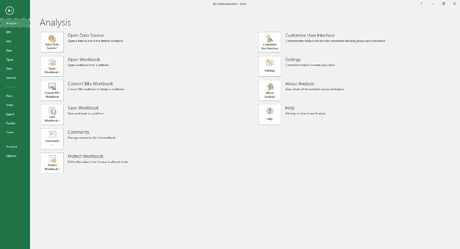
    Analysis Office Menu without MinorVersion
    Analysis Office Menu without MinorVersion
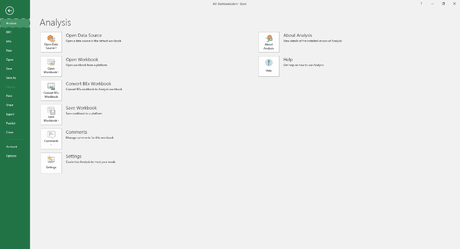
    Analysis Office Menu with MinorVersion
    Analysis Office Menu with MinorVersion


    As you can see the Customize User Interface is gone but also the Protect Workbook functionality. So you have to decide if you need the protection or not. At my first review
    I didn’t found other functions which are not available any more. I hope SAP will release parameters for the file system, so everybody can decide what the user can see and what not.

    author.


    I am Tobias, I write this blog since 2014, you can find me on twitter and youtube. If you want you can leave me a paypal coffee donation. You can also contact me directly if you want.

  • Analysis Office Insert Product Image

    In the comments of this blogpost on blogs.sap.com, Stephen Hobbs showed his idea of insert a product
    Image besides the crosstab in combination with the new Customize User Interface function. So I make my
    own thoughts how I can realize a thing like this.

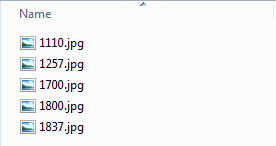
    My first thought was, where can I store the pictures and how can I get a product number and the picture together. The solution is very easy, I created a folder on my hard drive and put the
    pictures in it. The name of the pictures are the same like the product numbers.

    SAP Analysis for Office Crosstab without Product Images
    SAP Analysis for Office Crosstab without Product Images
    Windows Explorer Images of the products
    Windows Explorer Images of the products


    The next step is to write the corresponding VBA code, so that the pictures are insert into a cell. Open the Visual Basic Editor (ALT + F11) and
    insert a new module. After we have to define serveral variables.

    1
    2
    3
    4
    5
    6
    7
    8
    9
    Dim material As String
    Dim i As Integer
    Dim picturePath As String
    Dim rowMax As Long
    Dim picture As Object
    Dim t As Double
    Dim l As Double
    Dim w As Double
    Dim h As Double
    

    Now we have to find out, how many rows our crosstab has.

    1
    2
    'Number of rows
    rowMax = Range("SAPCrosstab1").Rows.Count
    

    Now we can add our pictures.

     1
     2
     3
     4
     5
     6
     7
     8
     9
    10
    11
    12
    13
    14
    15
    16
    17
    18
    19
    20
    21
    22
    23
    24
    25
    26
    27
    28
    For i = 5 To rowMax
    
      'Set height for each row
      Rows(i & ":" & i).RowHeight = 100
      'Material
      material = Sheet3.Cells(i, 3).Value
      'Define Picture Path
      picturePath = "U: 40 Analysis Office Workbookspics" & material & ".jpg" 
      
      Set picture = ActiveSheet.Pictures.Insert(picturePath)
      'Get size of the Picture Cell
      With Range("B" & i & ":" & "B" & i)
        t = .Top
        l = .Left
        w = .Offset(0, .Columns.Count).Left - .Left
        h = .Offset(.Rows.Count, 0).Top - .Top
      End With
    
      'Format Picture into the right size
      With picture
        .Top = t
        .Left = l
        .Width = w
        .Height = h
      End With
      Set p = Nothing
    
    Next
    

    The pictures are added on the left side of the crosstab. If you want to add your pictures automatically you can use the callback AfterRedisplay.

    SAP Analysis for Office Crosstab with Product Images
    SAP Analysis for Office Crosstab with Product Images

    It is just an example what you can do. So If you have any suggestions for other examples, post them into the comments.

    author.


    I am Tobias, I write this blog since 2014, you can find me on twitter and youtube. If you want you can leave me a paypal coffee donation. You can also contact me directly if you want.

  • Analysis Office 2.4 Table Design features

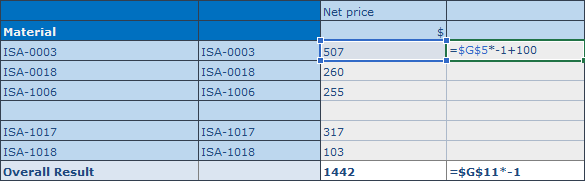
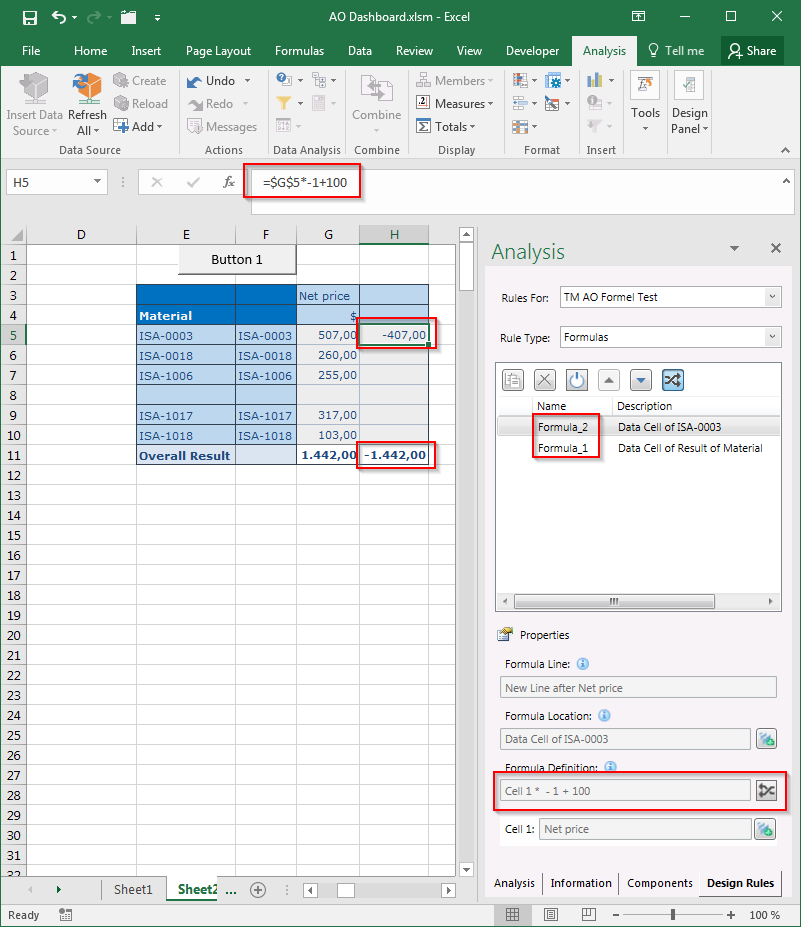
    In Analysis for Office 2.4 SAP improved the Table Design Editor. You can now create and edit formulas. In an
    earlier post, I described how to work with Excel formulas in a crosstab. You can add a new column with the table design functionality.

    SAP Analysis for Office with Excel formula
    SAP Analysis for Office with Excel formula

    As you can see in the screenshot above, I wrote a simple formula in the new column. If you have now installed Analysis for Office
    2.4, you can see in the design rules tab of the design Panel the rule type formulas. If you select this rule type, you can see how many formulas are in your crosstab and you can
    edit them directly from here.

    SAP Analysis for Office Design Rules tab
    SAP Analysis for Office Design Rules tab

    When you select a formula, the formula Definition is directly displayed in the properties area. You also see the Location and the corresponding cell. The button with the two arrows allows you to
    show or hide your formulas in the crosstab. It is the same function like the Excel function Show Formulas. It seems like a nice feature, but I don’t know if you really need it,
    because you can do the same in the Excel formula bar. Or does anybody need this feature?

    author.


    I am Tobias, I write this blog since 2014, you can find me on twitter and youtube. If you want you can leave me a paypal coffee donation. You can also contact me directly if you want.